
Find a change in History
History lets you find project changes made in the editor, by the AI chat or by a connected assistant. It helps you understand what happened before undoing anything.
Could not play. Try the video controls.
1. Open History
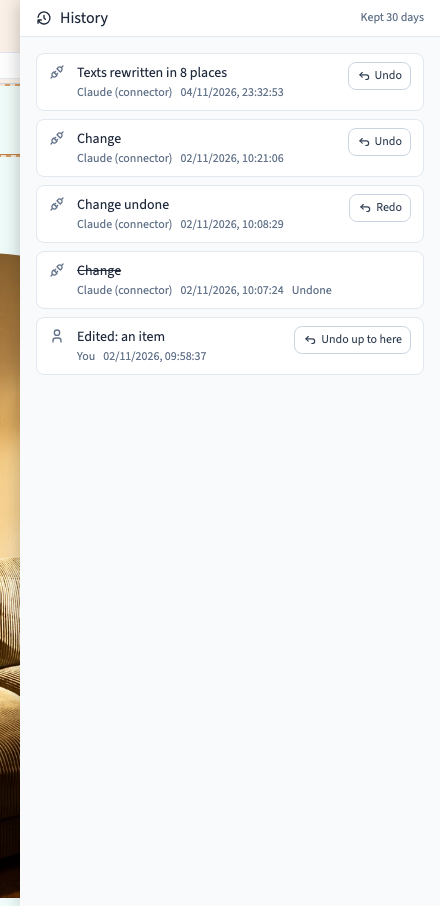
Click History, near Undo and Redo in the top bar. The panel lists changes from newest to oldest. Wait for it to load: an empty list and a connection error do not mean the same thing.
2. Read an entry
Identify the action, target, date and author. The origin helps distinguish an editor action from an AI chat or connector action. Do not choose an entry just because it is the newest: someone else may be working on the same project.
3. Choose the scope of the undo
When available, Undo targets that entry. Undo up to here reverses several changes: the chosen entry and the later entries in your undo stack. This has a broader effect. Read the target and affected changes before using it. A crossed-out entry has already been undone; the panel also distinguishes restorations.
4. Understand an unavailable command
A visible entry is not necessarily undoable in your context. If a command is missing or disabled, do not assume nothing happened. If a conflict appears, compare the versions shown: keeping the current state and forcing an undo have different consequences. The conflict guide explains this separately.
5. Browse and check
Use the controls for older or newer entries when available. The list is paginated; an entry missing from the first page may be on another page. The panel indicates 30 days of retention. History is therefore not a permanent project backup.
After undoing, check the relevant page, language and element. Save the state you want. To make it public, publish the correct version afterwards.