Compare versions before undoing a shared change
Undoing should not silently erase work that someone else or an assistant did afterwards. If the same information has changed since your edit, History may refuse the undo and show the difference.
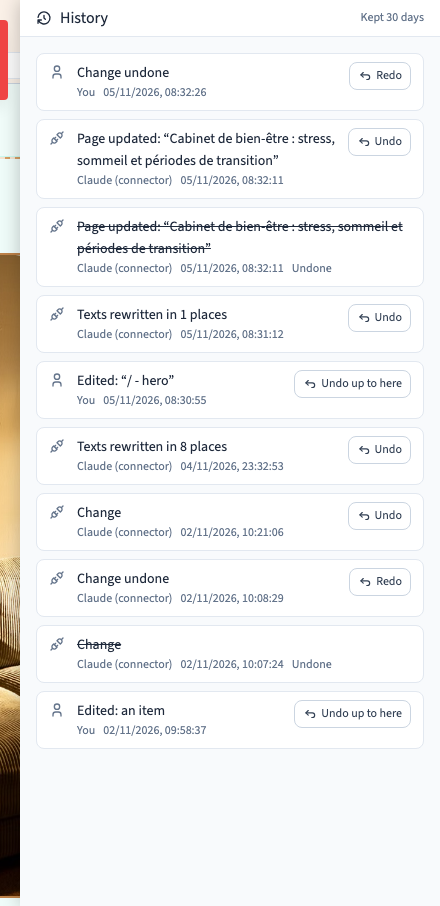
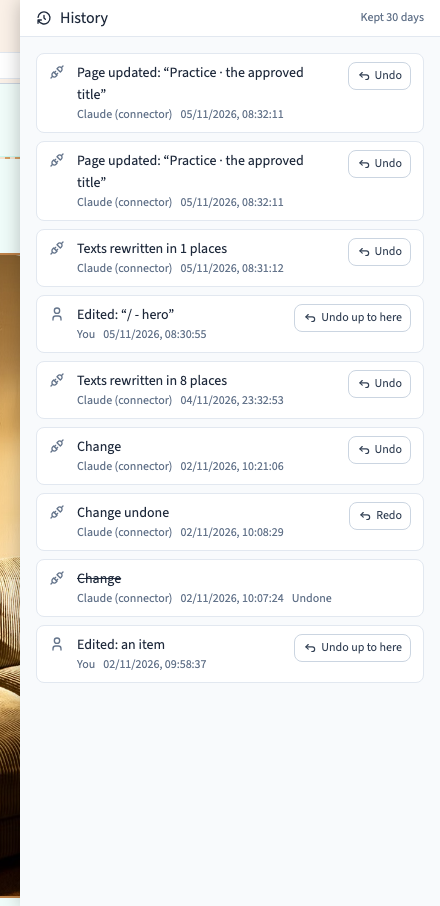
For example, two successive changes may update a page title through a connected assistant. Undoing the first then encounters the value written by the second.
Could not play. Try the video controls.
1. Recognise the refusal
Open History, find the change and request an undo. If the same field has changed since then, a message explains that someone else has modified it.
This refusal protects the current value. It does not mean the project is lost or your connection has failed. Do not repeatedly click Undo; compare the versions first.
Undo up to here follows your undo stack. For an entry outside that stack, Undo targets only that entry. Read the button label and help before using it.
2. Compare the three values
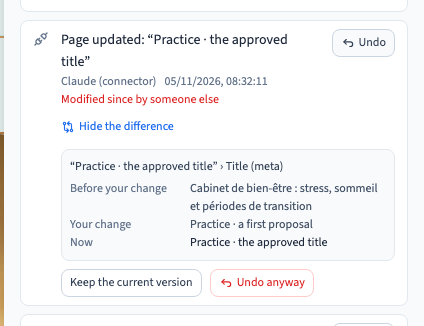
The difference opens on the conflicting fields. Use Hide difference to collapse it and View difference to open it again.
| Value shown | What it represents |
|---|---|
| Before your change | The value before the entry you want to undo |
| Your change | The value written by that entry |
| Now | The current value, after subsequent changes |
For example, a title started as “Practice”. A first suggestion changed it to “Practice · a first proposal”. A later change set it to “Practice · the approved title”. Undoing the first suggestion without comparing could remove the approved title.
Compare every field shown, not just the first row. Ask your team which version should remain if you do not have enough context.
3. Keep the current version
Choose Keep the current version when the present result should stay. This closes the conflict without applying the requested undo. Your current content remains saved.
Use this choice if the latest change was approved or you simply want to continue editing from its result.
4. Undo anyway
Choose Undo anyway only after checking the values. It restores the values from before the targeted change for the affected fields. It may therefore replace values written afterwards.
This button does not automatically keep “the version you prefer”. To combine several versions, keep the current value and then edit it yourself using the builder controls.
The undo is added to History and can itself be undone. Restore lets you recover the change when the offered entry corresponds to an undo.
5. Check the result
After making your choice, review the field and the page preview. If you undo a search-engine title change, also check the page settings: the large heading visible on the site may be different text.
Reload to check the saved value. Review other affected elements and let your team know if you replaced a shared change. Undoing in the builder does not automatically republish the public site.