
Choose between Easy and Expert
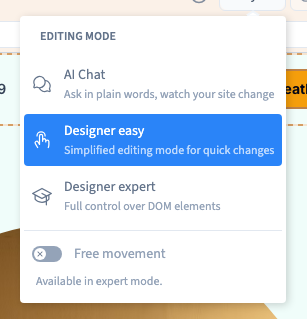
Easy is suited to your first content changes. Expert gives you more visual controls and access to the structure of elements. Switching to Expert does not require you to write code.
Could not play. Try the video controls.
1. Open the mode selector
In the top bar, click the current mode name, Easy or Expert. Choose the mode you need. This changes how you work in the editor; it does not create a separate version of the site for visitors.
2. Start in Easy
Select text, then click it a second time to type. Replace example information and images. Finish typing before selecting another command. The available options depend on the selected target: a photo, heading and section have different controls.
3. Switch to Expert for a specific setting
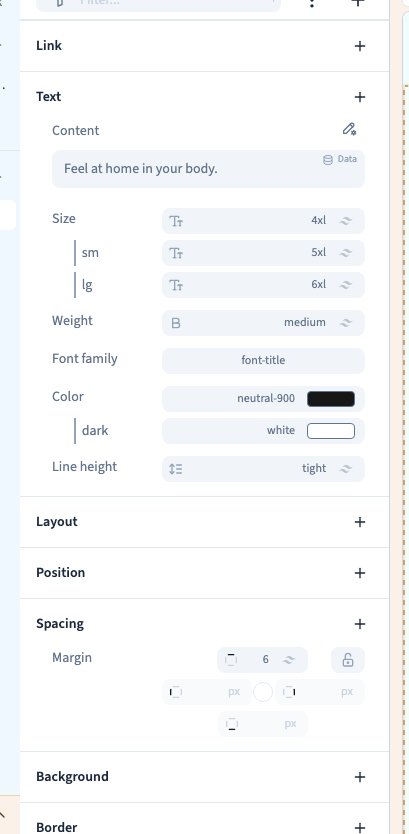
Choose Expert, then select the element again. Depending on the target, the panel groups provide text, layout, spacing, colour and behaviour settings. To change a font, use Font in the Text group. To adapt a layout, use the container controls and screen rules.
4. Understand a missing option
First check your selection. Grid settings belong to the container; font settings belong to the text. Also check the panel's search and filters. A control missing in Easy may be available among Expert's visual settings. However, not every control is relevant to every element.
5. Return to Easy
Open the same menu and choose Easy. Your content and style changes are kept. Continue editing, then save. The mode is a working preference, so check its name before following another demonstration.
For developers The builder also offers access to code. This is optional. The demonstrations in this guide use visual controls only.