
Find your way around the builder
The builder is where you prepare your site. The central preview shows the page; the panels around it let you choose what to change. You do not need to understand every setting on your first visit.
Could not play. Try the video controls.
1. Check the project and page
Open the project you want from Your projects, then Design. In Pages, choose the page to work on. Before editing text, check both the page and the content language. In the demonstration, we start on Home.
2. Recognise the main areas
Design controls page presentation. Data is for structured CMS content. Site brings together site settings. Installed applications have their own entries in the top bar. Within Design, Pages, Theme and Layers serve different purposes: opening a page, setting the shared appearance and finding a particular element.
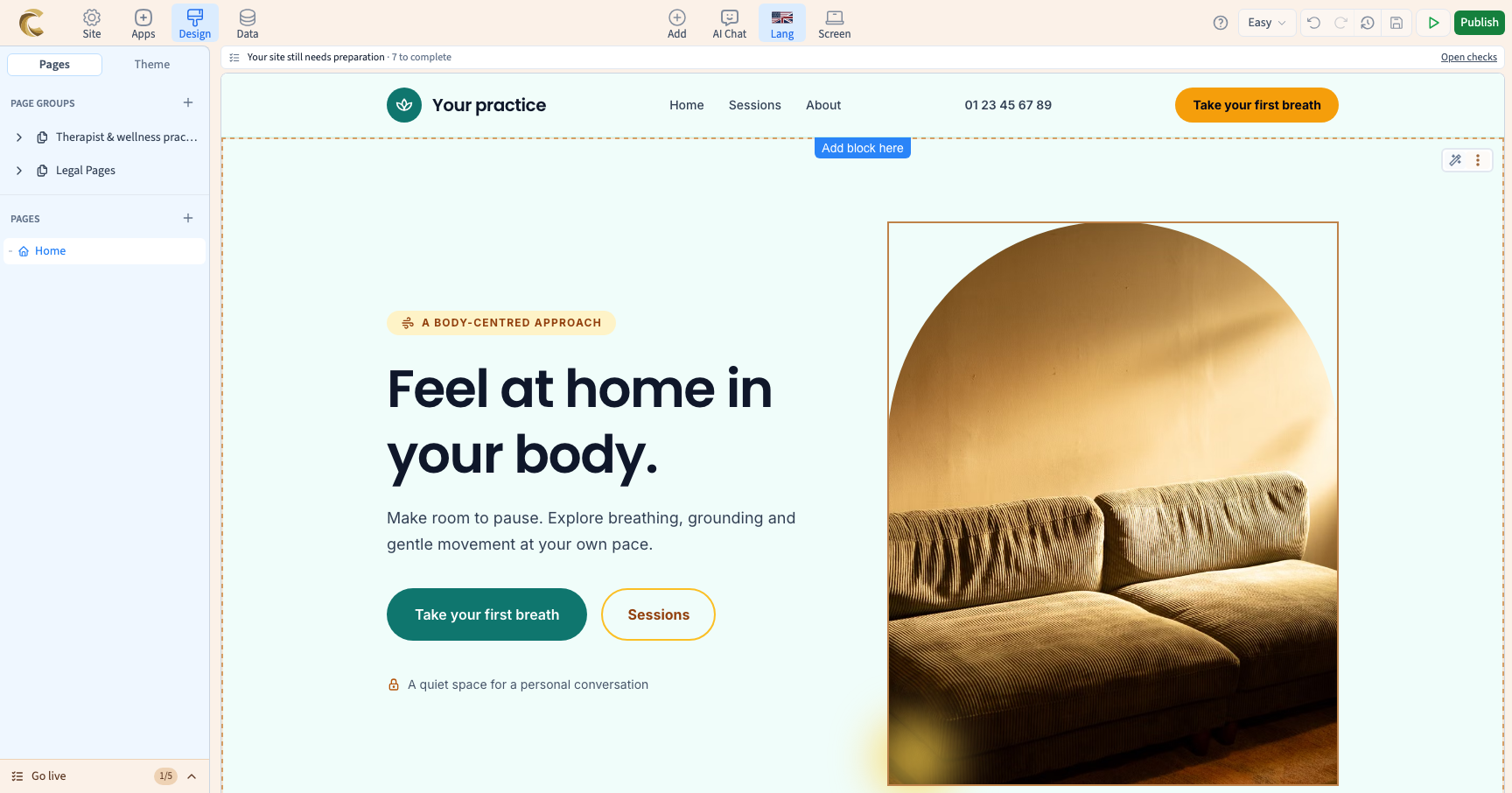
3. Select what you want to change
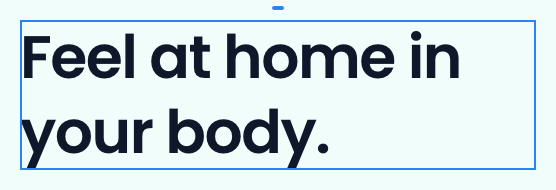
Click text or an image in the preview. The selection outline helps you identify the target. In Expert mode, the panel shows settings for that element. If the panel does not match what you intended, select the target again or use Layers. A container and the text inside it do not have the same controls.
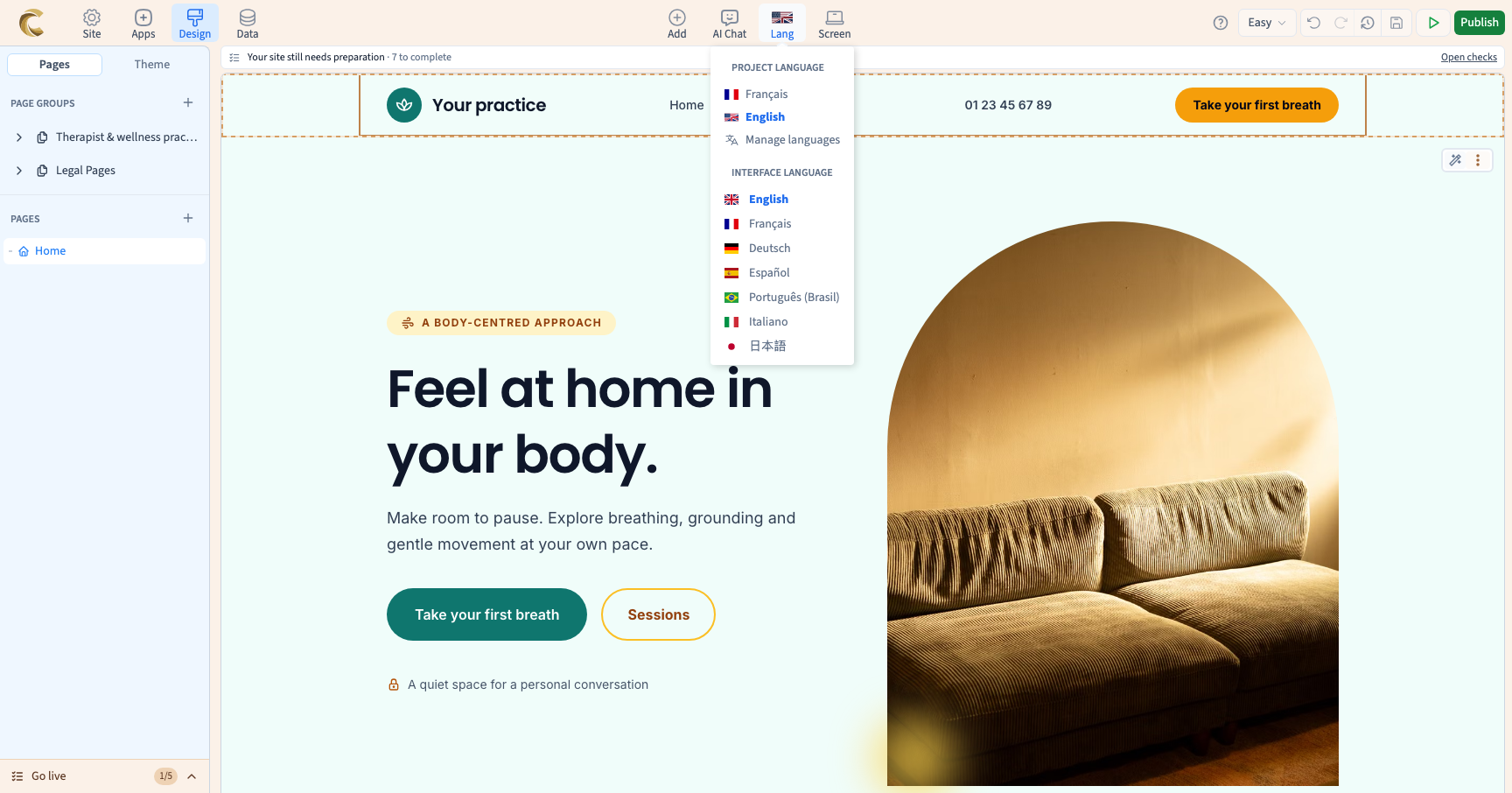
4. Distinguish the two languages
Open Language. The interface language translates the builder's controls. The content language selects the version of the site you are working on. Changing the first does not automatically translate your pages.
5. See the result as a visitor
Open Screen to choose a width or display several frames. Use the preview to test links and interactions: while editing, a click is primarily used to select an element. Saving keeps your work; publishing makes a version available to visitors.