
Personalise a component instance
An instance is one use of a component. Its properties let you change content while preserving the shared model's design. Two cards can therefore share a layout and still have different titles or durations.
1. Select the instance
Select the whole component in the page or Layers. Its panel shows the model's name and the properties prepared by its author. Clicking an internal text while editing the model is a different operation; leave model editing to personalise one instance.
If a desired field is absent, the component's author must expose and connect it. Do not rebuild the design just to change a word that should be a property.
2. Change text and numbers
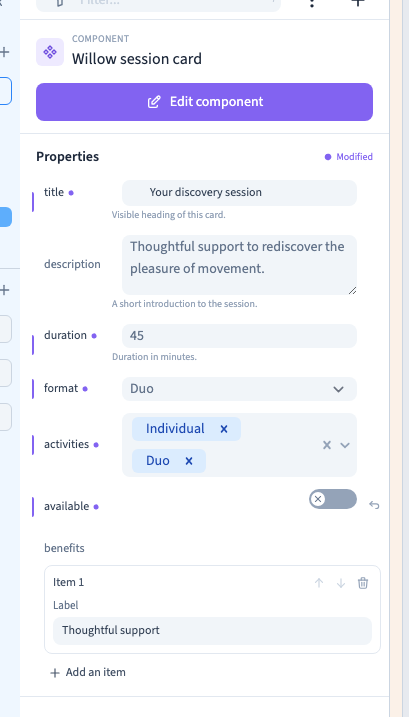
Enter the instance's title or description and set its numeric values. The example changes one card to Your discovery session and a duration of 45 minutes. Its neighbour keeps the original content.
A property affects the rendered page only when the model uses it. A field named duration does not automatically set booking availability or schedule a session.
Could not play. Try the video controls.
3. Use choices and switches
For a single selection, choose one of the prepared options. For multiple selection, enable each applicable answer. The demonstration selects Individual and Duo together and verifies both values are saved.
A switch enables or disables the instance value. Its effect depends on how the model connects it, for example to a visibility condition. Labels and option colours help editing but do not themselves define page styling.
4. Edit a structured list
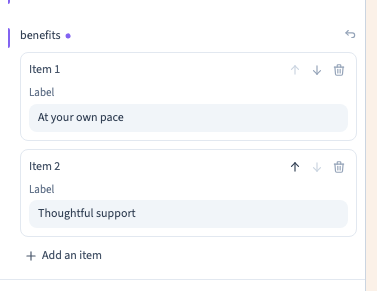
Use Add an item to create a list entry, fill its fields, use the arrows to reorder and the bin to remove it. Each entry has its own values.
The demonstration adds a second benefit, moves it and removes it before resetting the remaining edited list. The model must have a loop and field bindings for these entries to appear as repeated page content.
5. Reset a property
Use the reset command beside a customised field to recover its inherited value. With a selected variant, this means that variant's value when supplied; otherwise it comes from the base model.
Resetting the list restores its default items. It does not remove the component, change every instance or automatically select the default variant. To recover the base content entirely, choose the default variant and reset any remaining local values.
6. Save and verify
Save, reload and reopen the same instance. Check the changed title, numbers and selections, and compare another instance and another page using the model.
Inspect staging on desktop and phone. Check long text, empty fields and the effects of switches and list values where connected. Editing one instance should not silently rewrite its neighbours.

Continue
Prepare the available properties · Understand model and variant changes