
Edit a shared component and its variants
A component is a common model used in several places. Changing its design can update instances on other pages too. A variant supplies reusable content values; a local personalisation affects one instance.
The example uses two Willow cards on one page and a third on another.
1. Choose the scope of the change
Use Edit component for the common design, a variant for a reusable set of content values, and an instance's properties for one card.
A variant is not a separate design model. An instance's personal values do not detach it from the shared design either.
2. Edit the common model
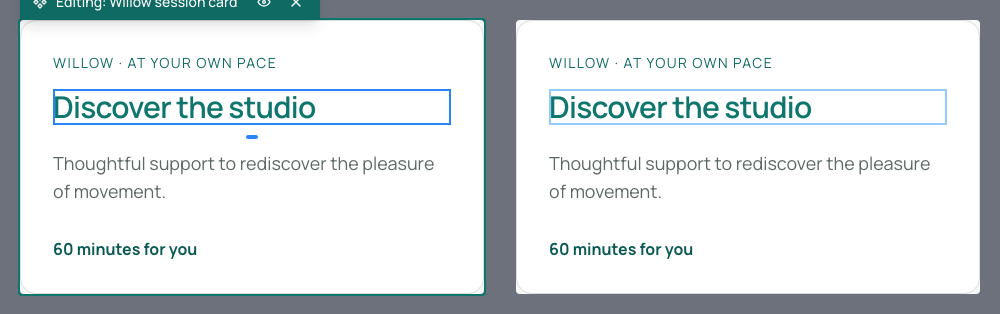
In Expert, select an instance and choose Edit component. Select the model's heading, open its colour setting and choose a theme shade.
Both card headings change together while their words remain. The verification also checks the other page. Save, then use Escape to leave model editing and select an instance again for its own properties.
Could not play. Try the video controls.
3. Create a variant
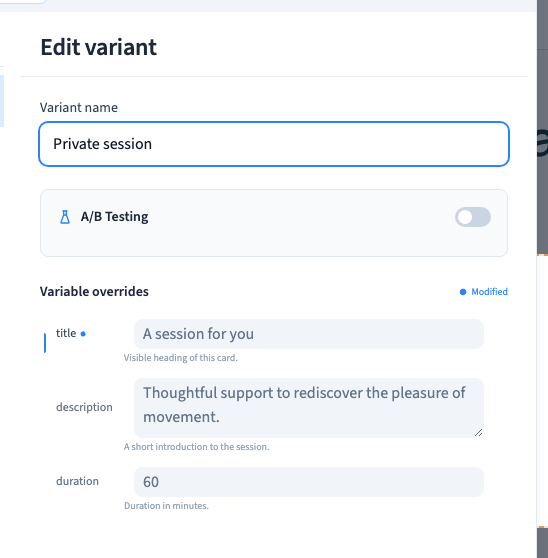
From Edit component, choose Add property to open the model window, then Variants > Add a variant. Give it a clear name and change the desired property values.
The demonstration creates Discovery session, sets title to A session for you, then renames the variant Private session. If the model has no exposed properties, prepare them first; an empty variant cannot supply a different card's content by itself.
The default entry reads the model's base values. A variant replaces the properties you customise in its editor.
Could not play. Try the video controls.

4. Choose and rename a variant
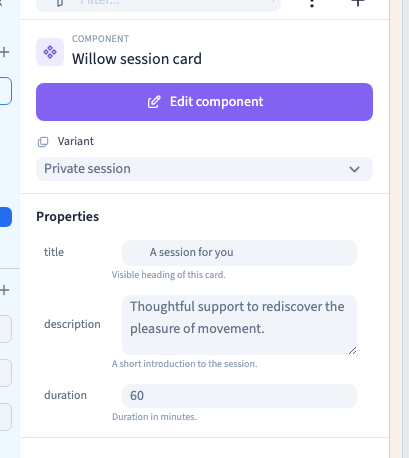
Edit Variant name to rename it. Close the window, leave model editing and select the intended instance. Choose Private session in its variant list.
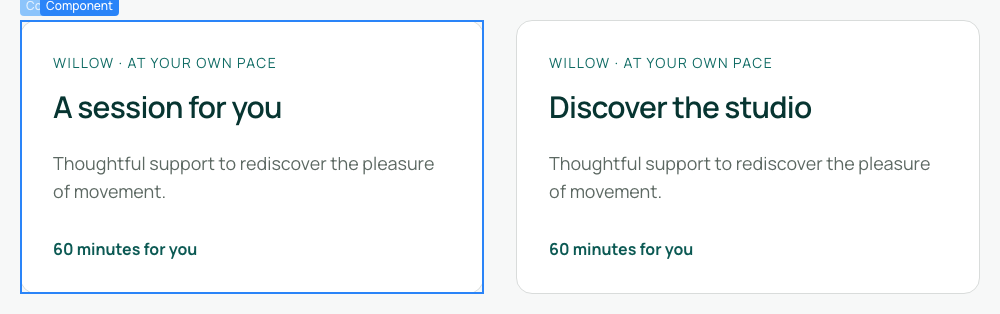
That card changes, while the second card and the other page retain their default content. Save and reload to check the name, values and selection. Renaming does not require rebuilding every use.
5. Understand personalisation priority
A local instance value takes priority over its variant. The example temporarily enters Your private session on the first card, then resets the title to recover A session for you from the selected variant.
The order is base model, then variant, then local instance value. Resetting one field does not automatically select the default variant. To recover all base content, choose the default and reset any remaining customised fields.
6. Delete a variant deliberately
Reopen Variants, hover over the variant and choose its delete command. Review the confirmation. Cancel keeps it; confirm only when you have checked its existing uses.
Deleting the variant does not delete the component or its cards. Save, reload and inspect instances that previously selected it, including their replacement values. The verification deletes only its own demonstration variant and checks the fallback to the base title.
7. Verify the affected pages
Check a default instance, one with a variant and one with local values. Inspect another page using the model. Check text, colours, links and layout in staging on desktop and phone before publishing.
The editor also offers A/B Testing, a separate workflow for distributing variants between visitors. It is not required to select a variant manually on an instance.