
Export collection data
An export gives you a separate file of collection data. It is useful for checks and exchanges with another tool. It is not a complete backup of a site's pages, theme, uploaded binaries and connections.
1. Choose the collection
Open Data > Collection and select the collection you want to export. Check its name before choosing Export. Review the export dialogue and any selection options it provides.
Search and table filters define the records included in a filtered export. Check the displayed count and a few records first. The number of rows shown per table page does not limit the export to that page. Clear the search and filters to export the complete collection.
2. Choose a format and download
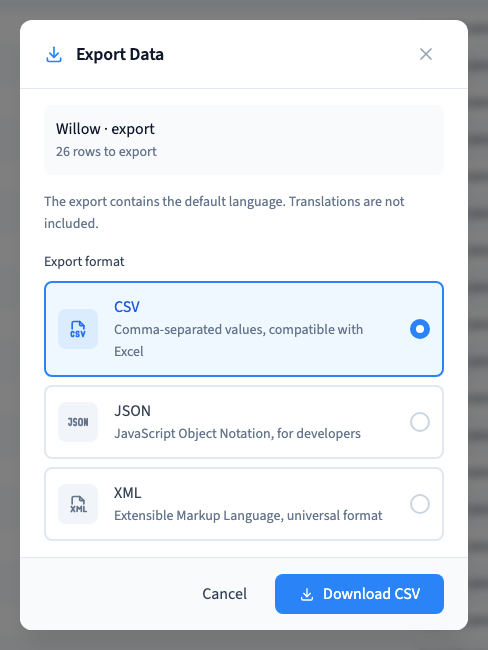
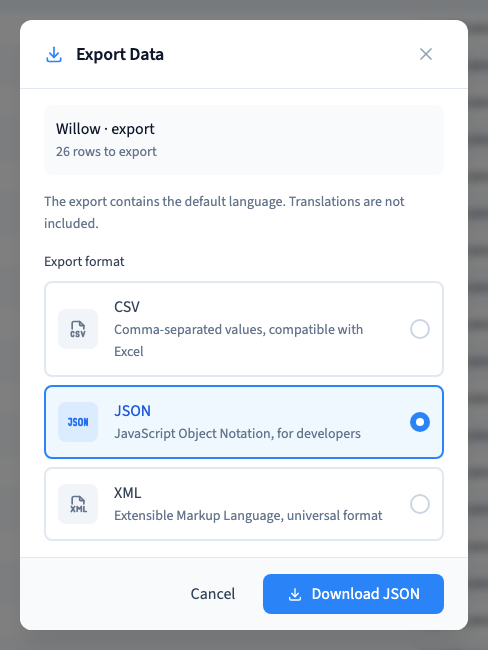
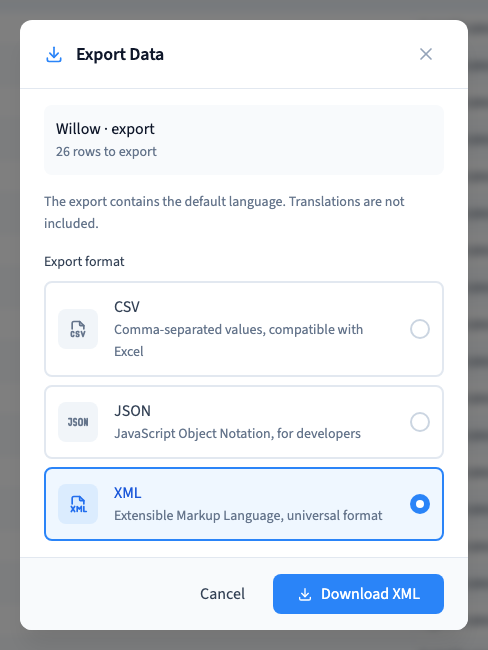
Use CSV for a spreadsheet or a tabular exchange. Use JSON when preserving a structured data representation matters. XML is available for systems that expect it. Choose the format, then its Download command.
The demonstration downloads all three formats for eight matching studio entries, then clears the search and downloads all 26 records in each format. Each file is checked for included and excluded titles; the JSON record counts are also verified.
Could not play. Try the video controls.
3. Understand files and relations
An attachment field stores a reference to a media asset; an export is not a download of every original file. A relation identifies another record; exporting one collection does not automatically recreate the related collection and its connections in another system.
Plan a separate transfer of assets and related data when migrating content.
4. Inspect values and languages
Open the file with a suitable tool. Check titles, accents, quotes, line breaks, dates, zero and false values. For CSV, choose the correct separator and encoding when importing into a spreadsheet.
Exports contain the default-language content; translations are not included. Changing the interface language does not create a multilingual backup. Structured CSV values may be represented as JSON text. Keep the original download unchanged while experimenting with its import elsewhere.