
Search, filter and sort collection records
Use the table tools to work on the right records without changing the collection's underlying structure.
1. Search for a word
Enter a known word in Search.... Check the matching records, then clear the search. Search uses the fields included in the collection's index; it does not necessarily inspect every stored value.
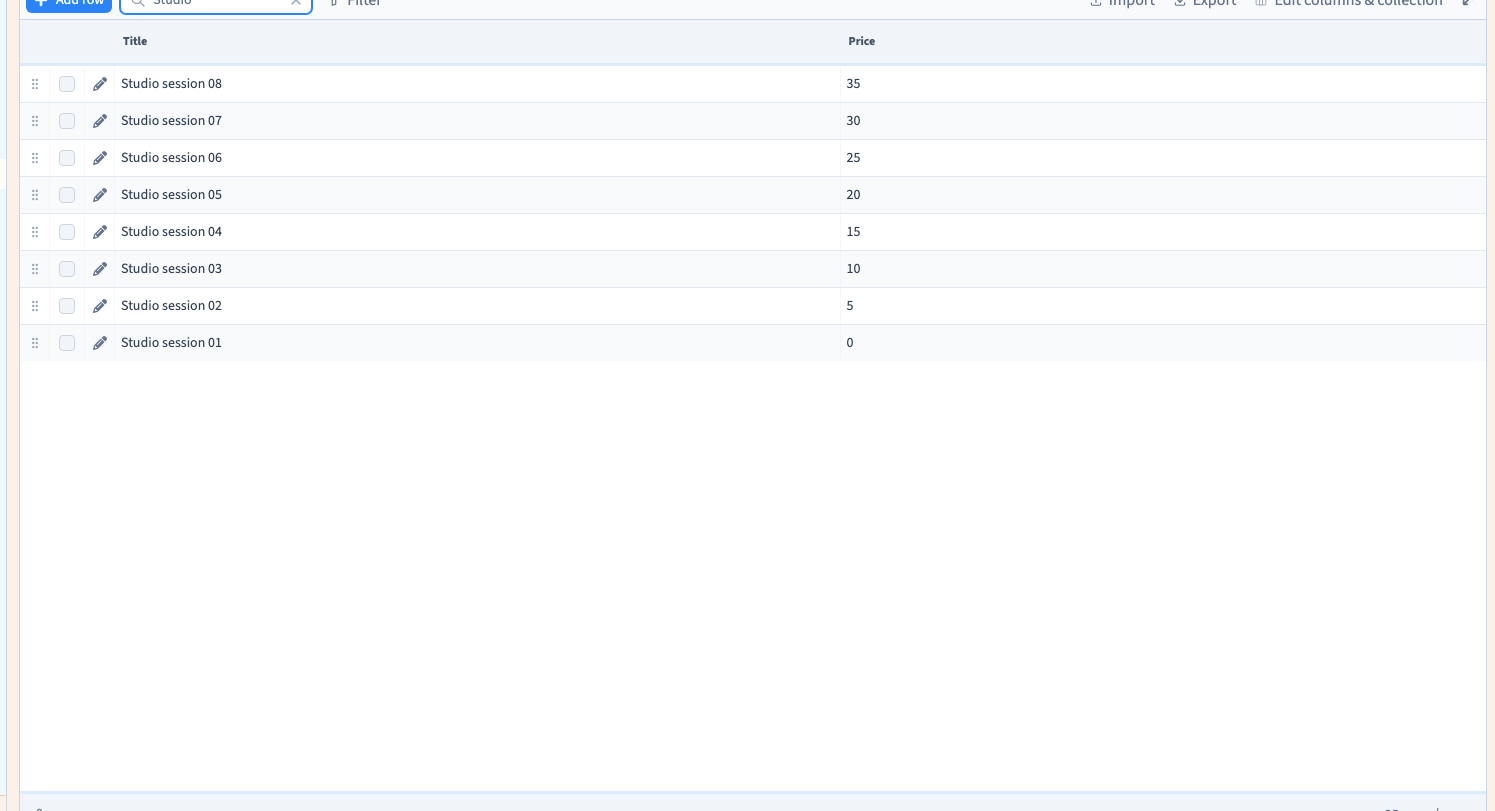
2. Add an explicit condition
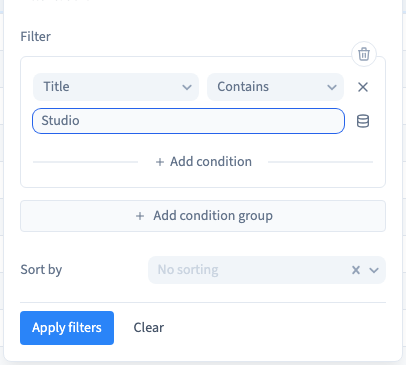
Choose Filter, add a condition group, select a field and choose a suitable comparison. For example, Title Contains Studio keeps journal entries whose title includes that word. Enter the value and choose Apply filters.
Could not play. Try the video controls.
3. Combine criteria carefully
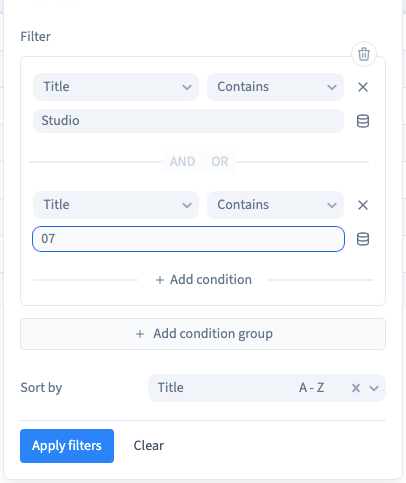
Use the group's condition controls when you need several criteria. Check whether the chosen group combines them with AND or OR. AND requires all conditions to match; OR allows a match to any of them. Test with records you know should be included and excluded.
A filter changes which records the table displays. It does not delete the other records.
4. Choose order and page size
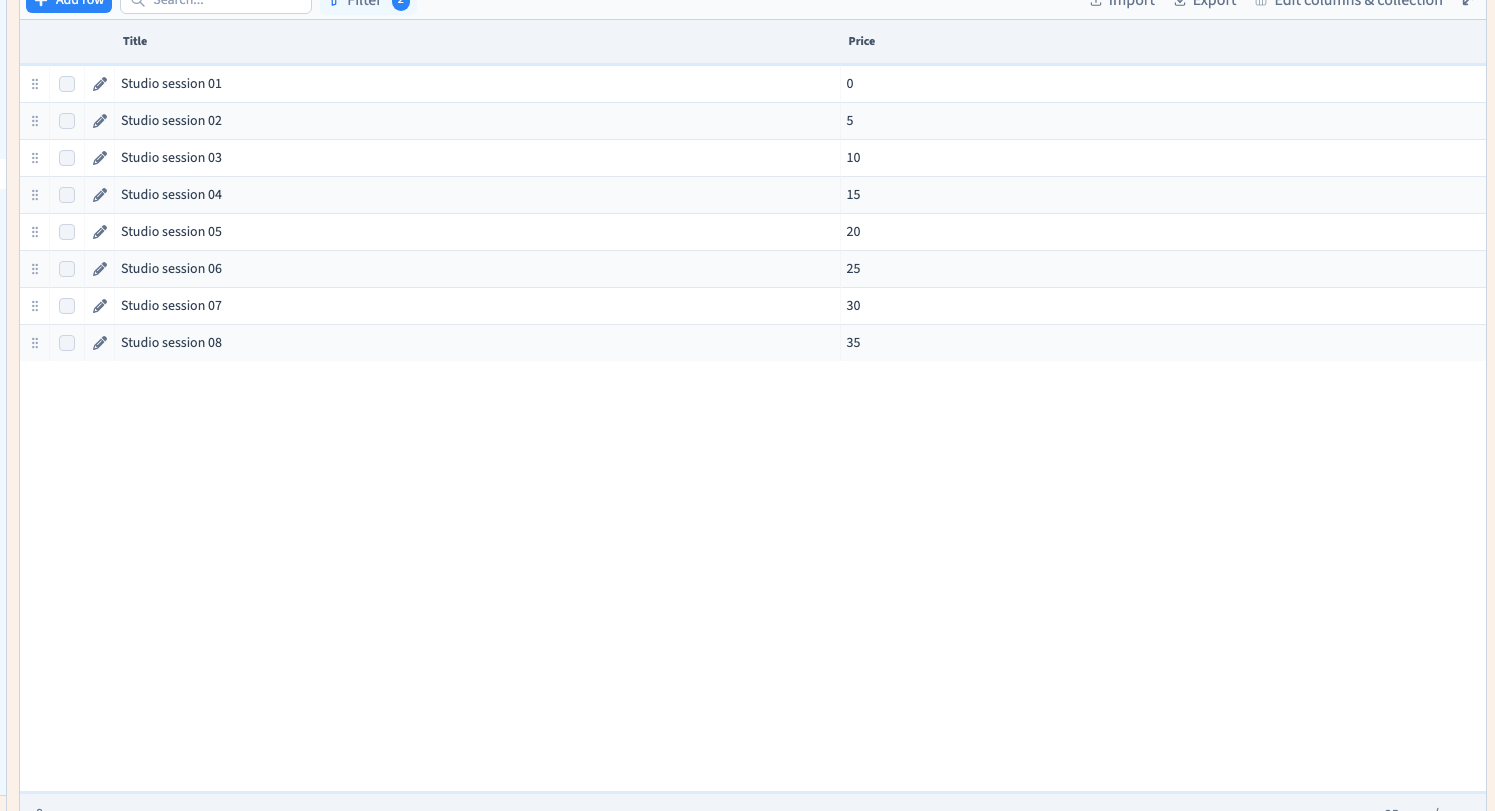
Use the sorting control to choose a field and direction. Title A - Z gives an alphabetical order. Set the number of rows per page at the bottom of the table; use pagination when the result spans several pages.
The example checks alphabetical order and selects ten records per table page.

5. Return to all records
Reopen Filter and choose Clear. Clear any separate text search as well. Check that the complete collection is available again before assuming an item is missing.