
Check which workflow conditions are available
1. Check the workflow menu
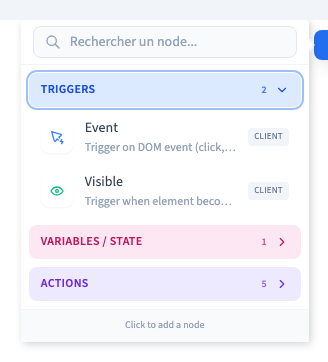
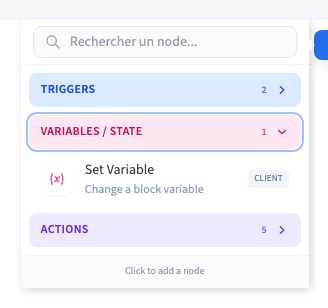
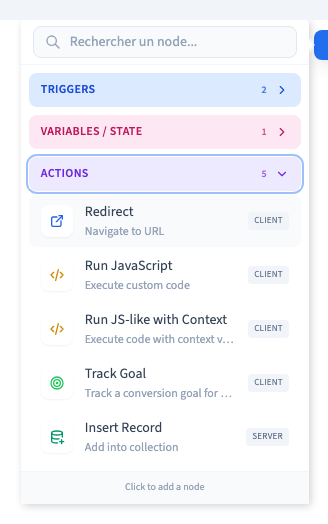
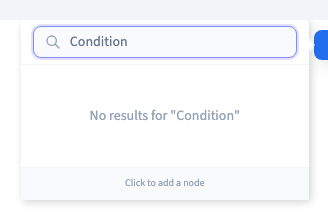
Open an element’s workflow and choose Add node. You can inspect the available Triggers, Variables / State and Actions. Search for the node you want to use. The example shows what appears when you search for Condition.
Could not play. Try the video controls.
2. Plan around the available steps
The current visual workflow menu does not offer Validation, Transform, Filter, Condition or Router. Those technical declarations correspond to checking values, transforming data, selecting matching data, taking a true or false path, and routing to multiple outputs. Check the actual menu before designing a workflow around any of those steps.
See also Workflow nodes and their availability.
3. Use settings for display and required fields
A CMS display condition controls whether a piece of a page is visible. A form field’s Required setting makes visitors fill that field before the final submission. Configure each behaviour on the element it applies to.
4. Verify the outcome with test data
Write down the expected outcome and what should happen with an empty or invalid value. Use a command available in the builder, save the setup, and test the result on the published site.