
Save a form response to a collection with DB Insert
1. Prepare the form and collection
Create the collection and the columns you need. In this example, Willow workshop notes has a Note column. The form has a text field named note. The mapping uses that stable name. Use fictitious data and check the collection’s permissions. For a simple form that only needs to save in the CMS, the native Collection (CMS) form destination may be sufficient.
2. Use the form submission event
Select the form in Design > Expert, open its workflow from Events and choose Form Submit. The submit event follows the form’s validation. Avoid configuring both a native CMS destination and a second insert for the same operation unless you intend two copies.
3. Map the source to the destination column
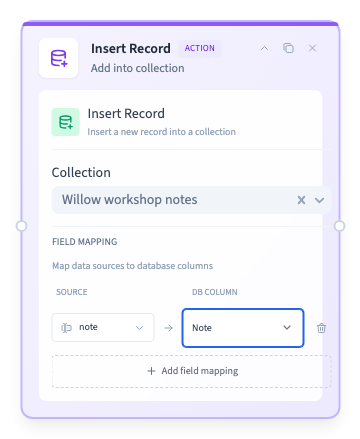
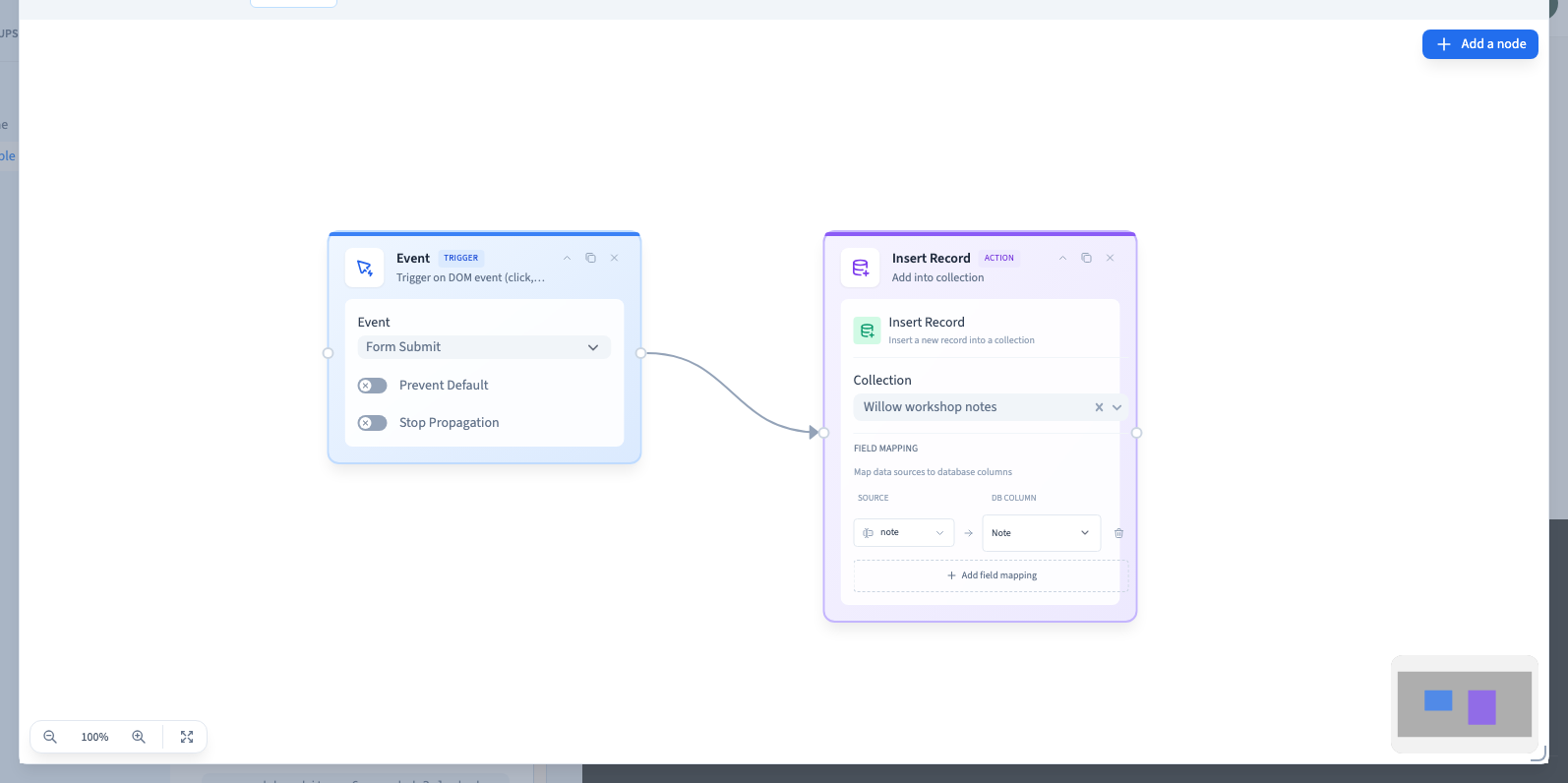
Choose Add node > Actions > DB Insert. The card is titled Insert Record. Select the collection, click Add field mapping, choose the source field note and select Note as the database column. Join the submit trigger’s output to the card’s input, close the graph and save.
Could not play. Try the video controls.
4. Use another source or a transformation when needed
Add one mapping for each column. Use Fixed for a fixed origin such as Website. The source picker can also offer block variables. A visitor can influence values from the browser, so keep permissions and trusted calculations on the server.
The transform menu can keep the value, trim spaces, change the case, or convert to number, string or boolean. Test invalid input as well as valid input. For example, a numeric column should not receive a word such as two. A nonempty string such as false converts to true with a truthiness conversion. Use a suitable field for a yes or no answer.
5. Verify that one submission creates one row
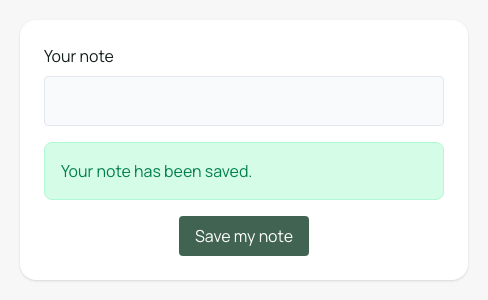
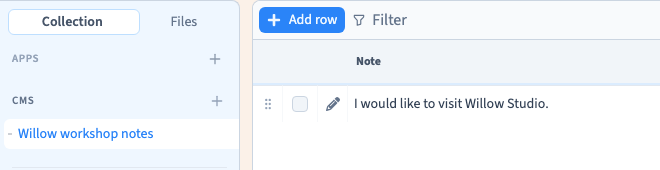
Publish to a private preview. Enter a recognizable note and submit once. Open the collection and check that exactly one new row contains the expected value. If it is missing, check the trigger, connection, source name, target type and collection permissions. After changing the mapping, publish again and test with a different note.
Could not play. Try the video controls.
Could not play. Try the video controls.
See also Build your first visual workflow.