
Start a workflow from a click or visibility
1. Choose a gesture
Select the element in Design, add an event, and open its workflow. Click is suitable for a visitor decision. Mouse hover depends on a pointer, and forms and inputs have their own events. Check which events the actual element offers.
2. Set a visibility threshold
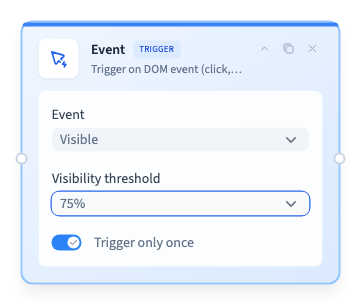
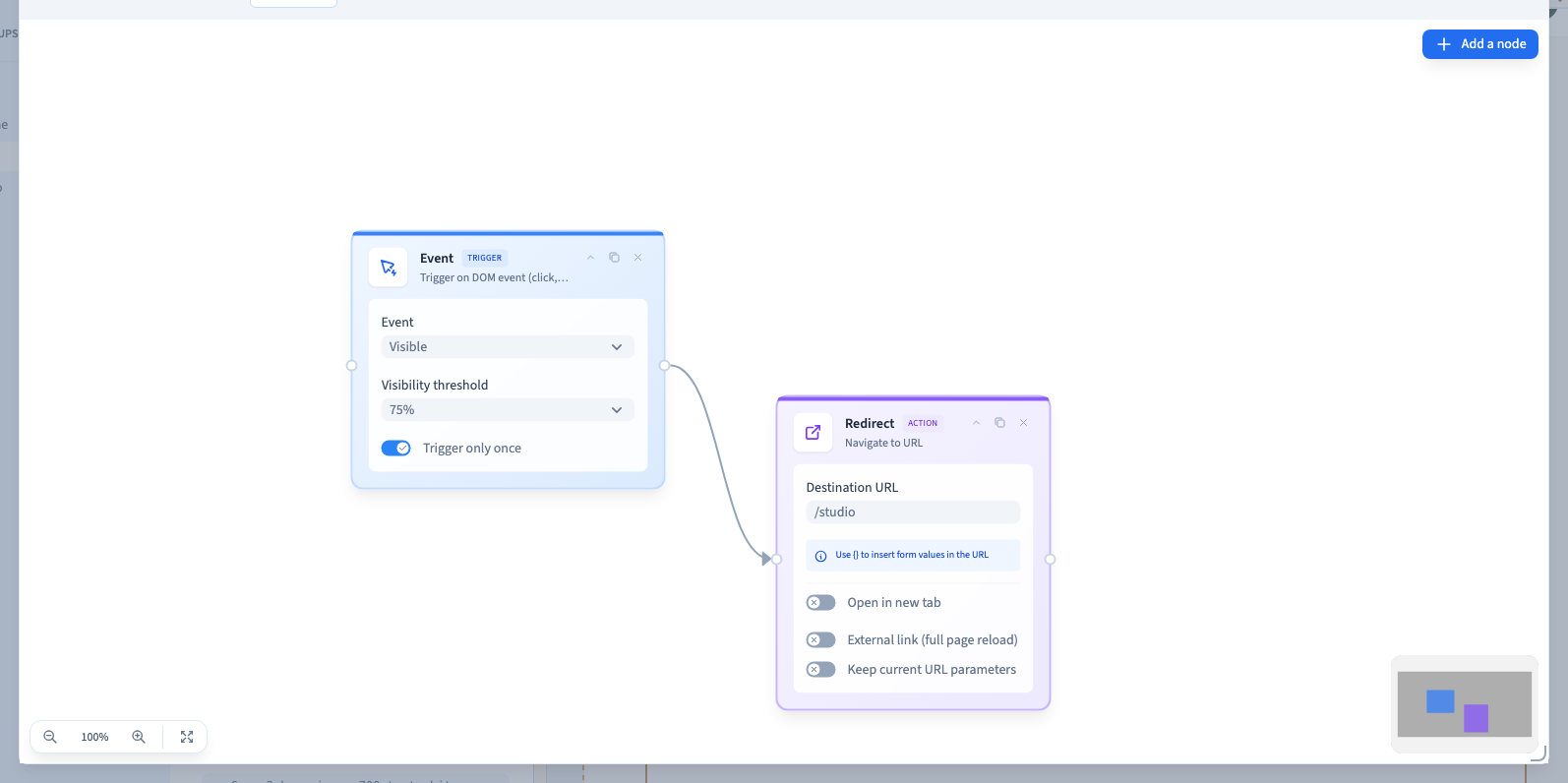
Choose Visible when the action should run as an element enters the viewport. Choose 25%, 50%, 75% or 100%. The percentage refers to the part of that element visible in the viewport. For tall elements, a full 100% may be difficult to reach on a small screen.
Could not play. Try the video controls.
3. Control repetition
Use Trigger only once when repeated entrances into view should not repeat the action during the current page visit. Reloading starts a new visit. Prefer a click if the visitor needs to decide whether to navigate. The redirect in the example makes the trigger easy to see during testing.
4. Verify the actual threshold
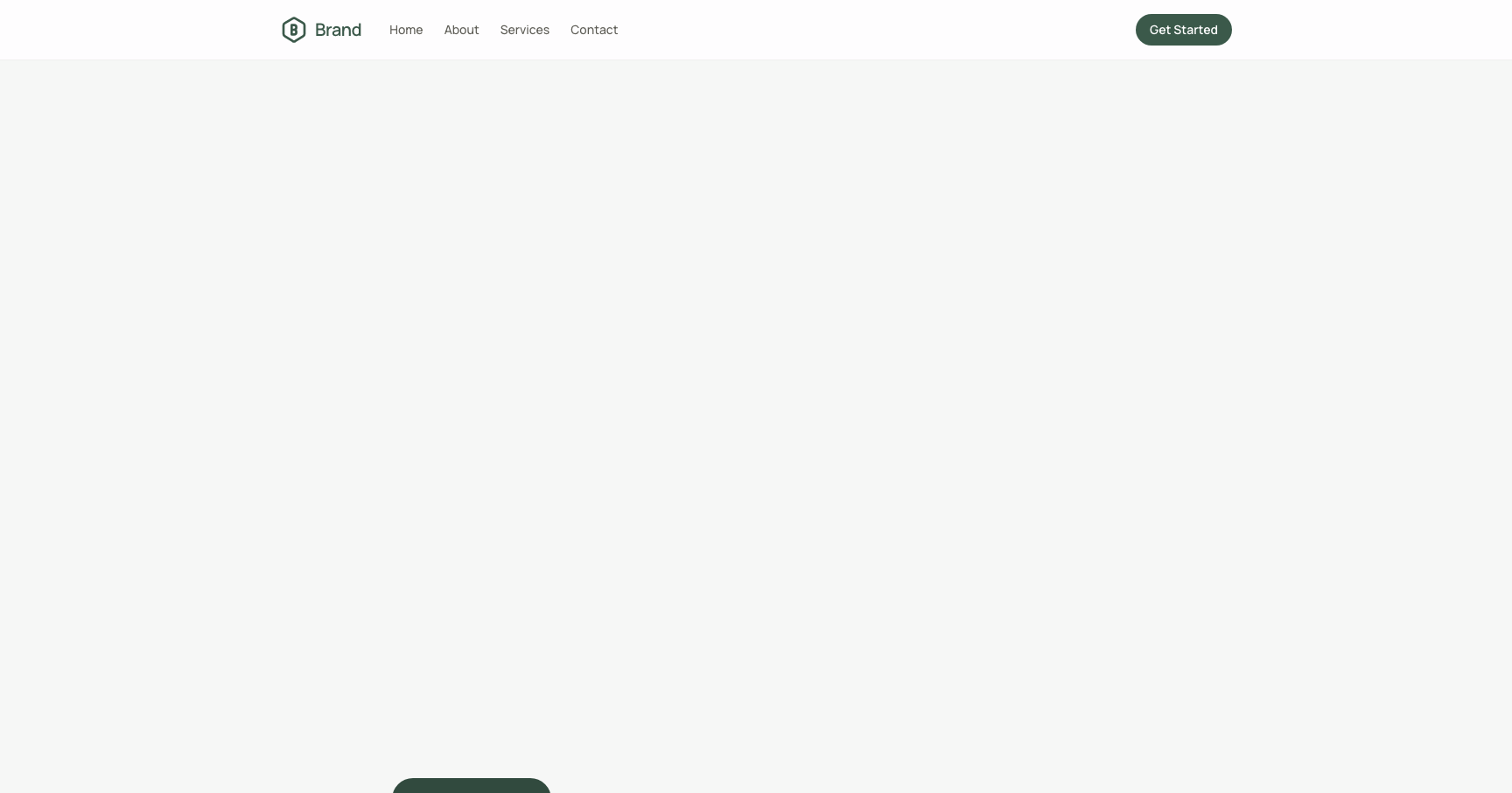
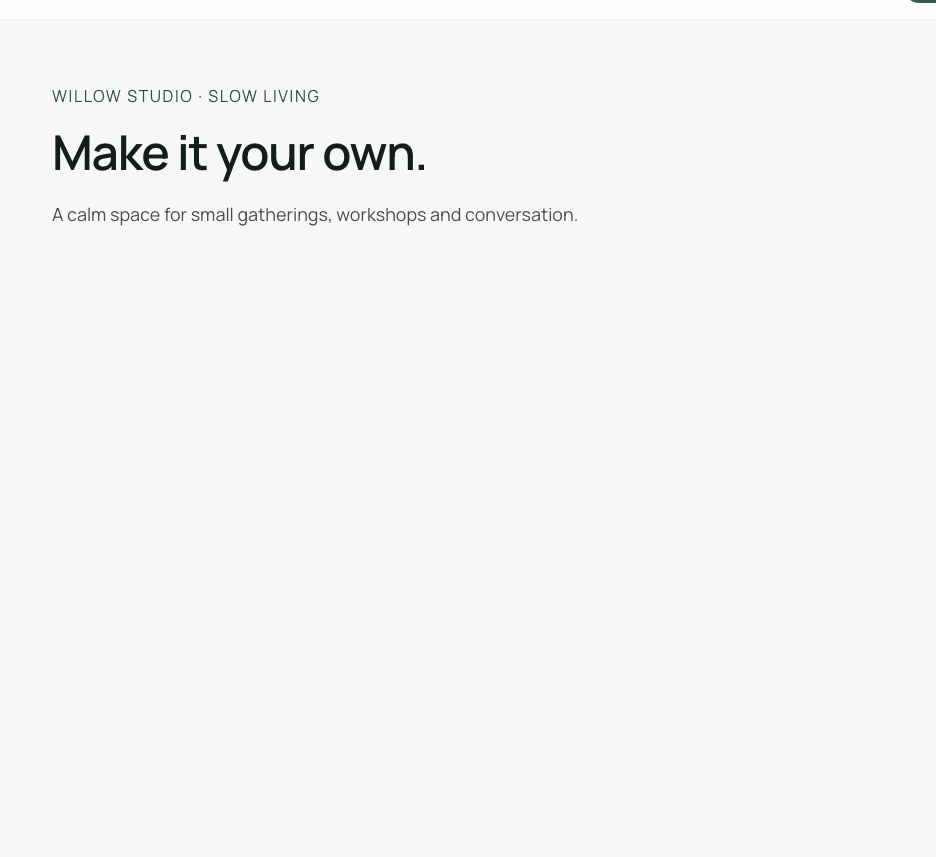
Connect the trigger to an action, save and publish. Start with the target out of view. The Willow example keeps the visitor on the page when about 35% of the button is visible, then redirects when the visible part passes 75%. Try the test at the widths your visitors use.
Could not play. Try the video controls.
See also Workflow nodes and their availability.