Configure single and multiple choices
A choice field keeps repeated answers consistent. Editors select prepared options instead of typing slightly different versions of the same category.
1. Choose one answer or several
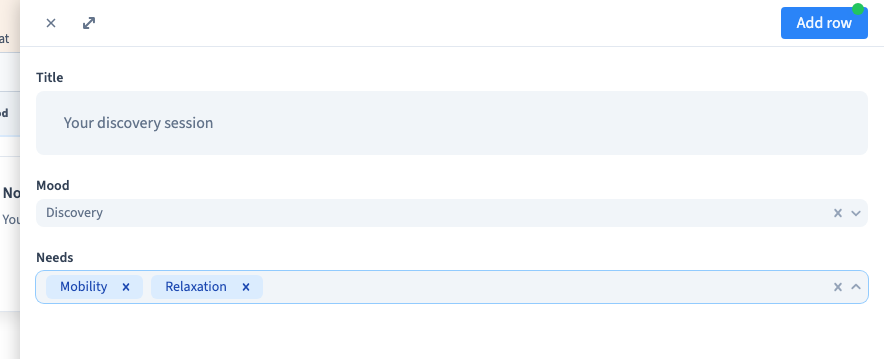
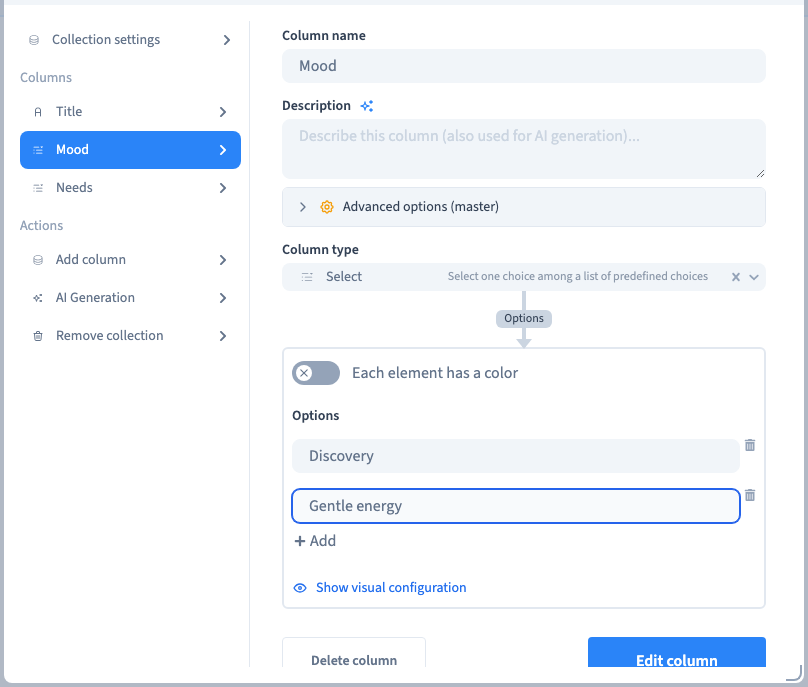
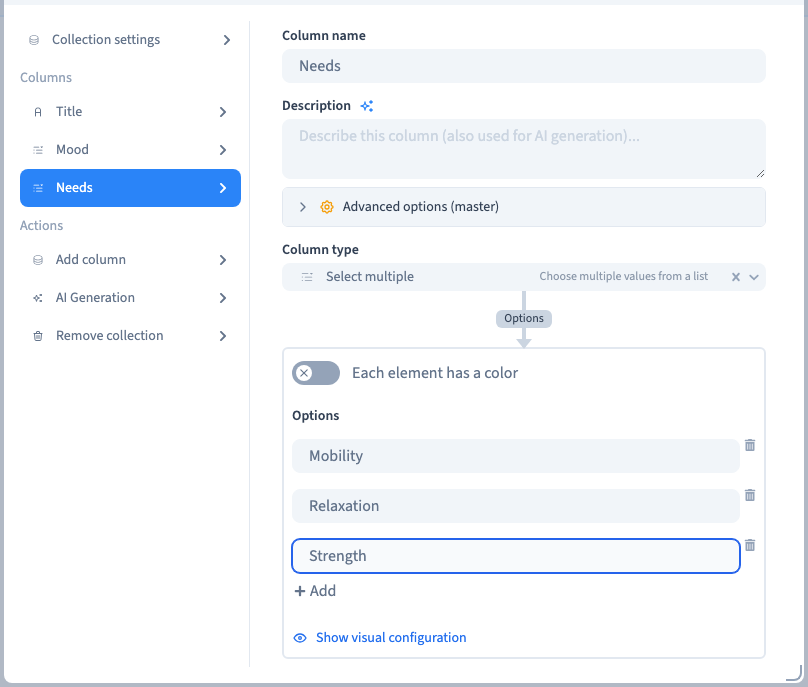
Use Select when exactly one answer is appropriate, such as a session mood. Use Select multiple when several answers can coexist, such as Mobility and Relaxation.
2. Prepare the options
Open the field settings and add an option for each meaningful answer. Give every option a short, distinct label. Save the field, then open a record to check the actual selector.
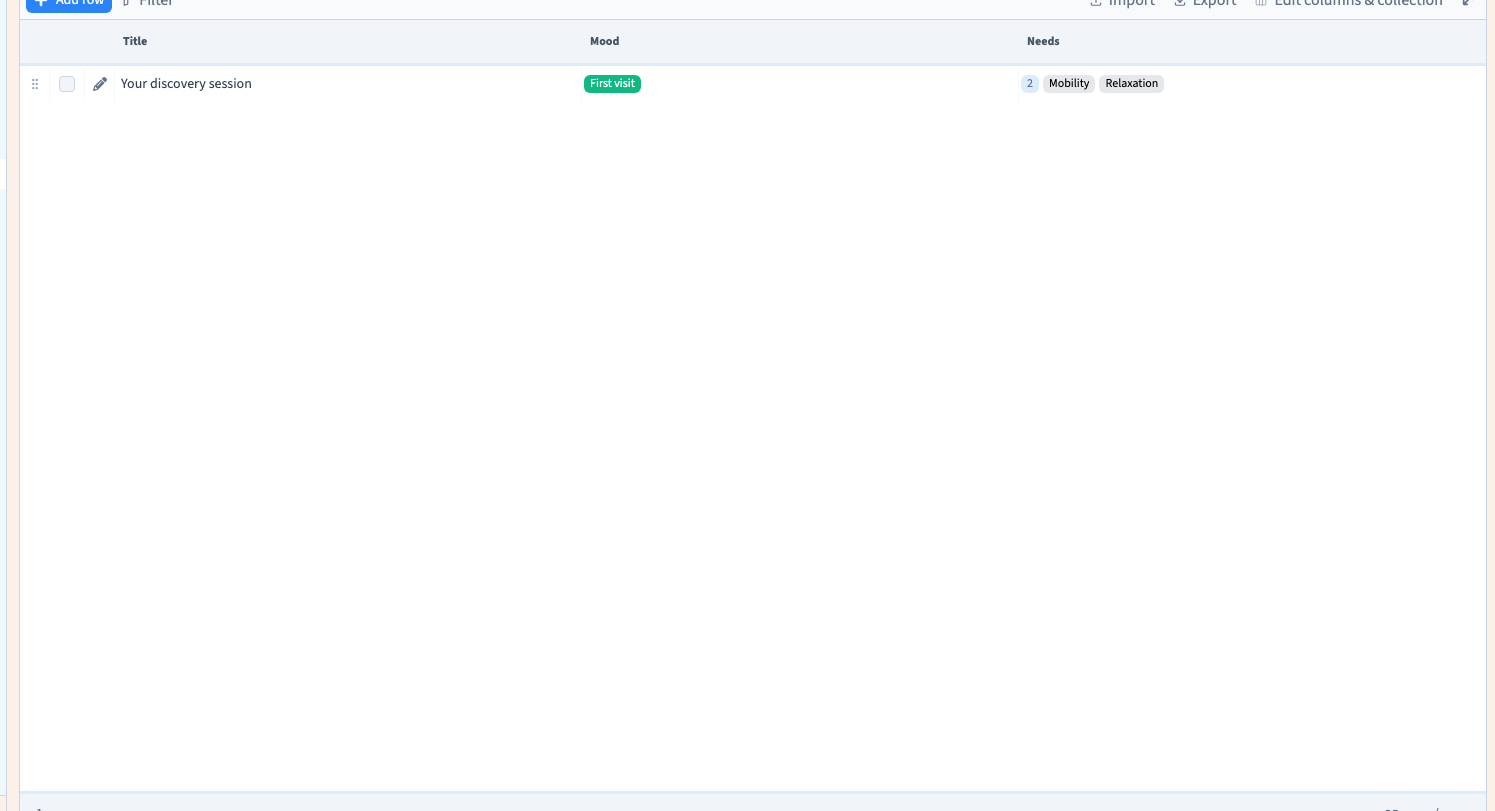
In the example, Mood has a single answer while Needs accepts two selected answers together.
3. Add a colour per choice
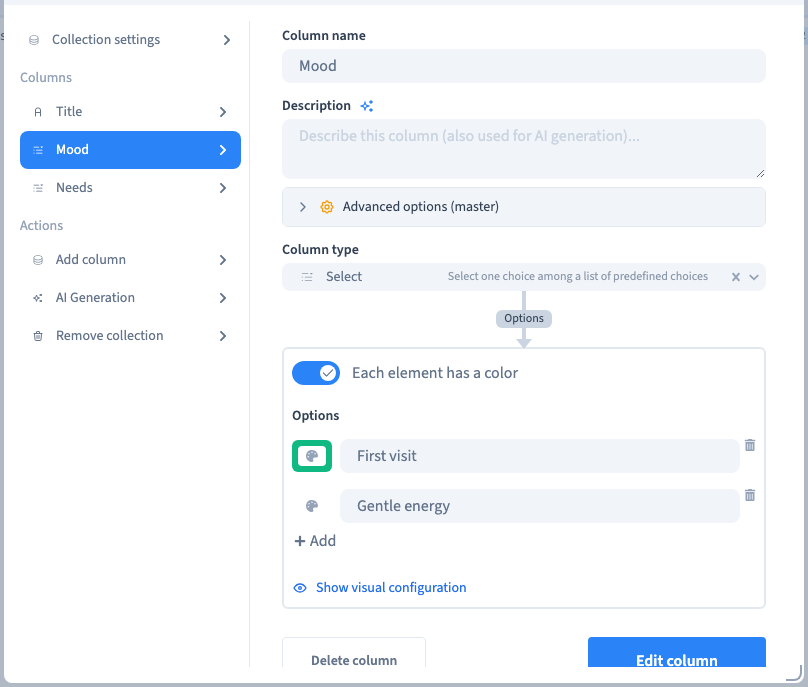
Enable Each element has a color and choose a colour for the option. Use colour as an extra cue while keeping the text label understandable on its own. Save and check the result in the entry form.
4. Rename an option already in use
Edit the existing option's label rather than deleting it and creating a replacement. Its identity links existing records to that option. The example renames “Discovery” to “First visit” and checks that the record still refers to the same option.
Deleting and recreating a similarly named option is a different operation. Review existing records before removing choices.
Could not play. Try the video controls.
5. Check the saved record
Reopen the record. Confirm the single choice, both multiple-choice selections and the renamed label. Check the collection table too. Connecting the choice to a public design remains a separate step.