
Create and organise a collection
Create one collection for one kind of repeated content. A journal, a list of services and a team directory usually need separate structures.
1. Create an empty collection
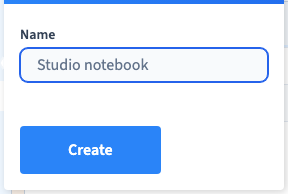
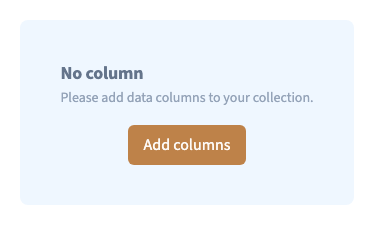
Open Data > Collection, then choose the + beside CMS. Enter a clear name and choose Create. A new collection has no columns yet; the empty-state message invites you to add them. This is normal.
In the demonstration, “Studio notebook” is created separately from the existing studio journal.
Could not play. Try the video controls.
2. Prepare its structure
Choose Edit columns & collection, then Add column. Give each field a name and select the editor that matches its content. A title needs text; a duration needs a number; a photograph needs an image field.
Keep the first structure small. Add a title and the two or three fields you already know you will use. Save before entering records.
3. Rename the existing collection
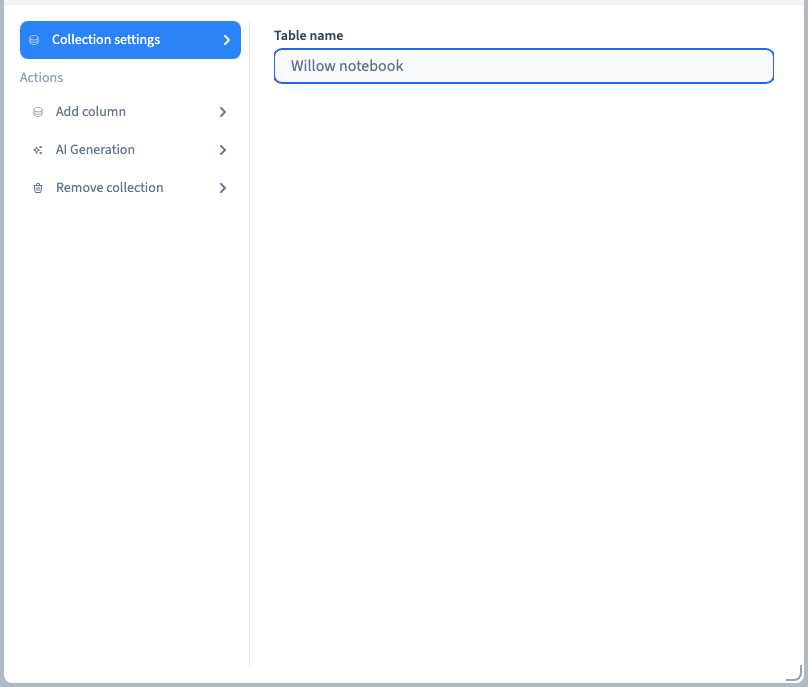
Open its settings and edit Collection name. Save, reopen the collection and check the new name. The demonstration renames the same collection to “Willow notebook”. It does not replace it with a new collection.
Renaming keeps the collection's identity. Recreating a similar-looking collection produces a different identity and does not transfer existing connections automatically.
4. Use readable names and stable identifiers
The visible field label helps people fill in the form. Its database identifier is the technical key used by connections and integrations. Choose meaningful names before connecting the collection to pages. Review dependencies before changing identifiers or removing fields.
5. Remove an unused collection carefully
Open its settings and choose the delete command. The confirmation asks you to type delete before Remove collection. The dialogue warns that the action cannot be undone. Check that you have selected the correct collection and export any content you need first.