
Connect records with relations
A relation connects one record to another. It avoids copying an author's details into every article or retyping a topic in several places.
1. Choose the target collection
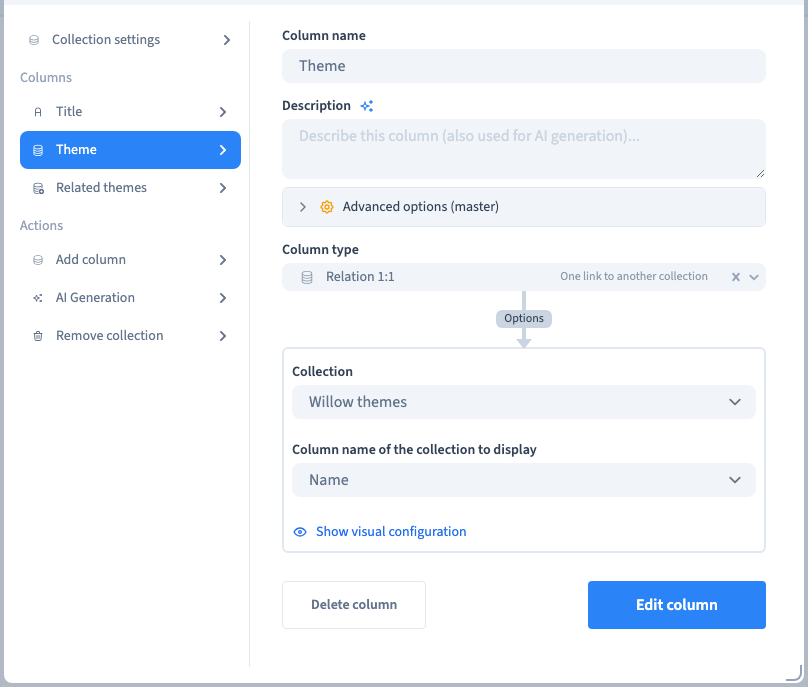
Prepare the related collection first, with a few meaningful records. Add a Relation field to the source collection and select its target. The studio example links journal entries to a collection of themes.
2. Choose a readable display field
Select the field used to label each related record in the picker. A Name or Title is easier to recognise than an identifier. This label helps selection; it does not copy the target's content into the source record.
3. Allow one or several relations
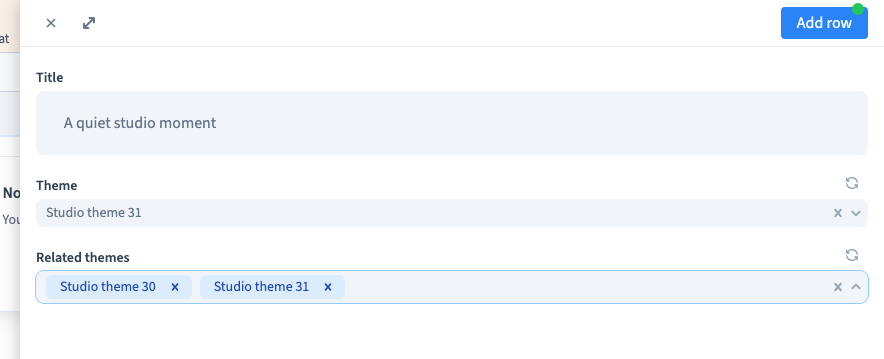
Use a single relation for one main theme. Enable multiple values for several related themes. In a record, open the selector and search for the intended target. Search is useful when the list extends beyond the first visible results.
The demonstration searches for a target beyond the first 25 records and chooses two values in the multiple relation.
Could not play. Try the video controls.
4. Save and reopen the record
Save, reopen the same record and check the selected labels. The underlying target identities should remain unchanged. A label change in the target and replacing the target with a new record are different operations.
Review dependencies before deleting a related record or collection.
5. Display related data separately
The relation stores a connection. To show a related name, image or other value on the public site, connect the relevant related data in the builder. Check empty relations and the intended one-to-many presentation on the consuming page.