
Choose which fields collection search uses
Collection search works with the fields configured for its search index. If a word is present in a record but its field is excluded, a search for that word may return no result.
1. Choose useful fields
Open Edit columns & collection, edit a relevant text field and enable its search option. A title is usually a useful starting point. Enable other fields only when their contents should help editors find records.
The example starts by indexing Title while keeping a separate Note field out of the index.
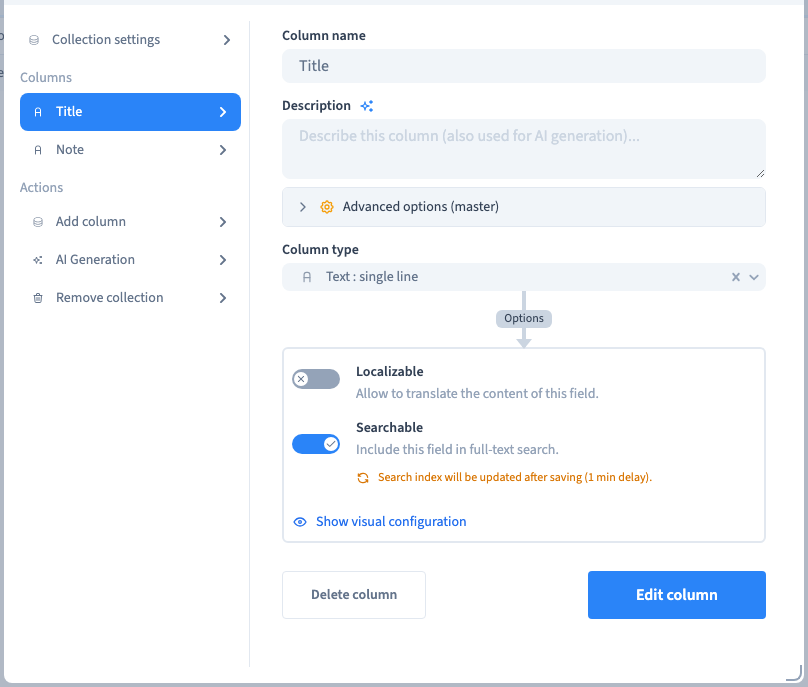
2. Save and let the index update
Save the field and the collection. Allow the index refresh to finish before judging the result. Searching immediately during a rebuild is not a reliable check of the final index.
Could not play. Try the video controls.
3. Test with a known word
Search for a word that occurs in one known title. Check that the expected record appears and an unrelated record is absent. Clear the search to return to the collection.
A word stored only in the excluded Note field should not be treated as a title-search match.

4. Add another searchable field
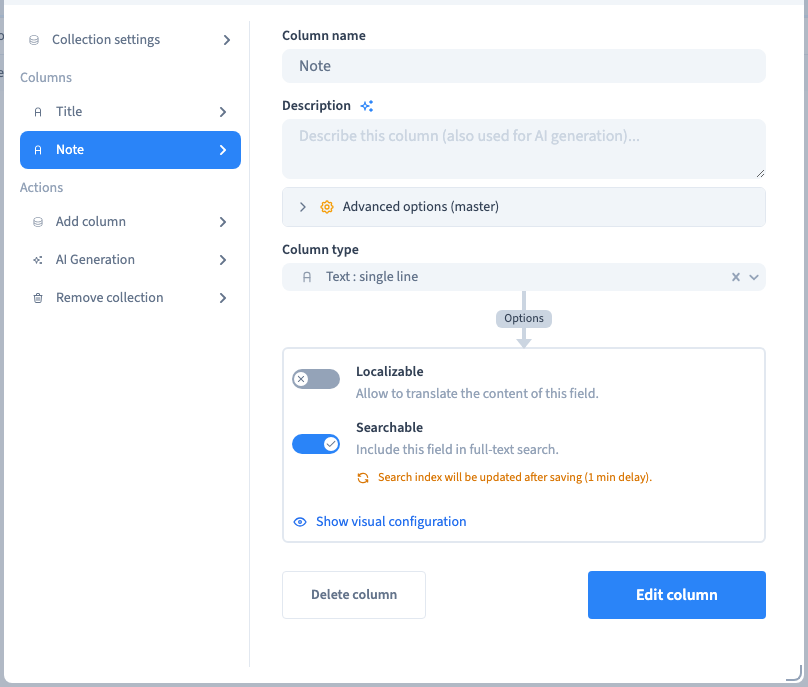
Enable search for Note, save and allow the index to refresh. Search for the known note word again. The matching record should now appear. Reopen the field settings to confirm the option was saved.
The recording compares the same data before and after the searchable-field change.

5. Keep the three mechanisms distinct
Search matches text in the configured index. A filter compares particular fields with explicit conditions. Public-site search is a visitor-facing feature with its own page connection and configuration. Enabling a CMS field for search does not add a search box to the public site.