
Set email notifications for your modules
1. Find the settings of the module
Open the module in the builder. The module controls when and to whom to send messages. The site email settings control the delivery method, sender and allowed recipients. Check both when you prepare a live test.
2. Set booking reminders and team notifications
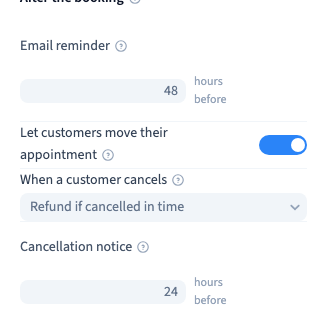
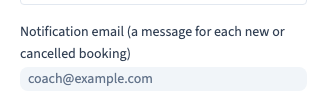
In Booking, under Messages and cancellations, set the number of hours for the customer reminder. A zero disables reminders. In Business, enter the email address that receives booking and cancellation notifications. Wait for the changes to save.
Could not play. Try the video controls.
Could not play. Try the video controls.
3. Set the gallery notification recipient
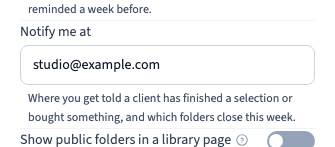
In the Files module settings, find Notify me at. Use the address responsible for reviewing gallery selections, purchases or closing folders. The receipt confirms which setting was stored.
Could not play. Try the video controls.
4. Check delivery separately on the site
Confirm the module settings persisted. If the scenario requires email delivery, prepare an approved test sender and inbox and open the appropriate published version. Check the module result and the received message separately. The demo checks saved settings with test addresses.