
Edit and format text
Headings and paragraphs use the same editing gestures. Start with the content, then decide whether the formatting should affect a few words or the whole element.
Before you start
Open your page in Design and choose Easy in the top bar. For a multilingual site, also select the content language in Lang.
1. Enter text editing
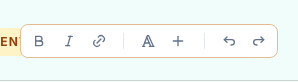
Click once to select the text. Wait briefly, then click that same text again. The typing cursor and text-formatting toolbar appear.
2. Replace or correct the words
To replace all the text, click inside it, use ⌘A on Mac or Ctrl+A on Windows, then type the new content.
To correct a few words, select only those words with the mouse and type their replacement. The rest of the sentence stays. With the keyboard, hold Shift and use the arrow keys to adjust the selection.
Could not play. Try the video controls.
3. Format selected words
Select the words before clicking B for bold or I for italic. Clicking the same active command again removes that format from the selection.
Aa opens more options, including text colour, background, underline, strikethrough and size. To colour a word, keep it selected, open Aa, choose Text color, then a colour. Background adds highlighting behind the words.
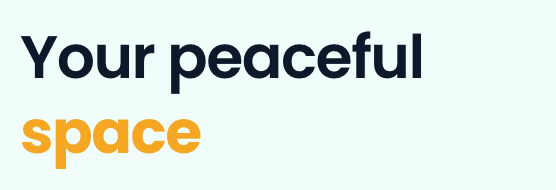
In the video, only space in “Your peaceful space” becomes bold and orange. “Your peaceful” keeps its appearance. If the whole sentence changes, undo and select fewer words.
The link command assigns a destination to selected words. To make a button or an entire element clickable, use its element link settings instead.
4. Style the whole element
Click another element to leave typing mode. Switch to Expert, select the text and use the Text panel for its font, size, weight and colour. These settings affect the whole element and can have screen rules.
Words with their own colour or size can keep that local format. If a word does not follow the new element style, select it while typing and use Clear formatting in Aa. Check the result carefully: the command removes the selected words' local formats.
Could not play. Try the video controls.
5. Finish and save
Click another element to leave typing, read the text and click Save. Check line breaks on mobile. Saving keeps work in the project; publishing updates the public site.
If text editing does not start
Check Easy mode, the two separate clicks and the selected content language. If the text displays CMS data, change its value in the CMS. Use Undo if you changed the wrong element or selection.