
Display a collection in a page section
A collection stores content. A section connected to that collection presents it on your website: each record can become a card with an image, title and introduction.
You design one card template. Editing a CMS record changes its content; editing the card template changes the presentation of the repeated cards.
1. Prepare records and their detail page
In Data, prepare a collection with clear fields. The Willow journal uses Title, Introduction, Image, Category and Slug. Add several distinct records with actual images so that you can recognise the result.
If cards should open full entries, prepare a dynamic detail page such as /journal/[slug]. Connect it to the collection and map the address variable to the Slug field. Each record needs a distinct slug.
A list can also present content without detail pages. Choose a suitable section and remove any unused action.
2. Choose a data-connected section
Open the destination page and choose Add. In Add mode, set Responsive to All to preserve the template's screen rules, then close those settings. Open the section source selector and choose Dynamic.
Choose a list suited to your content. Illustrated cards work well for journal entries; a compact layout may suit frequently asked questions. In the connection form, choose your collection and the maximum number of records to display. This example uses three.
All preserves intermediate screen rules as well as small and large screens. Simplified screen options can remove some template rules, so inspect the actual layout. This display limit does not remove other records from the collection.
Could not play. Try the video controls.
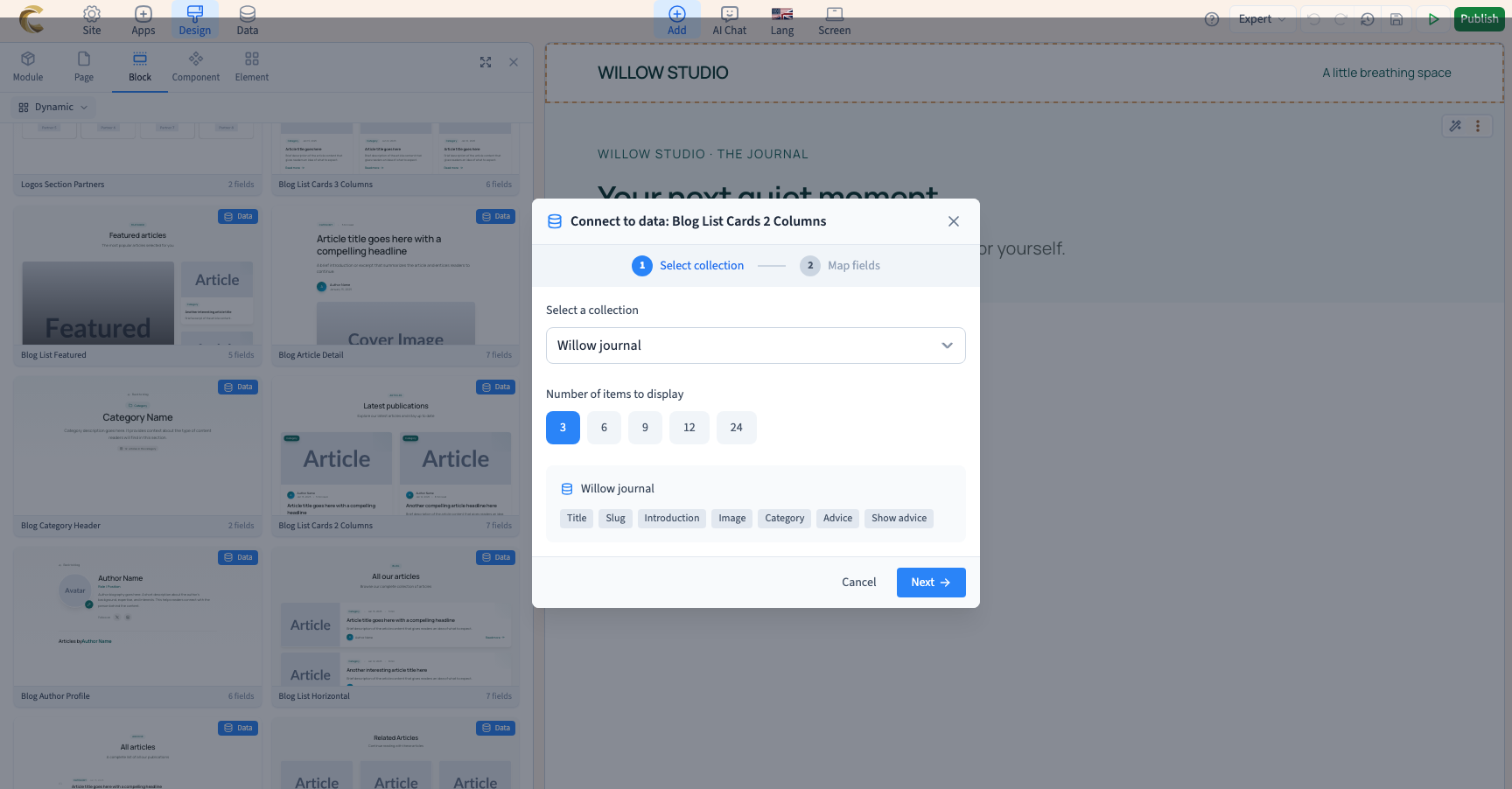
3. Match the card areas to fields
Choose Next. Match Image to Image, Title to Title, Excerpt to Introduction and Category to Category. The labels of these areas depend on the template; your collection field names remain yours.
Match compatible values: an image area needs an image field, not the entry's title. For the card destination, choose the prepared detail page and check its slug mapping. The list and detail page must identify the same records.
Choose Add block, then close the library to return to your page.
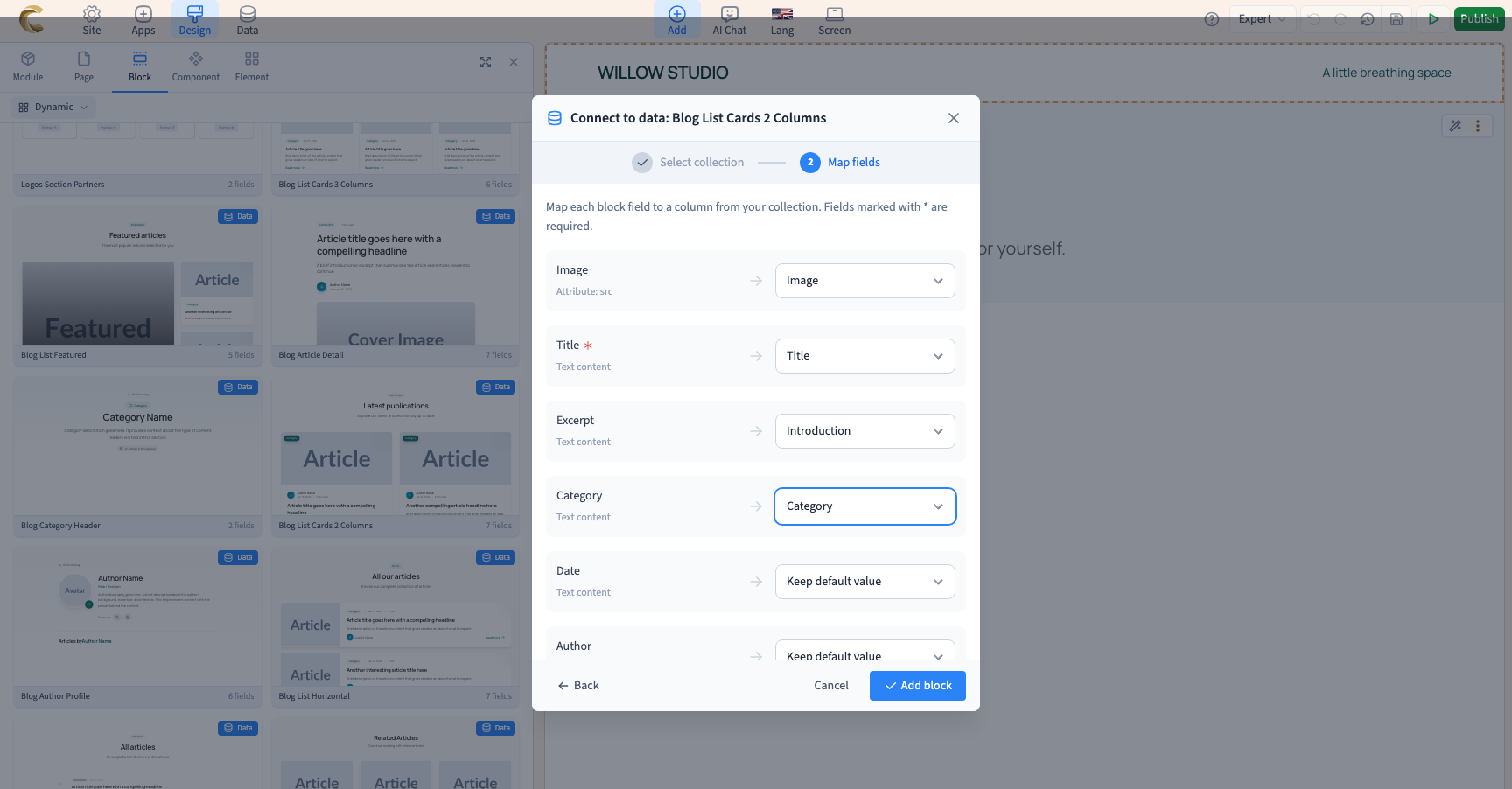
4. Check the content and fixed template text
Compare at least three records. Their titles, introductions, images and categories should match the collection. Save and reload to check that the connection persists.
A template can also contain fixed examples: a section heading, button label, author, date or reading time. These are not automatically CMS fields. Replace the examples, connect the useful areas and remove unused metadata before publishing your own content. Do not present a sample author or date as real information.
The video demonstrates content connection. Use the design controls for layout and screen adaptations, then inspect the actual result rather than relying on the template's name.
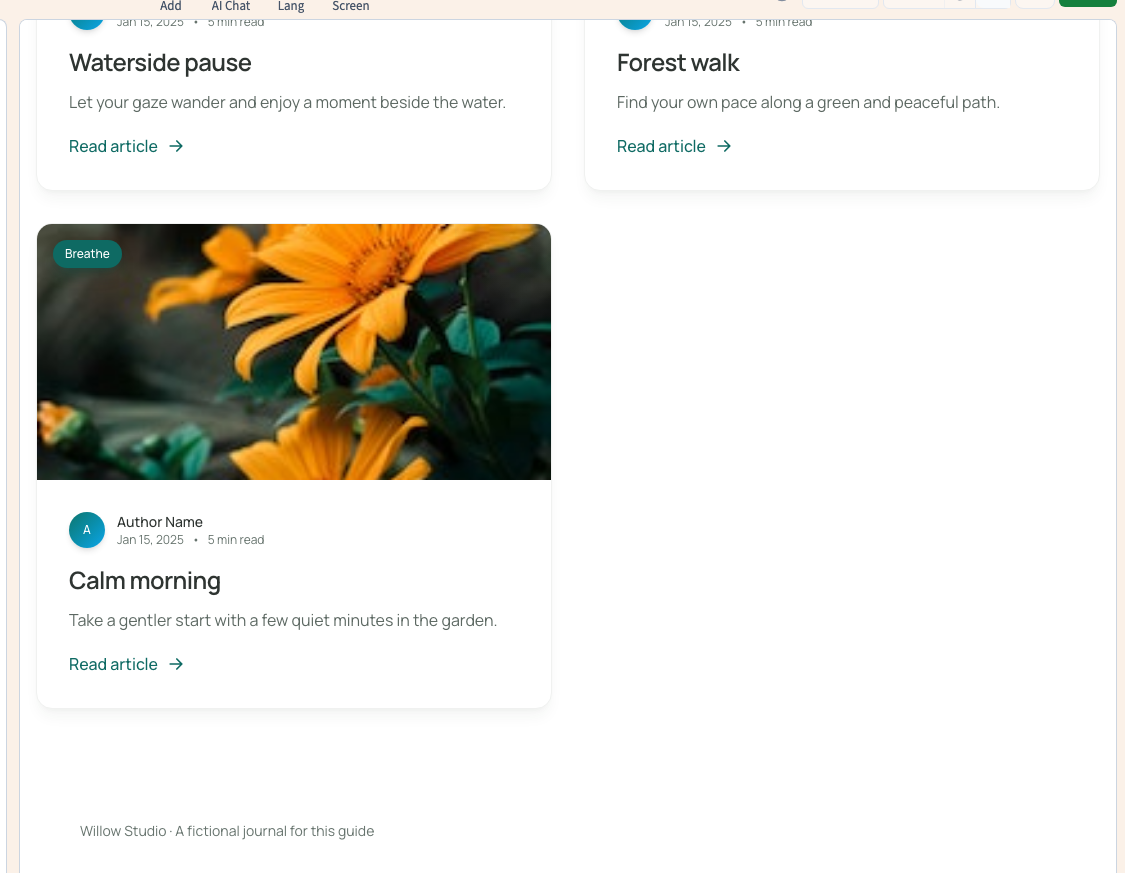
5. Try the cards as a visitor
Publish to the test site and open the list at desktop and phone widths. Check image loading, readable text and each card's destination. Use distinct records to tell whether the right content opened.
If an image or title is missing, inspect the field mapping and that record's value. If a card opens the wrong entry, inspect the slugs and detail-page connection.
To show only some records or change their order, configure the list's filters, sorting and limit.