
Insert a dynamic value and change its presentation
A dynamic value uses information from your site, such as a record title, date or price. You can change its presentation without rewriting every record.
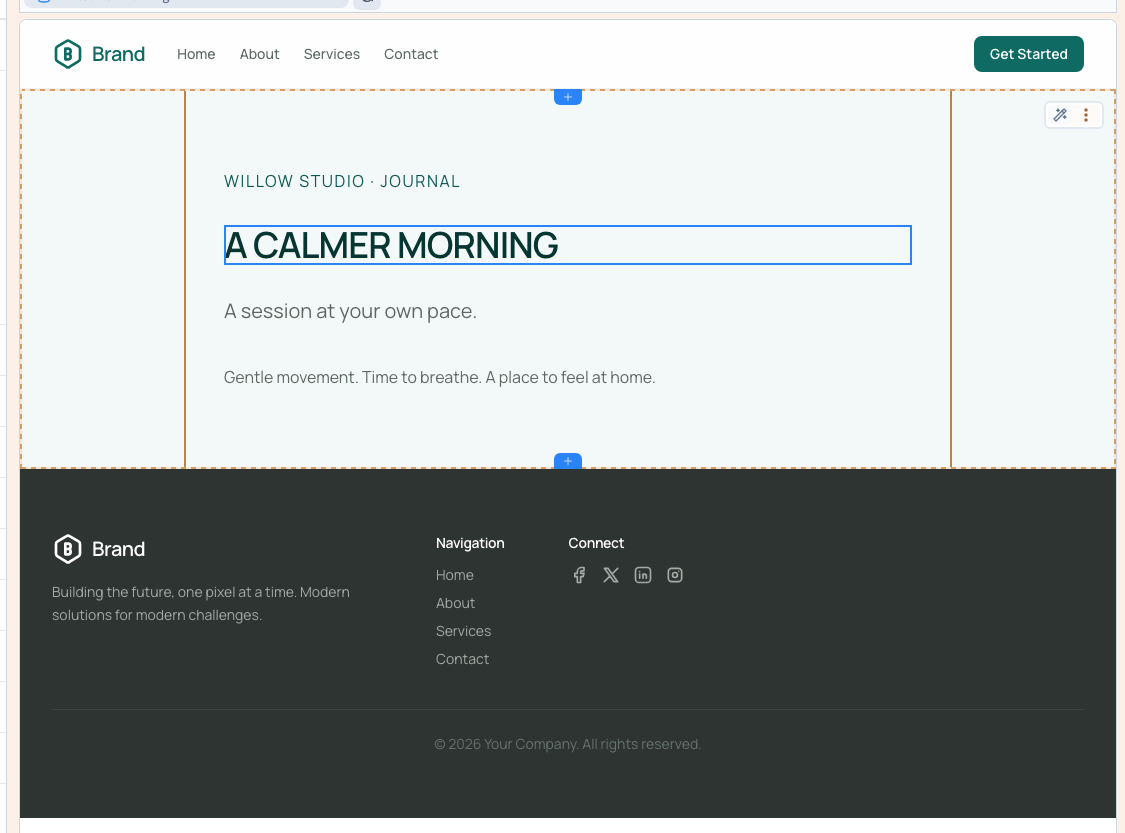
The example replaces a fixed heading with the current journal title, then displays it in uppercase. The title stored in the collection stays unchanged.
1. Choose the data in the right context
Open a page already connected to a CMS record. Switch to Designer expert, select the text in the preview and open its content in the settings panel.
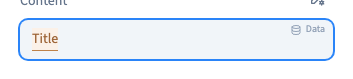
Select the text to replace and type @. Choose Title from the page data. The preview now displays the selected record's title.
The editor's Data control also opens the selector. If the expected field is missing, check the page or list connection first: the editor can offer only the data available in that context.
Could not play. Try the video controls.
2. Apply a transformation with a button
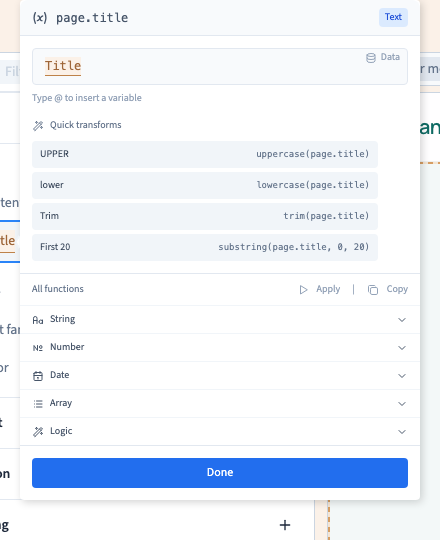
Click the inserted data token. Its quick transformations depend on the recognised data type. Title is text, so choose UPPER to show it in uppercase without entering a formula.
lower converts to lowercase, Trim removes surrounding spaces and First 20 keeps the first twenty characters. The String catalogue also offers transformations through its Apply control.
This changes the value's presentation in this element. It does not rename the CMS record or change its other uses.
3. Check more than one record
Select another preview record. The same heading must display that record's title with the same transformation. The demonstration compares A CALMER MORNING and A WALK IN THE GARDEN.
Return to the first record, save and reload the builder. Check that the connection and transformation persist, then open both real record addresses on the test site. The recording's checks compare both published pages at desktop and phone widths and confirm that the stored records are unchanged.
Choose according to the data type
| Data | Available quick transformations when recognised |
|---|---|
| Text | Uppercase, lowercase, trim, first characters |
| Number | Round, two decimals, floor or ceiling |
| Date | Date, time, full date and time, short date |
| List | Count, join, first or last item |
| Yes / No | Yes/No text, inversion |
These buttons prepare a transformation. Always inspect a representative value: a decimal price, a timestamp or a list containing several items. The text example does not certify every function combination.
Understand page, list and block data
Page data comes from the record used by a detail page. List data belongs to the repeated item, so each card displays its own record. Block data belongs to the section's configured data.
For a relation, select the field of the linked record you need. Also prepare the case where that relation is absent.
Plan for an empty optional field
If an entire element should disappear when its data is empty, use a display condition. A fallback has a different purpose: the element stays visible with an alternative value.
Do not confuse an empty field with zero or false. Those are useful values in their own right.
For agencies: expressions and fallback valuesThe selector inserts a path such as page.title; UPPER prepares uppercase(page.title). You do not need to type it to use the shortcut.
The function catalogue can apply or copy an expression. Some templates include example parameters that need adapting. An expression such as page.advice || 'A moment for yourself.' supplies a fallback but also replaces zero and false; choose the test appropriate to your data.
This demonstration verifies a text binding and its uppercase presentation. It does not validate every expression or external response shape.