
Store dates and present them on a page
A calendar date and a timestamp answer different questions. A birthday may need only a day; an appointment also needs a time. Choose the appropriate field before adding content.
1. Choose the date field
Use Date for a calendar day, Date and time for an instant with a time, and the publication-date field for a timestamp associated with content publication.
A publication timestamp alone is not an access rule or a scheduled visibility control. If content must stay hidden until a deadline, configure and test that behaviour separately.
2. Enter and save the values
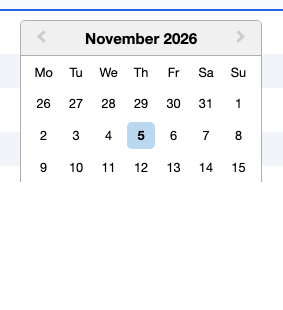
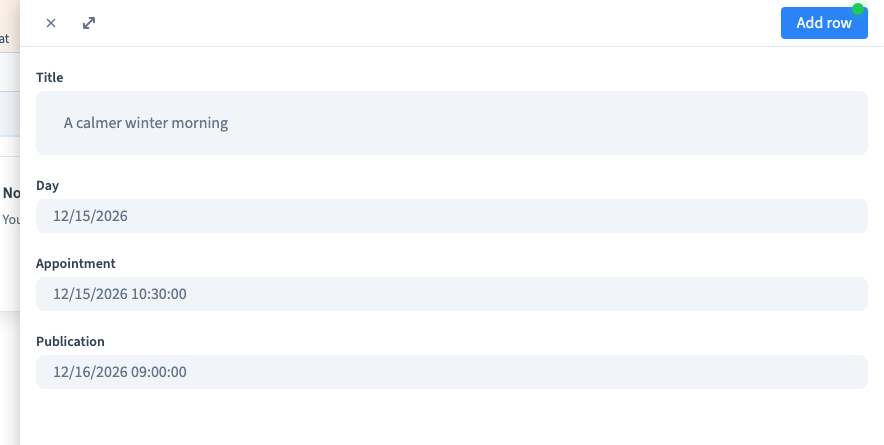
Add the fields from Edit columns & collection, save the structure, then open a record. Use the date picker for the day and enter the required time where the field supports it.
Save, reload and reopen the record. The first demonstration checks a calendar day, an appointment timestamp and a publication timestamp against their saved values. Display formatting does not rewrite those values.
Could not play. Try the video controls.
3. Choose the public presentation
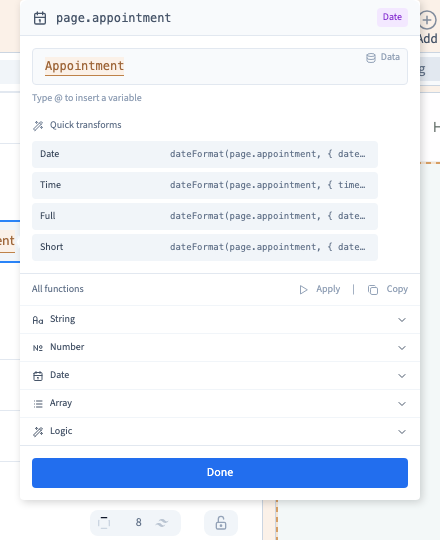
On a page connected to the record, switch to Designer expert, select the text to replace, open its content and type @. Choose Appointment, then click its inserted token.
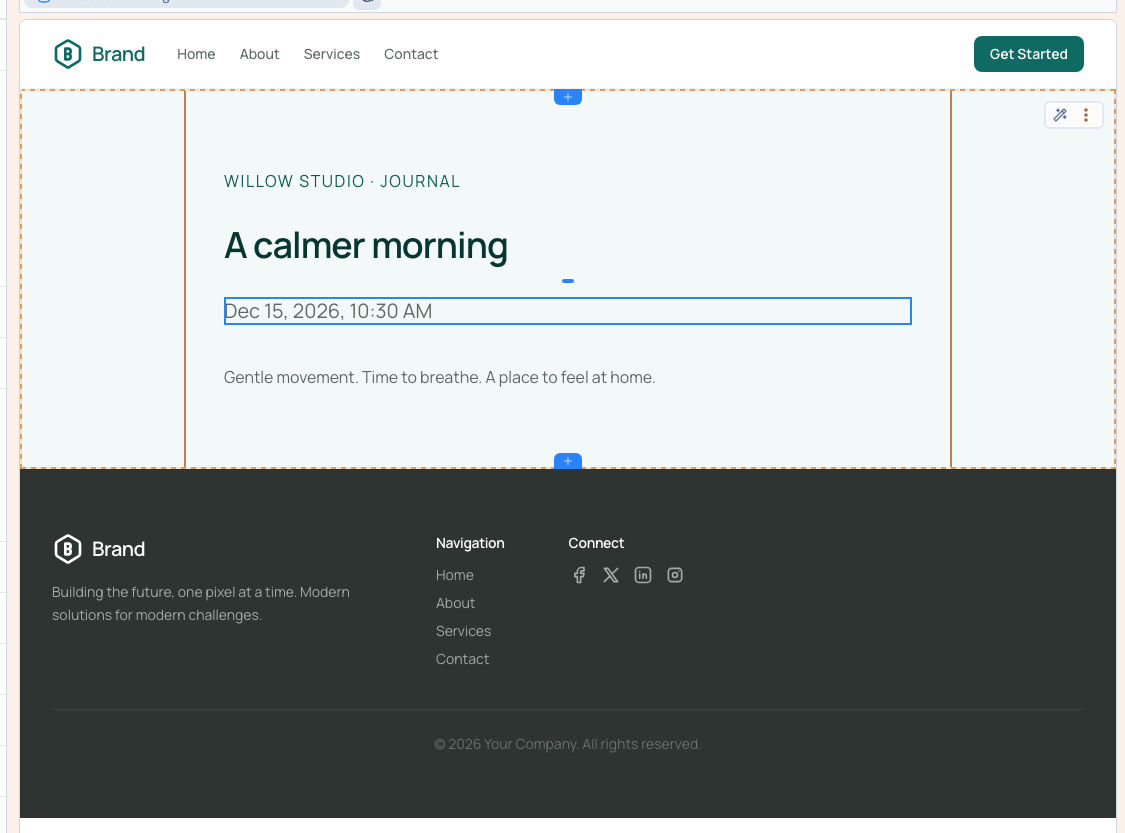
Choose a date shortcut such as Full to display the date and time together. Time displays the time portion. Available shortcuts depend on the recognised field type.
The page demonstration uses the actual appointment field and checks the output after saving and reloading. It does not ask you to enter a formula or edit CSS.
Could not play. Try the video controls.
4. Check the actual pages and timezone
Open several real record addresses on the test site at desktop and phone widths. The two examples have different appointment times, 10:30 and 14:15 in the demonstration's Europe/London context. The English site uses 10:30 AM and 2:15 PM in both the builder and its published pages. Each address must display its own record's value. The checks compare the full displayed strings as well as the stored timestamps.
A stored timestamp and its formatted time can differ because of timezone settings. Before publishing appointments, confirm which timezone your site uses and compare a known instant, including a daylight-saving transition where relevant.
The example records have future publication timestamps and remain accessible on their test addresses. This explicitly demonstrates why that field alone must not be described as scheduled access protection.
Understand dynamic presentation · Enter numeric, boolean and date values