
Store an icon and a colour in a record
Icon and colour fields store visual cues that a connected design can reuse, for example a topic marker or service category.
1. Prepare the fields
Add an Icon field and a Color field to the collection. Use meaningful labels, then save the structure. These are values attached to each record, rather than global changes to the site's theme. A Text field called Colour still remains a text field; choose the actual Color or Icon type to get its selector.
2. Choose a colour
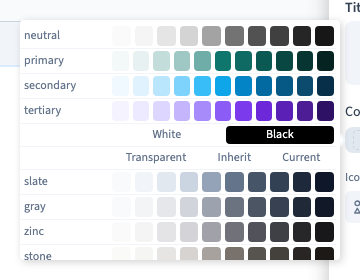
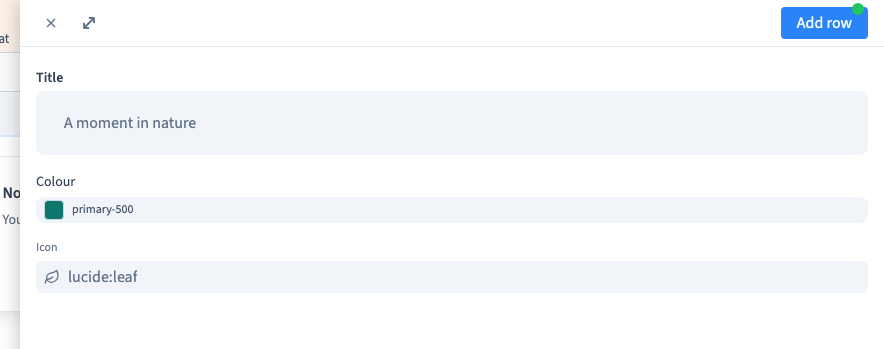
Open a record and select the colour field. Choose an appropriate shade from the palette. The example selects the primary theme shade while preserving the title already entered in the form.
A theme colour reference follows that theme token. Choose it deliberately when related records should share the site's visual identity.
Could not play. Try the video controls.
3. Choose an icon
Open the icon selector, choose a library and search for a meaningful pictogram. The example finds a leaf in Lucide. Select it and return to the record. The field displays lucide:leaf, the selected icon's identifier; you do not need to write code to choose it.
An icon supplements a clear label; avoid relying on an unfamiliar symbol alone to communicate an important action.

4. Save and reopen
Save the record, reopen it and check both visual values. Check that the title and other fields were retained while the selectors were open.
5. Connect the values to the page
Bind the colour and icon to appropriate visual controls in the builder. Stored values do not automatically add a badge to a page. Check contrast, missing optional values and the public result after publication.