
Display linked content and navigate between records
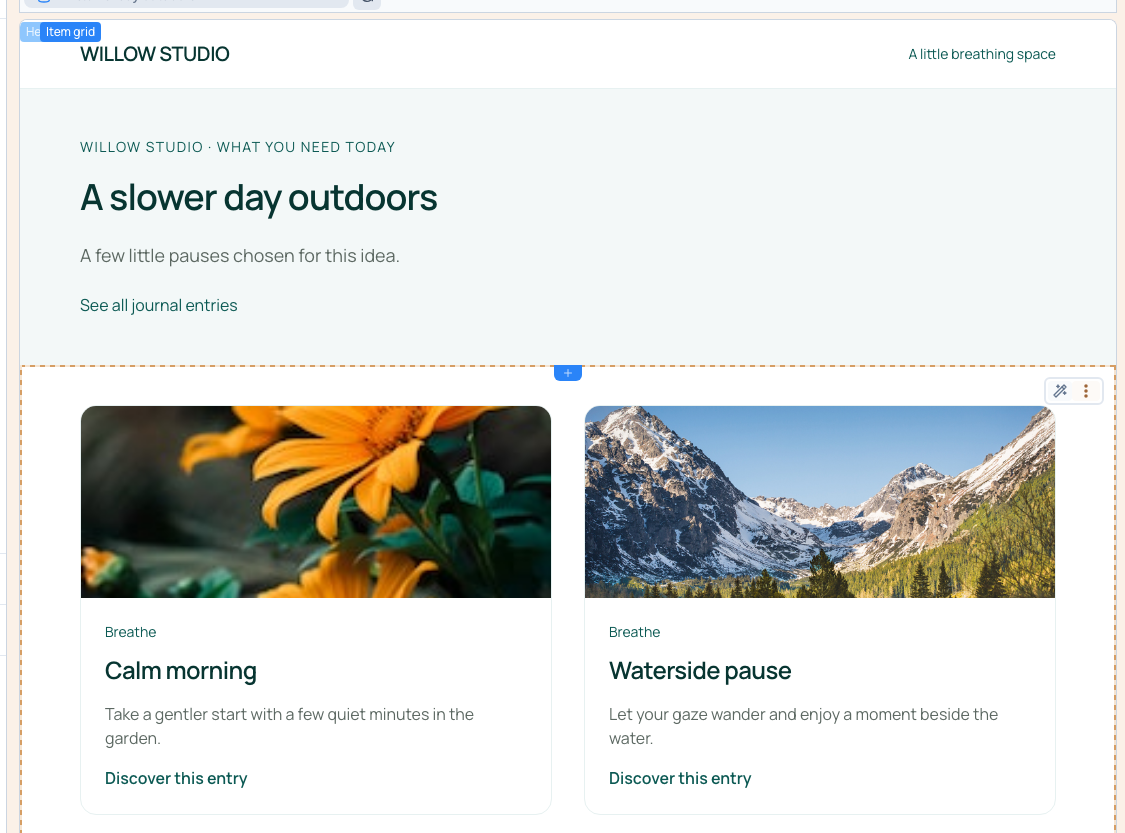
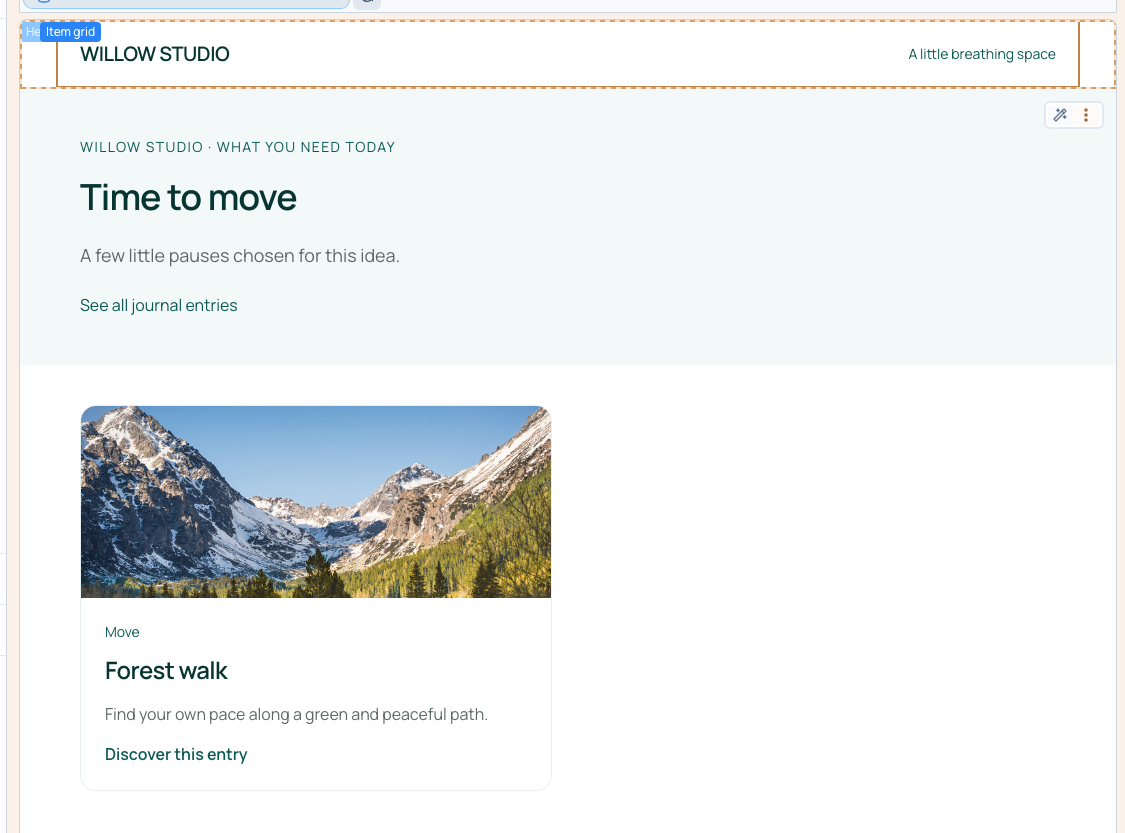
A relation connects records. In the Willow example, A slower day outdoors links to Calm morning and Waterside pause. Time to move links only to Forest walk.
Each interest page should show its own selection. A list containing every journal entry is only the starting point: connect its filter to the relation of the current page.
1. Prepare the relation and page template
Prepare two collections. Willow interests contains Title, Slug and a multiple Journal entries relation targeting Willow journal. In each interest, choose its related entries using the relation selector.
Prepare two different selections and an empty relation. A relation stores links to records; it does not copy their text or images.
Create /ideas/[slug], connect it to the interests collection, map slug to Slug and choose a preview record. Its page heading should already display that record's title.
2. Add a list of the target collection
Add a connected section to the template. The page uses Willow interests; its repeated list uses Willow journal. These are different contexts.
Match the card's title, image, introduction and detail destination to the journal fields. Before filtering, the section can show all three entries. This is preparation, not the final linked selection.
Switch to Designer expert, open Layers, select the repeating card and open List & Data. Confirm that the list uses the target collection. These are visual controls; no code is required.
3. Connect the filter to the page relation
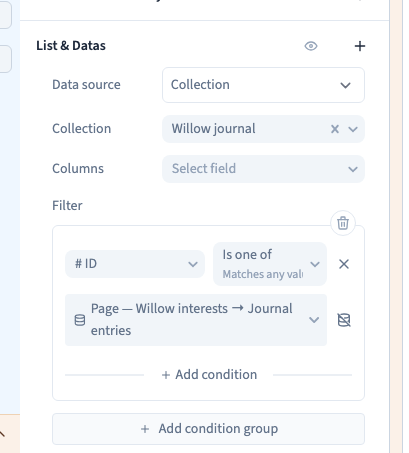
Choose Add condition group, select # ID and Is one of. This asks for entries whose identifiers belong to the relation's selection.
Beside the comparison value, use the small database control and choose Page — Willow interests → Journal entries. The value now depends on the interest being viewed. You do not need a fixed filter for each interest or a text field containing copied entry names.
Save and use Refresh data to inspect the result. A slower day outdoors should show only Calm morning and Waterside pause.
Could not play. Try the video controls.
4. Compare pages and follow every card
Reload the builder to check that the filter persists. Publish to the test site, then open the three complete interest addresses as a visitor at desktop and phone widths.
The slow-down page should show two specific cards; get-moving should show Forest walk. Check the actual titles and decoded images: a correct count alone does not prove that the right records are present.
Open each card. It must reach that journal entry's own detail address, rather than the interest page or a sample record. The relation chooses the content; sorting and the maximum number of cards are separate list settings. A low limit can hide part of a multiple selection, and the relation alone does not promise an editorial order.
5. Handle an empty relation and provide a return
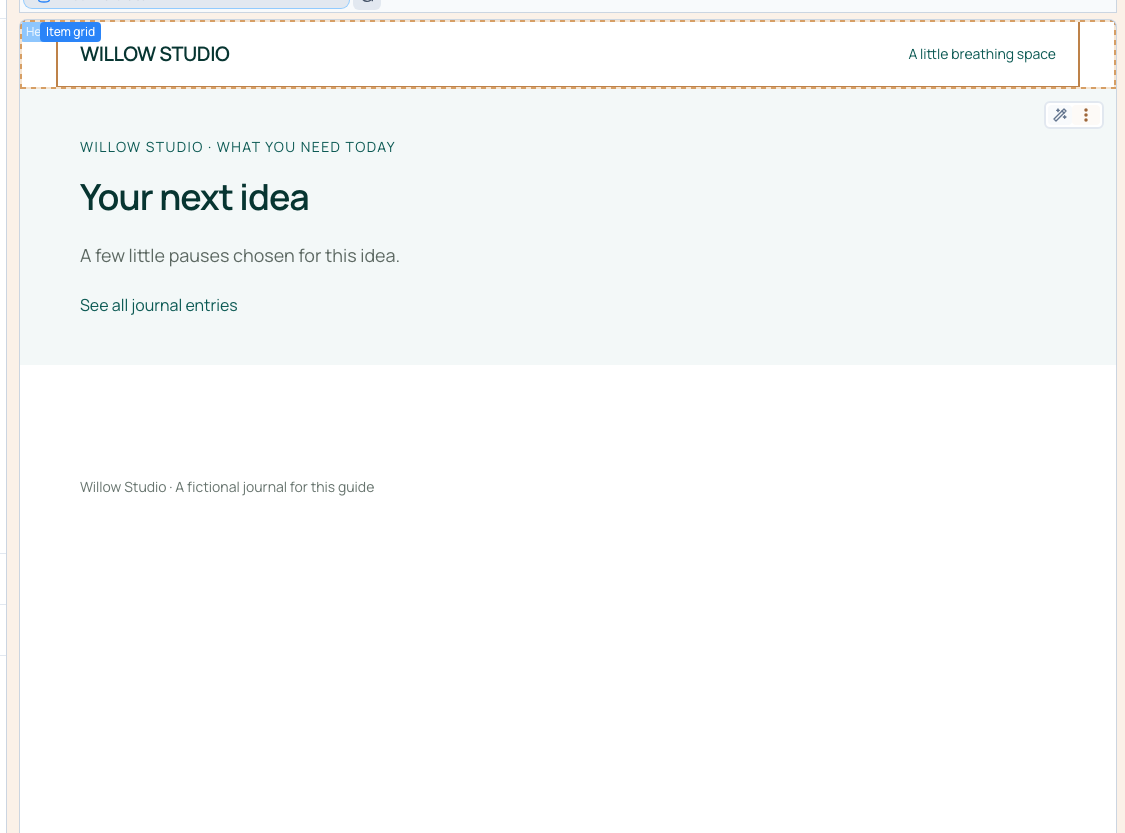
Open the interest without related entries. It must not fall back to unrelated content. Keep the interest title and an obvious route back.
The example provides See all journal entries, which opens the complete journal selection even when there are no related cards. This link belongs to the page design; the relation does not add it automatically.
If you need a message only when the list is empty, configure and test a separate visibility condition. Do not leave an empty-state message permanently above a populated list.
6. Distinguish related content from Previous and Next
A related selection and Previous/Next navigation serve different purposes. Related cards come from the relation. Sequential navigation also needs a defined order, first record and last record.
This filter does not create those controls automatically. Clear links back to the list or its categories can provide a simpler route.
Troubleshoot the selection
Check the page preview record and its relation first. Then inspect the list collection, # ID, Is one of and the connection to the correct page relation. Finally inspect other filters, the limit and the starting offset.
If every page shows all entries, the comparison may still be fixed or disconnected from page data. If nothing appears, check that the relation contains records from the intended collection. A visible record name and its stored identifier are not interchangeable; use the relation selectors.
Prepare collection relations · Connect a detail page · Add a connected section