
Test interactions in the visitor preview
In the builder, a click often selects an element. Use preview to try a link or behaviour without confusing editing with interacting on the site.
1. Prepare the page
Open the right page and content language. Save useful changes. Identify the buttons, links and menus to test and what each should do.
2. Enable the preview
Open Screen and enable Preview without interface. Multiple screen sizes must be off first. Try a link in the page. If an action should open another tab, check that tab too. Preview alone does not prove that the public version is up to date.
The demonstration follows Plan your first visit to the contact page. It checks an actual navigation, not just a selected button.
Could not play. Try the video controls.
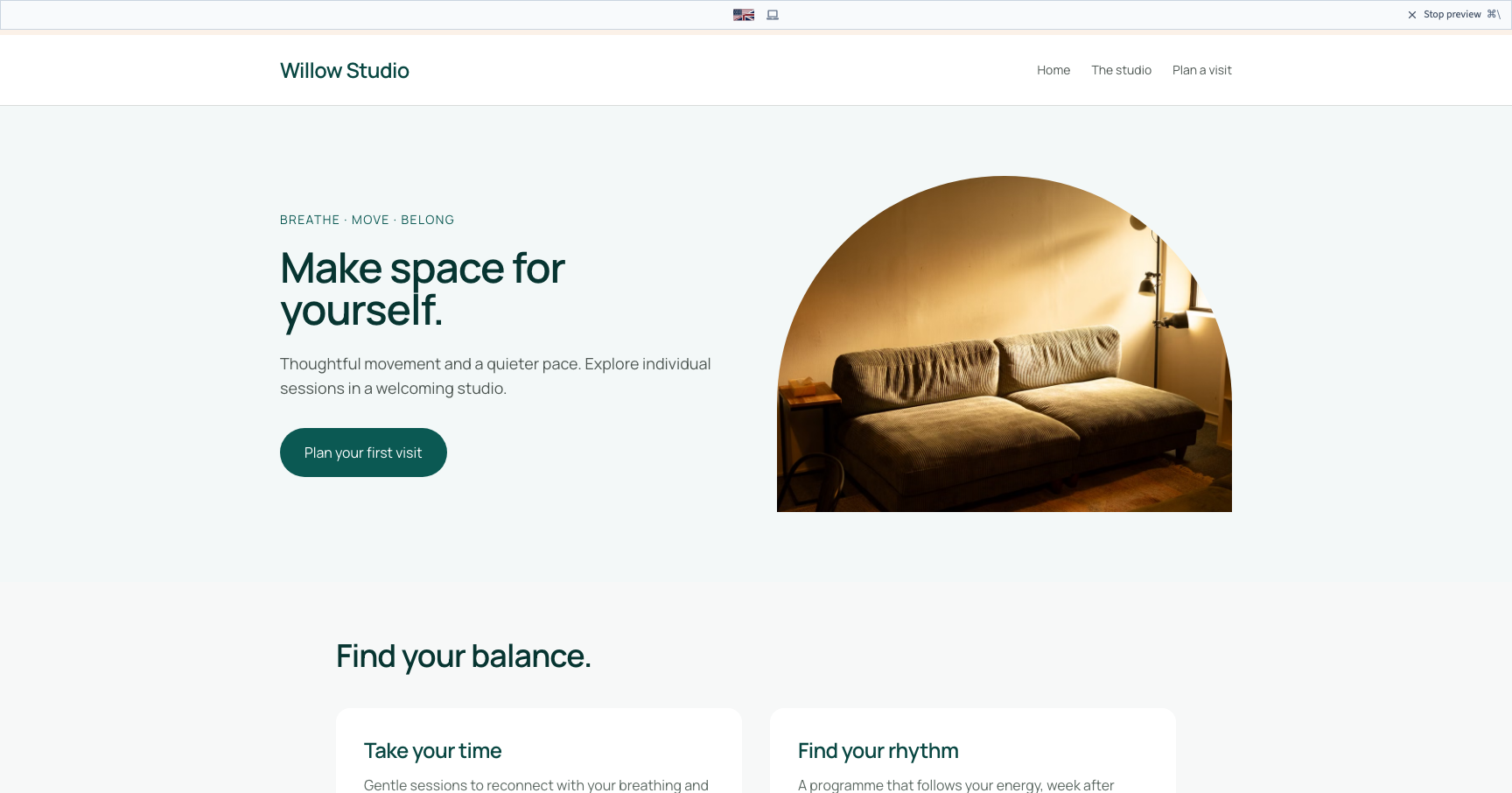
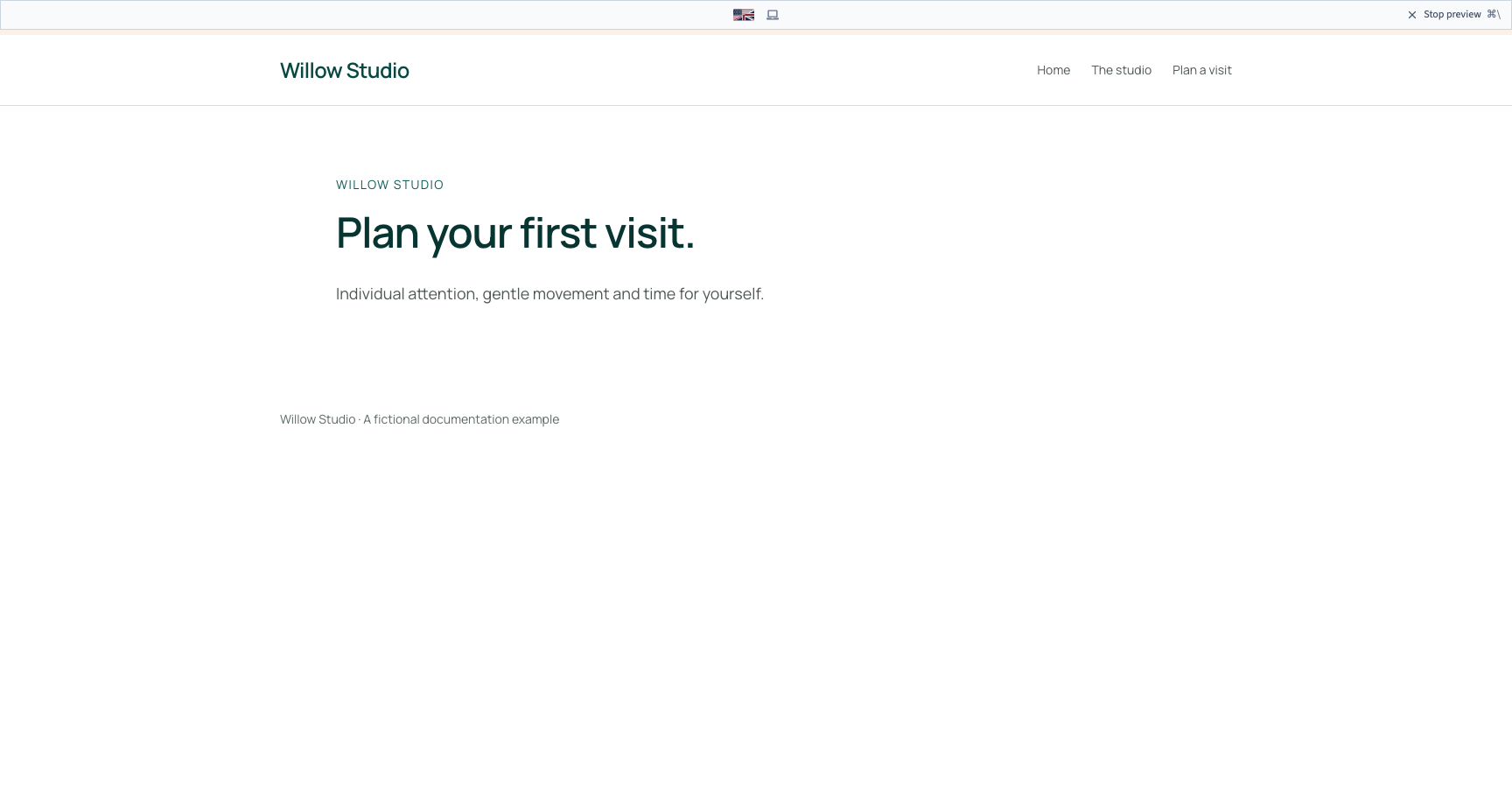
3. Check another width
Choose a phone or tablet width in Screen and inspect menus, text and clickable areas. Side-by-side frames compare presentation; preview tests interactions. Changing frame width does not create a style rule.
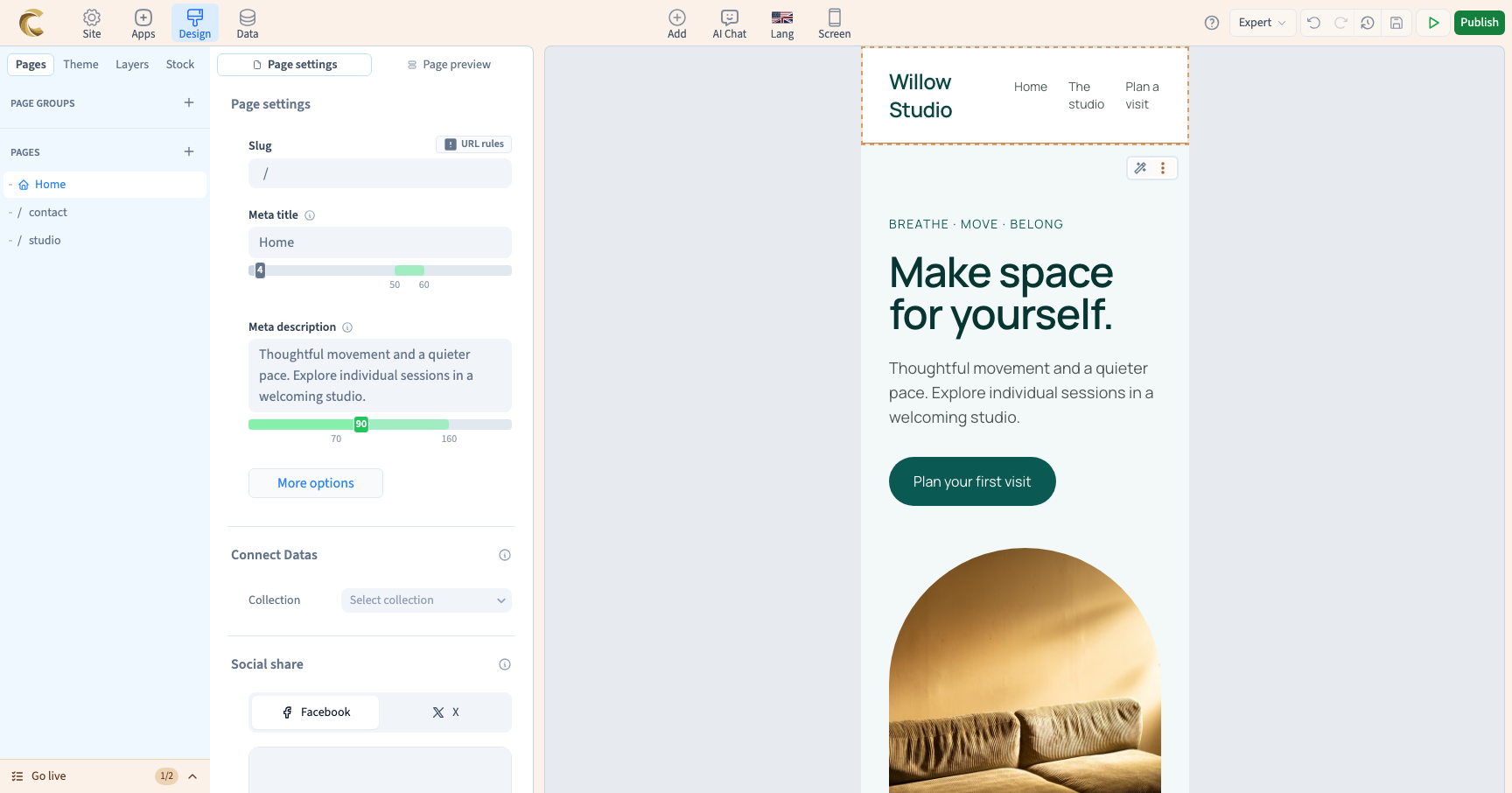
4. Return to editing
Use the exit-preview control to select elements again. Correct the target with its visual settings, then repeat the test. Avoid repeatedly clicking a button expecting to edit it while visitor preview is active.
5. Check a published version
For a complete check, publish a staging preview and open its link. After production publication, test the public version too. Forms, external services and managed pages may need extra checks with test data.