
Check where a site file is used before changing it
1. Find the file and its uses
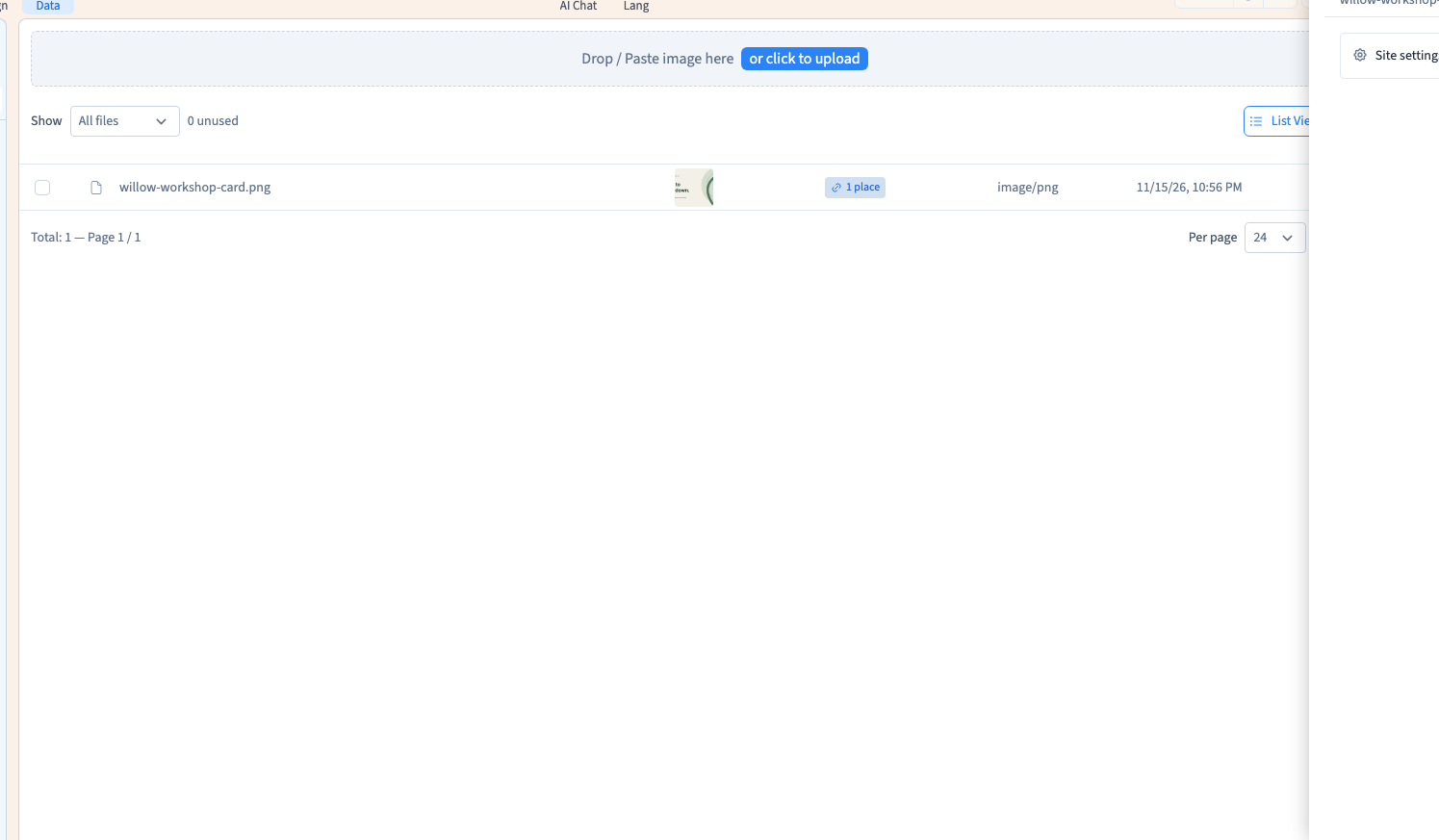
Open the file library and use list view to identify the exact asset. Open the usage indicator. Check page, component and site settings references. The demo sets the image as the default social preview before checking its usage.
2. Replace references where needed
If the file is in use, open those pages or settings and select the new file where the change belongs. Check each replacement and publish the affected site pages. Open a test version to confirm the correct image is served.
3. Review the deletion guard
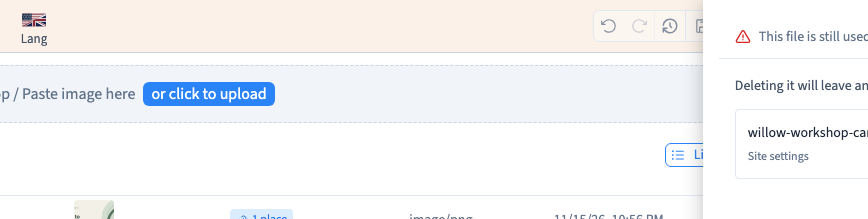
Select the file and request deletion. If Communik lists active uses, read them and choose Keep them to leave the file in place while you check its references. The example verifies that the in-use file is still listed afterwards.
Could not play. Try the video controls.
4. Check after removing a file
Remove it only once you are confident its uses have been replaced or retired. Reopen the affected pages and check any published images or links that referred to it.
See also Upload, find and organise site files.