
Rename, protect or delete a backup
1. Find and rename the right point
In Publish > More actions > Backups, check the date, name and data scope. Click Rename, enter a clear name and press Enter. The existing point keeps its original content.
Could not play. Try the video controls.
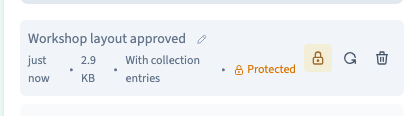
2. Protect the points you want to keep
Click Protect on the row. The label and lock identify the protected point. Protection keeps it out of automatic cleanup. Use Unprotect when the point no longer needs that protection.
3. Review the list before creating more
Check the backup count. If you have reached the limit, review which manual points you can remove. A point marked as protected can still be deliberately deleted.
4. Delete only the selected point
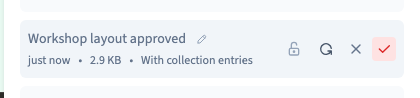
Click Delete on the row. Confirm the name and date, then choose Confirm delete. Choose Cancel if you want to keep it. The point disappears from the list after confirmation. The project and its published versions remain available.
Could not play. Try the video controls.
See also Create and find a project backup.