
Publish and open a staging preview
1. Open the Test version panel
Save your work in the builder. Open Publish, then More actions > Test version. If the panel asks for a link, use its shortcut to the site settings and generate a staging link.
2. Publish to staging
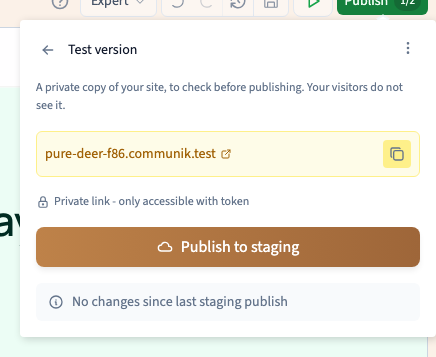
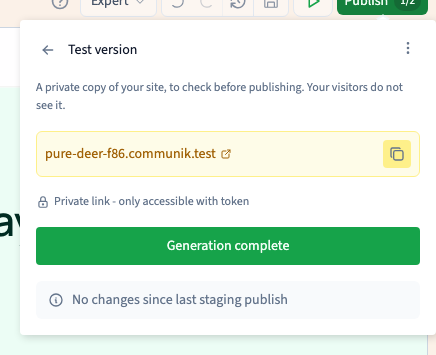
Click Publish to staging and wait for Generation complete. Follow the progress in the panel. If generation reports an error, use its message to decide what to check before retrying.
Could not play. Try the video controls.
3. Open the generated result
Use the link shown in the panel. Check that the page reflects the change you intended, then try the important links and look at the page on a phone. The generated page reflects the last successful staging publish. Repeat publication after saving another change.
4. Share the complete private link
Copy the link with its access token. A visitor without the token or an existing valid session can be denied access. On a new site, the first build can initialise version history. Use the main publish panel and check the public address to verify when the site goes live.