
Set a page title, description and social preview
1. Open the settings for the page
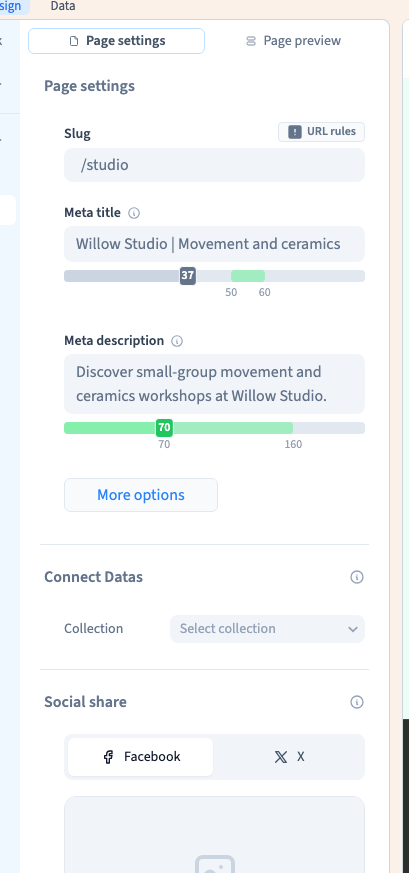
In Design > Pages, select the page you plan to publish. In its settings, write a unique Meta title and a Meta description that says what the page offers. A visitor sees your page heading on the page itself. Search and browser tabs use the metadata.
2. Review search and sharing separately
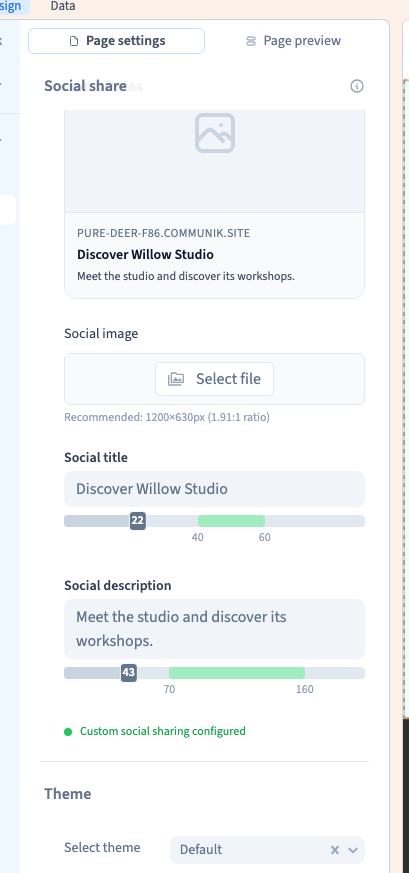
Open More options to review indexing, staging-only visibility and the canonical address. Use the social preview controls to choose an image, and Customize title & description if the shared link needs different wording. A page can use the site’s default social image or its own image.
Could not play. Try the video controls.

3. Verify the served tags
Save and publish. Open the generated URL and check the browser title and the description in the document. For a technical check, inspect the Open Graph tags and canonical URL. Open the actual URL you intend to share. Social networks can hold an older preview in their own cache.