
Add structured data to an element
1. Select the element that represents the content
Open the page in Design and select the relevant element. In its no-code Attributes, add the structured-data setting. Choose the type that accurately describes the content, such as Article for an article.
2. Fill in the fields
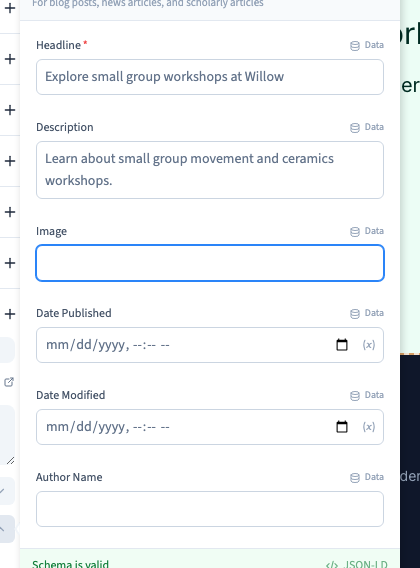
Enter the headline, description and other relevant fields. Match the wording and information visitors can actually read. Open the validation preview and review the required fields before saving.
Could not play. Try the video controls.
3. Verify after publication
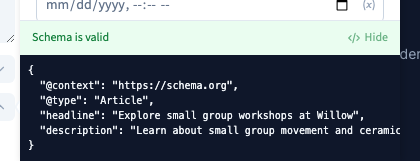
Generate the test version. Inspect the structured data in the served page, for example in its JSON-LD. Verify its type and values and check a representative dynamic page when your setup uses CMS fields.
4. Keep page and site settings in view
Structured data complements the visible content and the page title and description. Review the page metadata and indexing choices too.