
Start from an existing site
Already have a site? You can bring in information about your business or transfer a WordPress site. Choose according to what you want to keep. Reading contact details from a page does not copy its layout.
Could not play. Try the video controls.
1. Decide what to bring over
| Your goal | Where to start | Expected result |
|---|---|---|
| Complete the details for your new site | Go live → Complete your information → Fill from your site | Suggestions for you to review |
| Transfer pages from WordPress | Create a new project → Bring over your current site | A transfer process with its conditions and status |
The information-reading demonstration covers the first method. It is separate from a full WordPress transfer.
2. Read your home page
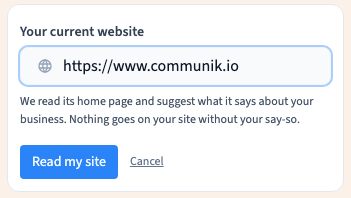
Open the business information step, then the option to fill it from your site. Enter your home page address and start reading the site.
Communik looks for information available on that page, such as the description, contact details, services and opening hours. It may also read legal information linked from the home page on the same site. What it finds depends on what the site makes available; some details may be missing.
This command is available inside a project when you are signed in. It does not import images or rebuild the page design.
3. Review the suggestions
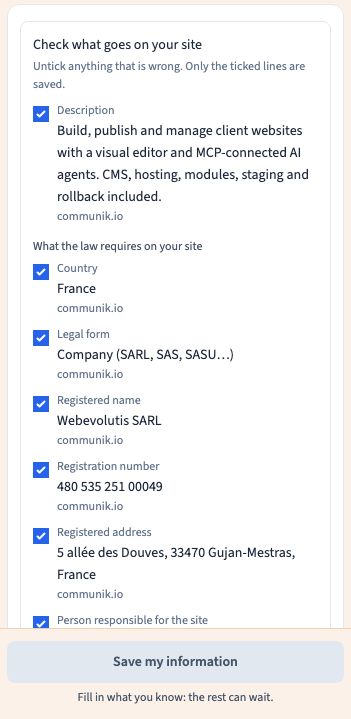
Read each row. The source site's address appears alongside the suggestions. When a proposed value would replace information you already entered, the interface also shows your existing value.
Deselect anything incorrect, outdated or unnecessary. Check the phone number, address, services and legal identity especially carefully. Do not keep a suggestion simply because it was found automatically.
You can return to the address field without applying the suggestions. Reading a site alone does not fill in your information.
4. Apply only your choices
Use the command to apply the selected suggestions. Only checked rows are saved. Review your business details afterwards and correct them in the form if necessary.
Check that information you did not select remains unchanged and that the selected values are still present after reloading.
Completing these details does not write every page or publish the site. Continue with personalisation and review afterwards.
5. If nothing is found
| Message or situation | What to do |
|---|---|
| The address does not look like a website address | Correct it and try again |
| The site asks automated readers not to access it | Enter the information yourself |
| The page is unavailable or does not contain HTML | Check the public address and its accessibility |
| No new information was found | Check the fields already filled in and complete the rest yourself |
A protected page, content loaded only by a script or details missing from the home page can limit the result. You can always complete the form yourself.
About transferring WordPress
From the option to bring over your current site, read the form before starting a transfer. The process asks for your authorisation to import the site and, where necessary, suitable WordPress access. Do not send your login password in a documentation request.
Transferring pages, images, a blog and forms is different from reading business information. Review the transfer report, resulting pages, addresses and features before publishing. A preview alone does not validate a migration. The information-reading demonstration does not establish that a complete WordPress transfer has been tested.