
Find and manage received requests
1. Find a request from your site
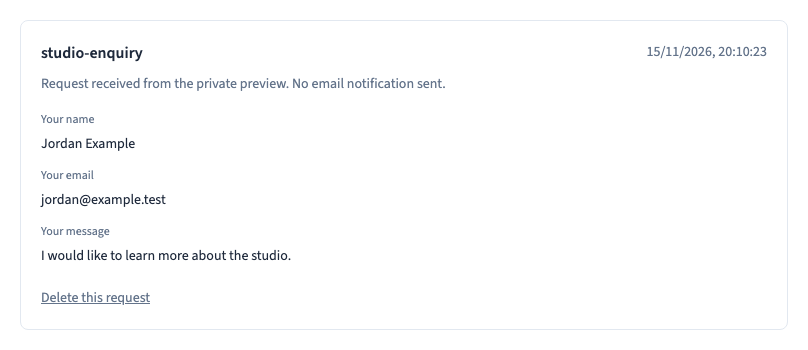
In the builder, open Site > Received requests. After sending a test response, click Refresh. Each request shows the form name, timestamp and answers with their field labels.
This inbox is for forms set to Submit to > Received requests (email). If the form saves to Collection (CMS), find the entries in the selected collection under Data. If a test request is missing, check the project, the form destination and the published version you tested.
Could not play. Try the video controls.

2. Read the notification status
Check the message above the answers. A request can be saved while its email notification is pending or has failed, so you can still read the request in Communik. Requests sent from the private preview show that no email was sent. To test delivery, check the receiving mailbox from an environment allowed to send notifications.
3. Reply and remove obsolete requests
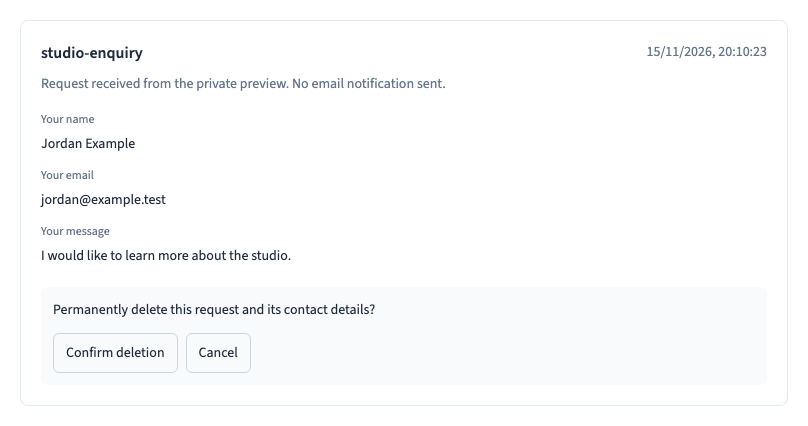
Use the contact details supplied by the visitor to reply in your email app. To remove a test request, choose Delete this request, then Confirm deletion. Choose Cancel to keep it. If deletion fails, the request stays in the inbox and you can try again.
Requests stay in the inbox until you delete them or remove the project. If you have stored a separate copy in a CMS collection, review it in Data as well.
4. Verify the full contact journey
Send a response containing fictitious details, wait for the success message, refresh the inbox and compare the saved answers. Repeat on a narrow screen and delete the test requests when you finish.
See also Create and test a form.