
Understand page folders and paths
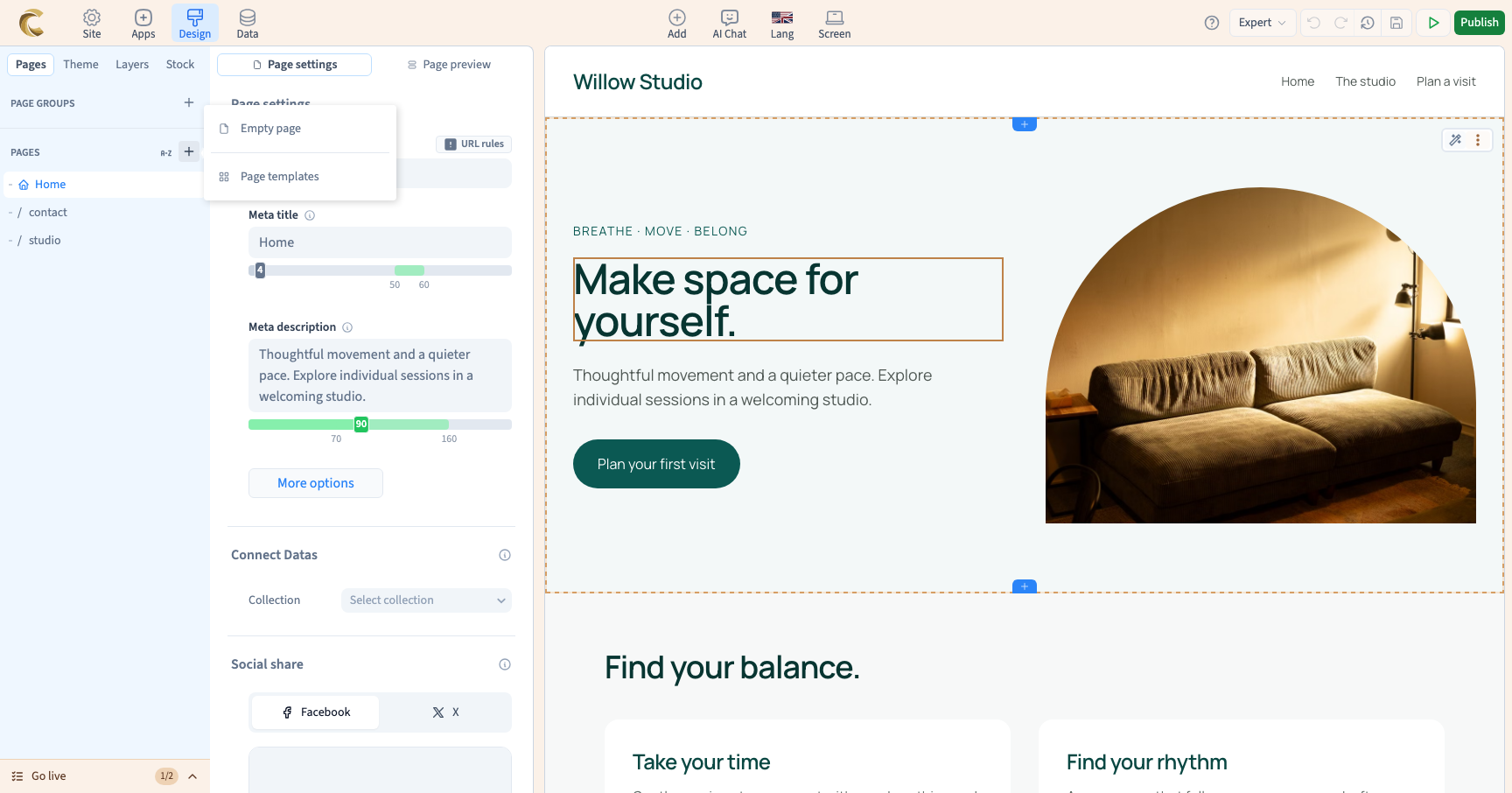
The path /workshops/first-visit places First visit under Workshops in the page tree. A folder can simply group paths; it does not necessarily provide content at /workshops.
1. Create a nested path
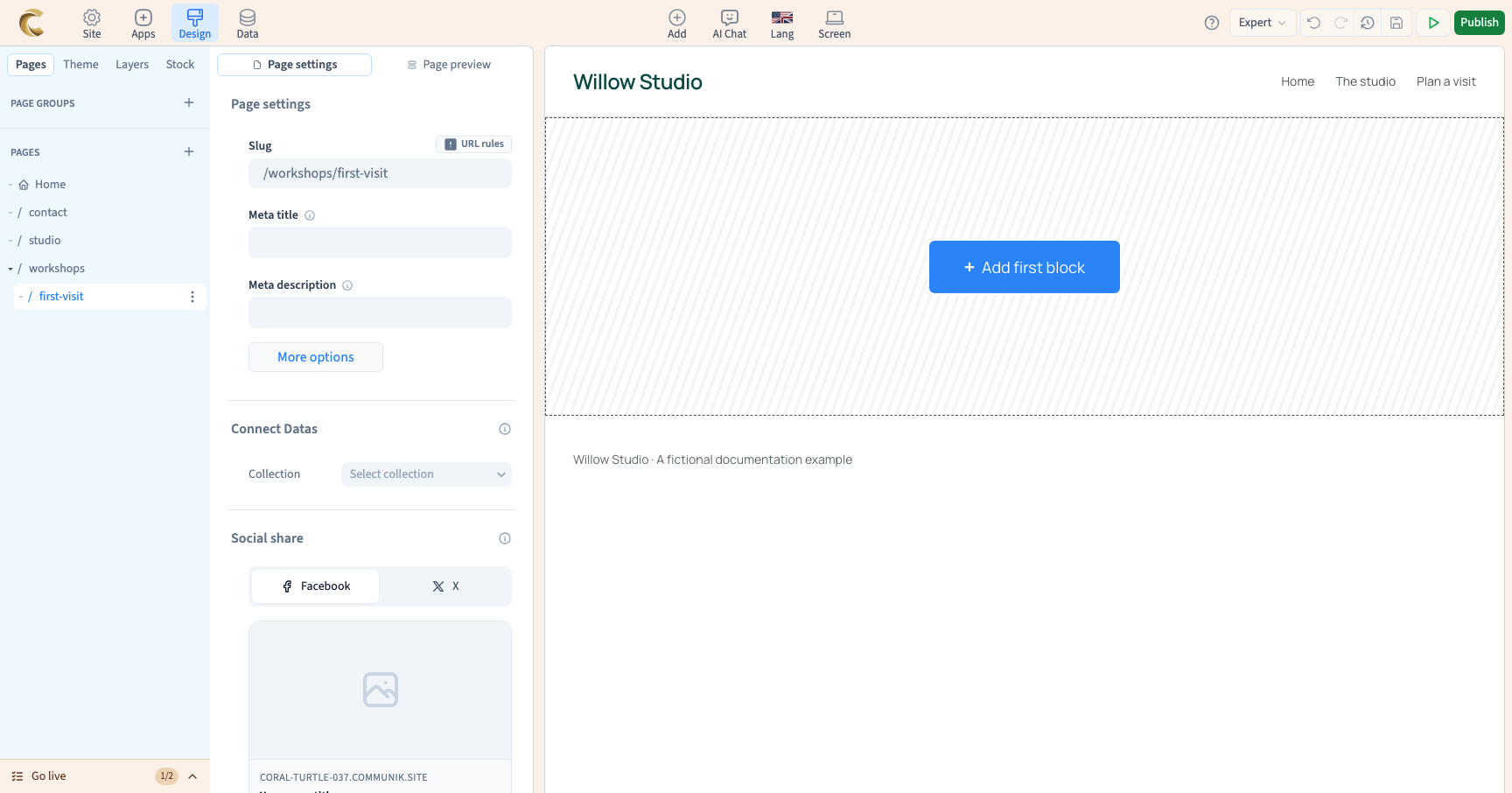
In Add page, choose Empty page, enter /workshops/first-visit and press Enter. The list groups the page under Workshops. Expand that folder and open its child page.
The full path contains both parts. The child label in the tree does not necessarily show its entire address.
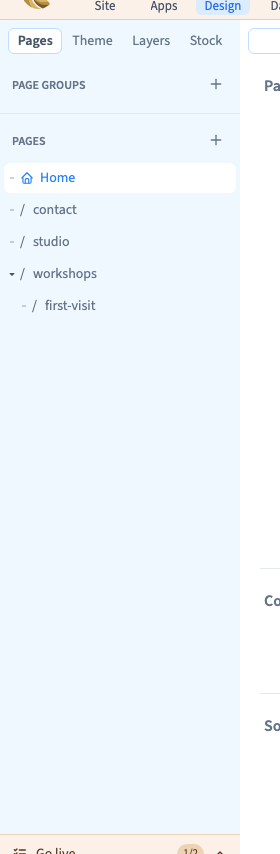
2. Distinguish a folder from a page
A folder organises paths. A page has content you can edit. If you want an introduction listing all workshops at /workshops, create a real page at that address as well as the child pages.
Could not play. Try the video controls.
3. Convert a folder into a page
A virtual folder's context menu offers Convert to page. This creates a page at the folder path; it does not automatically fill it with an introduction to its children. Add suitable sections, text and links, then check the child paths.
4. Separate organisation from navigation
The folders in Pages are not your public menu. You can organise many pages in the editor while keeping the visitor menu simple. A Workshops page might introduce three offers even if the public menu has only one Workshops link.
5. Delete with the right scope
A page menu deletes that page. A folder menu offers Delete folder, affecting its child pages. Read the confirmation before proceeding. To remove one offer, select the child page rather than the whole folder. Check links to removed addresses afterwards.
Before publishing
Open each child, check its path and test how visitors reach it. On a multilingual site, also inspect translated paths in page settings. The tree alone is not enough to validate a translated address.