
Create an empty page or use a template
A page has an address on your site, such as /studio. A section is part of that page. To introduce your studio, create a page and then organise its sections.
1. Choose a starting point
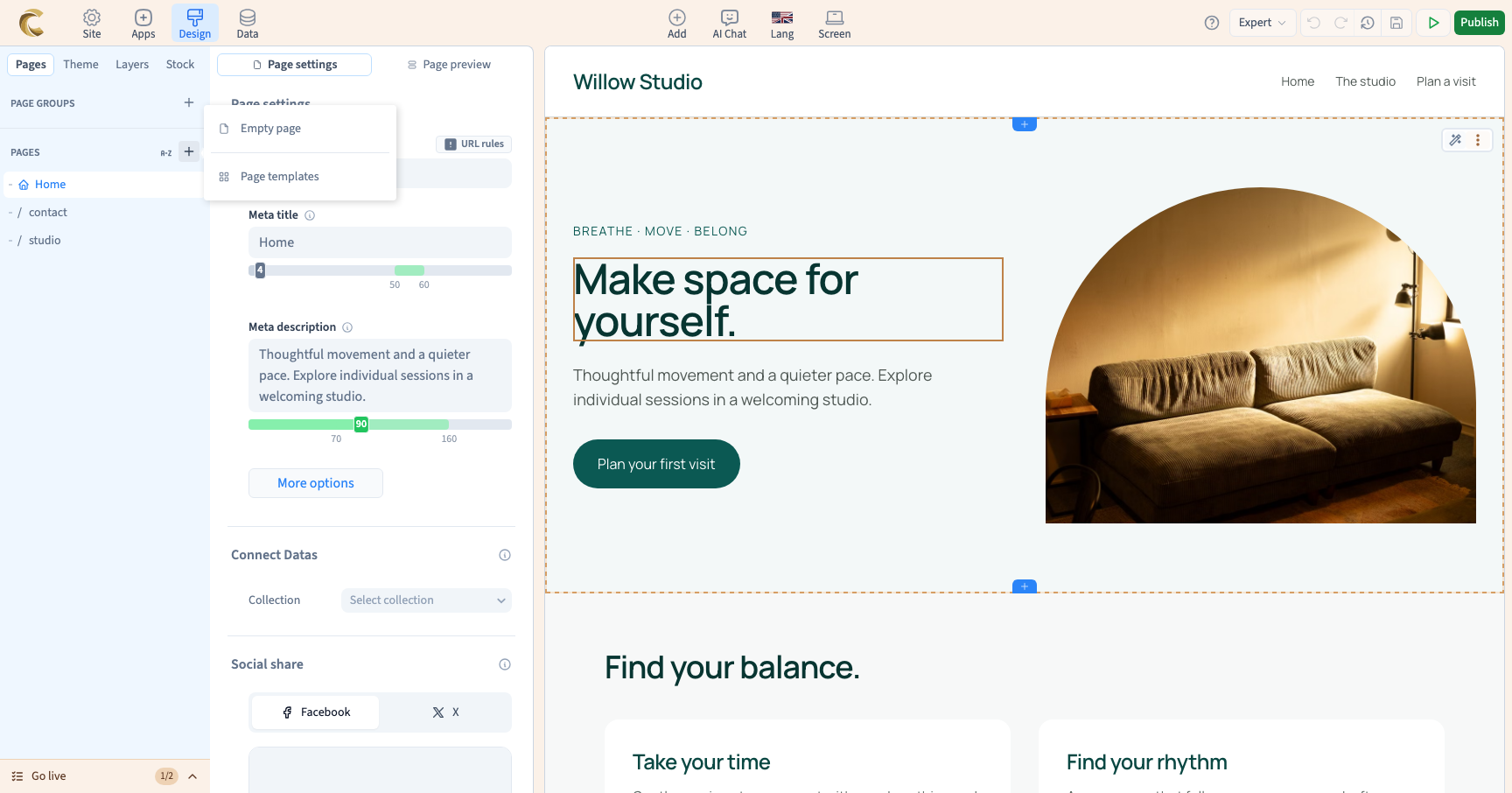
In Design, open Pages and use Add page beside the Pages group. Choose Empty page to compose the content yourself, or Page templates to start with a set of arranged sections. A template provides structure; its words and images still need to suit your project.
2. Create an empty page
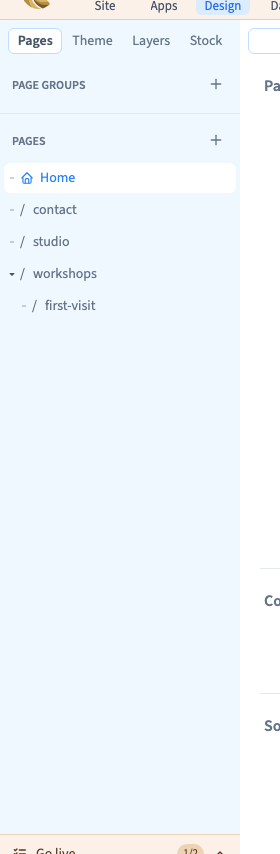
Choose Empty page, enter a path such as /studio and press Enter. Click the new page in the list to open it. Use a short, readable address without spaces. If an address already exists, choose another: two pages should not compete for the same path.
An empty page may still show the site's shared header and footer. That does not mean it already contains its own sections.
Could not play. Try the video controls.
3. Start from a template
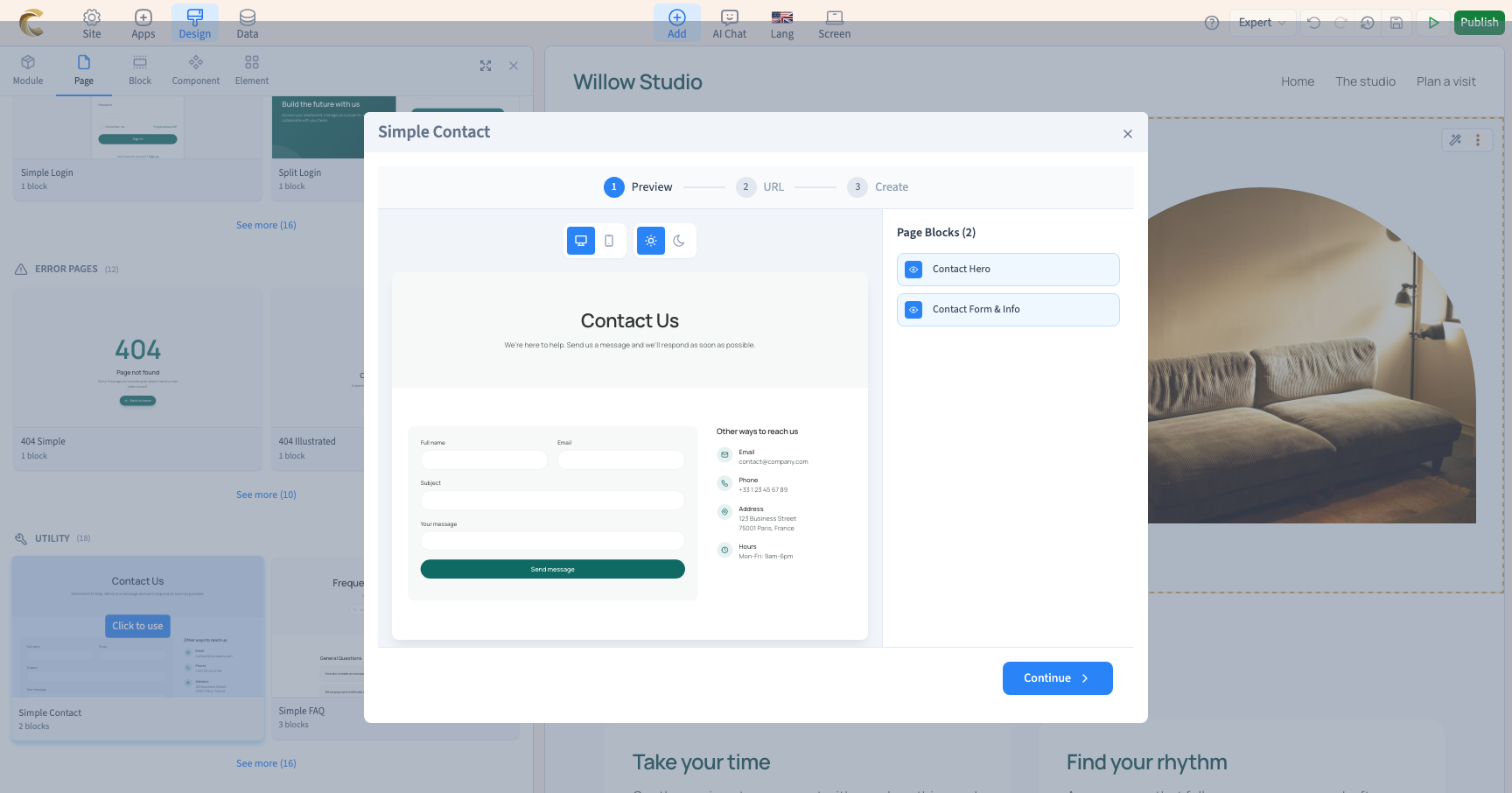
In the library, choose Page. Click a template, such as Simple Contact, to preview it. Inspect desktop and mobile, and choose which blocks to keep.
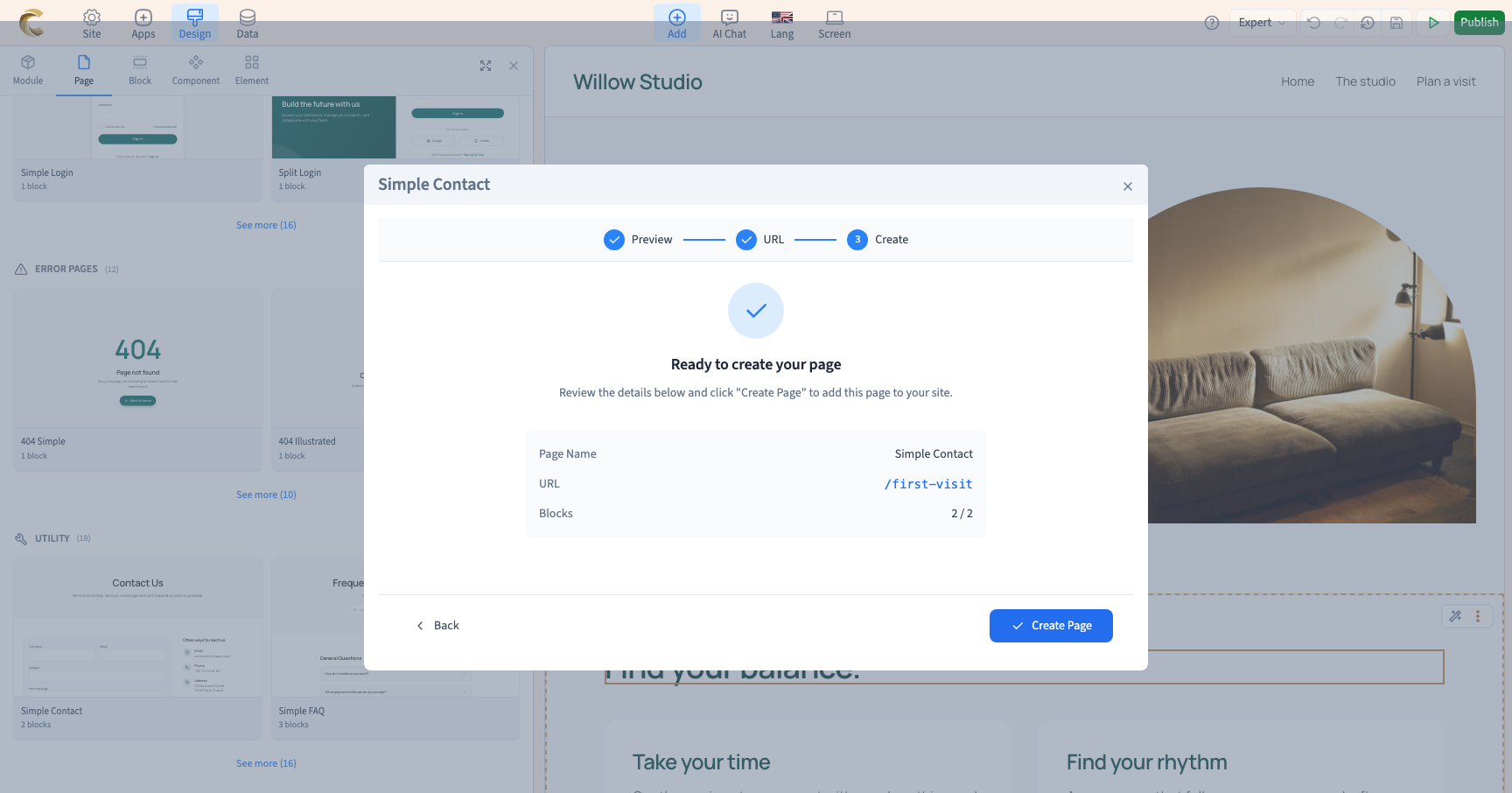
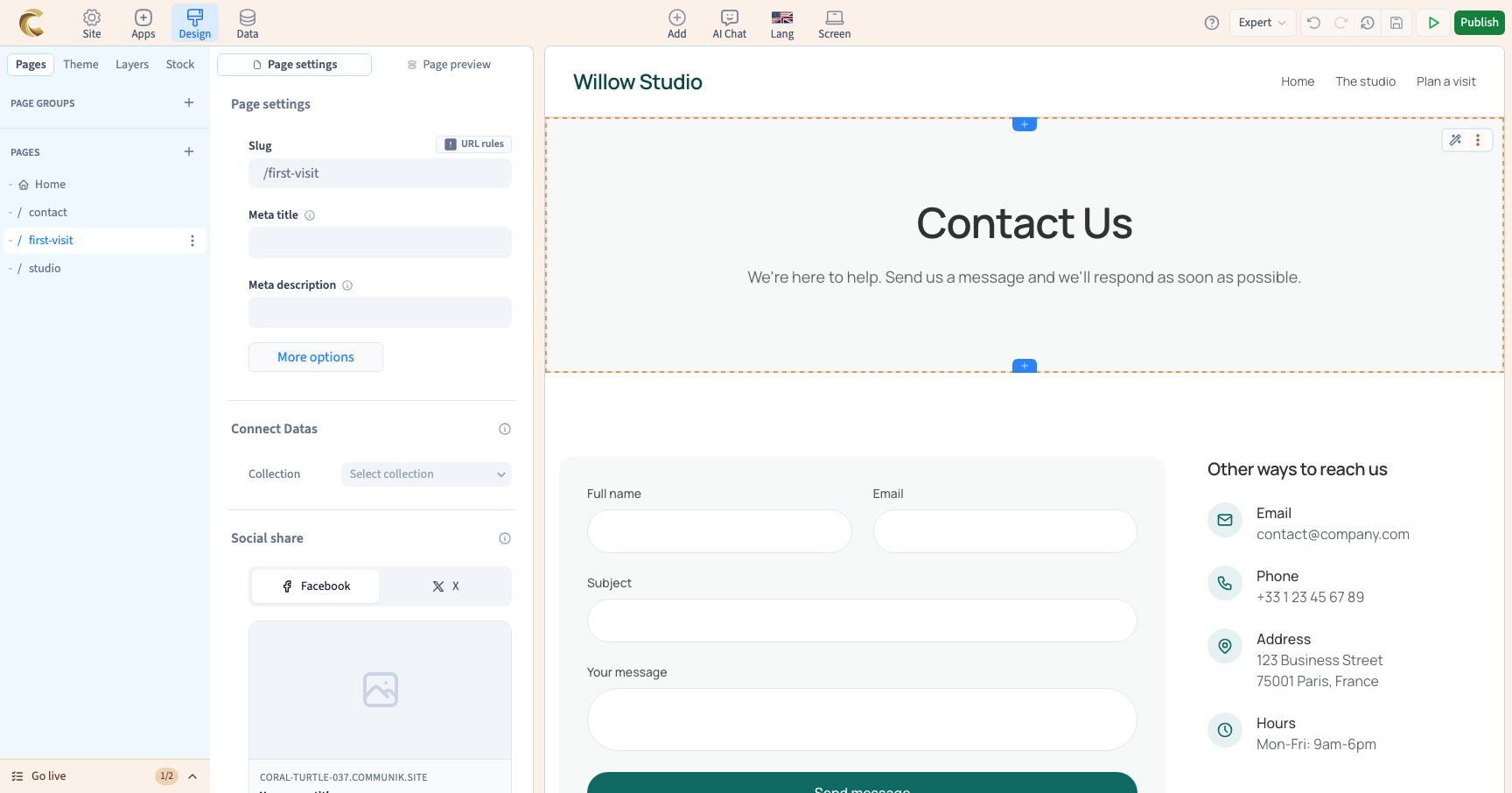
Click Continue, enter the address and continue to the summary. Check the path and selected block count before Create Page. Return to Design and open the new page in Pages. Creation does not always take you straight to the new page.
Could not play. Try the video controls.
4. Check the page and language
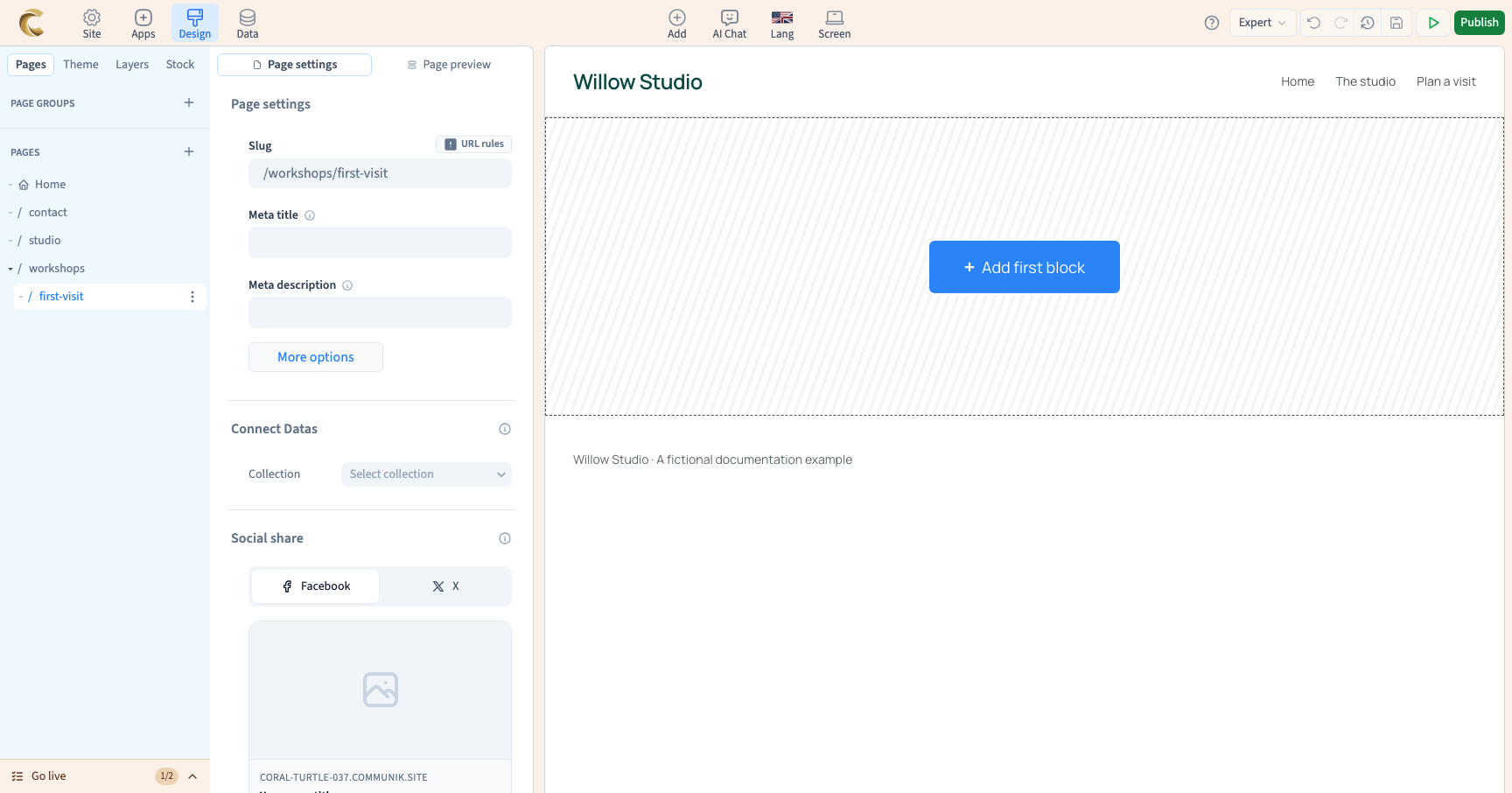
Before editing, check the selected page and the content language in Lang. Interface language and site content language are separate choices. Open page settings to find its Slug, meaning its path, and give it a useful title and description.
5. Add content and test
Add a first section, replace the template's text and images and check a small screen. Creating a page does not automatically add a public menu link. Give visitors a way to reach it, then test the preview as a visitor.