
Set a page address and its options
Each page has its own address and settings. These do not replace general site settings or publish a version by themselves.
1. Open page settings
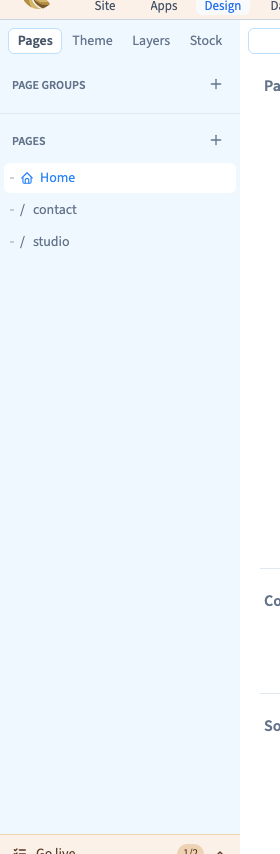
In Design, open Pages, choose a page and find Page settings. Leave an element selection if its panel occupies the space: you need the page's settings, rather than its heading or section.
Could not play. Try the video controls.
2. Check the address
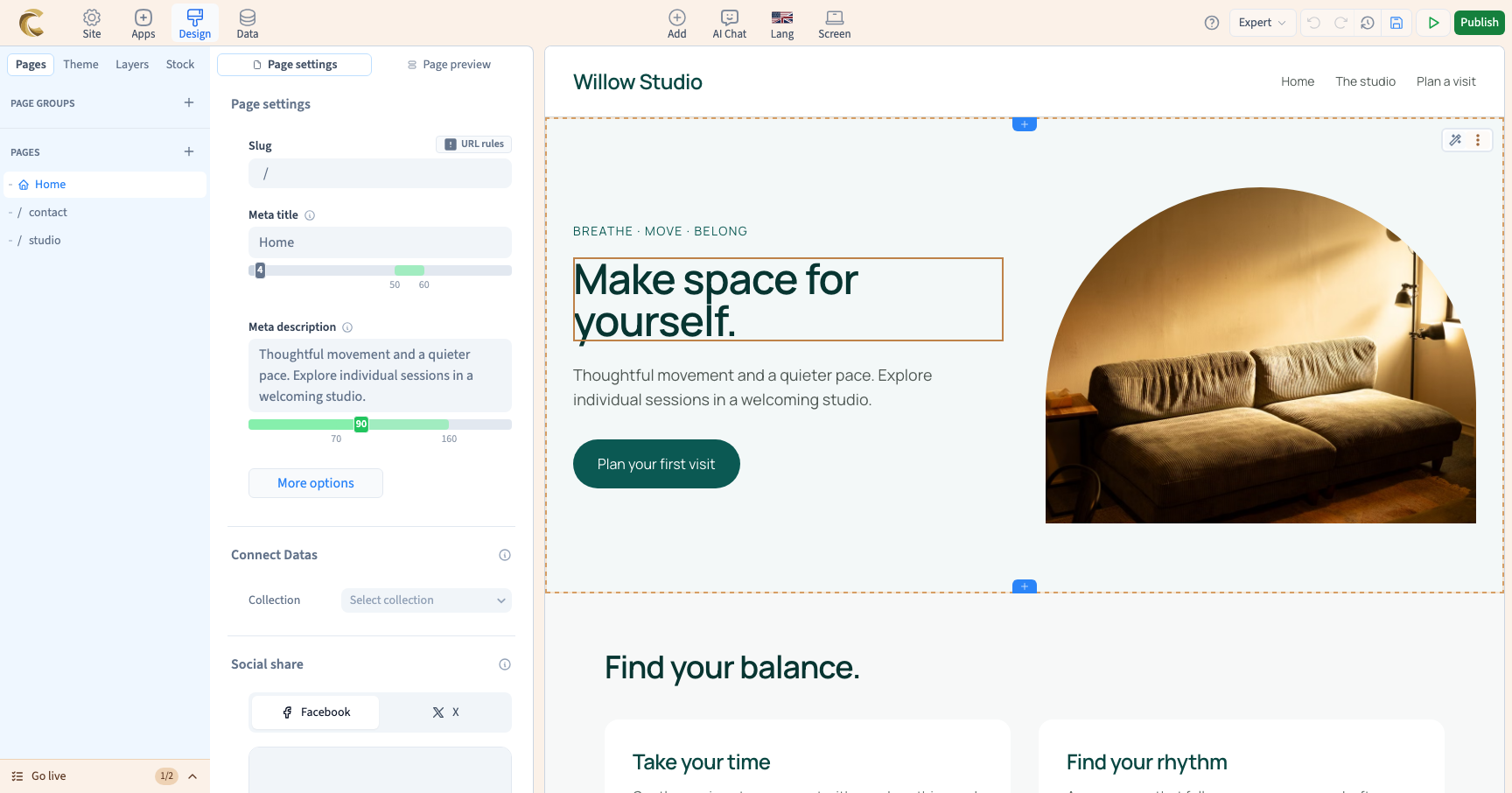
Slug shows the page path. A short, clear address, such as /studio, helps people recognise its purpose. The page-list label, the heading visible on the page and the search-engine title are separate pieces of information.
3. Prepare search information
Review Meta title and Meta description. Describe this page rather than repeating the same text everywhere. Length indicators help you review your wording; they do not guarantee a search-engine ranking. Social sharing has its own settings.

4. Read options before changing access
Advanced options may affect indexing or reserve a page for staging. A page excluded from search indexing may still be accessible by its address. A staging-only page behaves differently. Read the label and check the publishing target before changing an option.
5. Check links and managed pages
After changing an address, test menu links and buttons that used it. Some pages are managed by a module, so their controls can differ from manually composed pages. Save and inspect a published preview before production.