Organise, duplicate and delete pages
The order of Pages helps you work in the builder. It does not, by itself, define the public menu. Organise the editor for convenience, then check paths and navigation links separately.
1. Find the right page
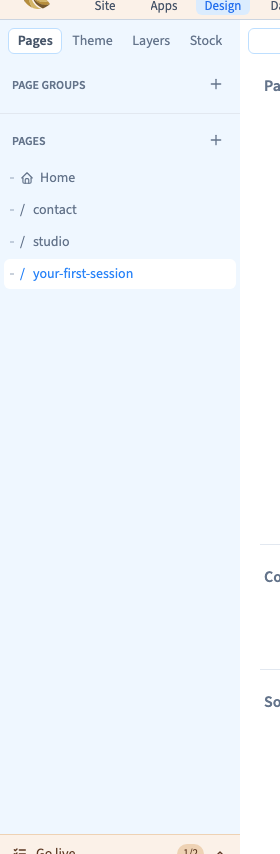
Open Design → Pages. Module groups, such as Blog, are separate from ordinary pages. Expand a group when looking for one of its pages. Open the page and inspect its content before acting. A blog article and a studio introduction serve different purposes.
2. Choose the list order
Page-list sorting helps you find a page in the builder. The order of public menu links is a separate setting.
Switch to manual ordering
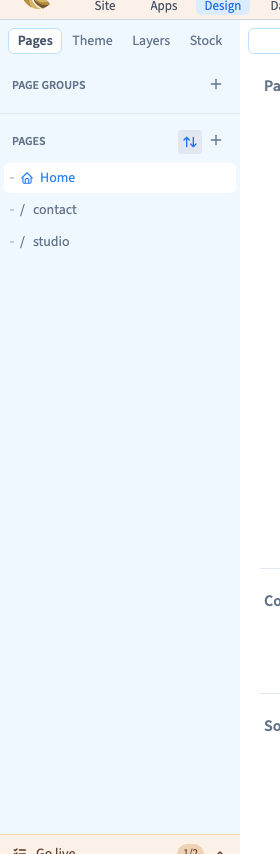
Open Pages and hover its group heading to reveal the sort button on the right. Click to switch from alphabetical to manual order. The list initially keeps its current order.
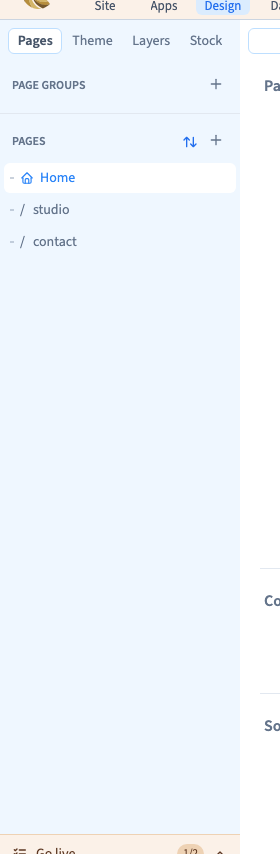
Drag a page to the desired position. To keep the same level, drop it on the indicator between two rows. Save and reload to check that the order remains.
In the demonstration, studio moves above contact. Their addresses remain /studio and /contact.
Avoid accidentally changing the folder
A drop between rows changes order. A drop on another page may create nesting and change the path. Check the drop indicator before releasing the mouse, then inspect the full address. Undo if the result is not what you intended.
Return to alphabetical order
In manual mode, the sort button remains visible. Click it to restore alphabetical order, then save to keep the choice. Check the mode again after reloading.
The saved order belongs to the project. It is not just a preference for this screen. This demonstration reorders pages at the same level; moving between folders also requires checking the new path before publishing.
Could not play. Try the video controls.
3. Duplicate existing content
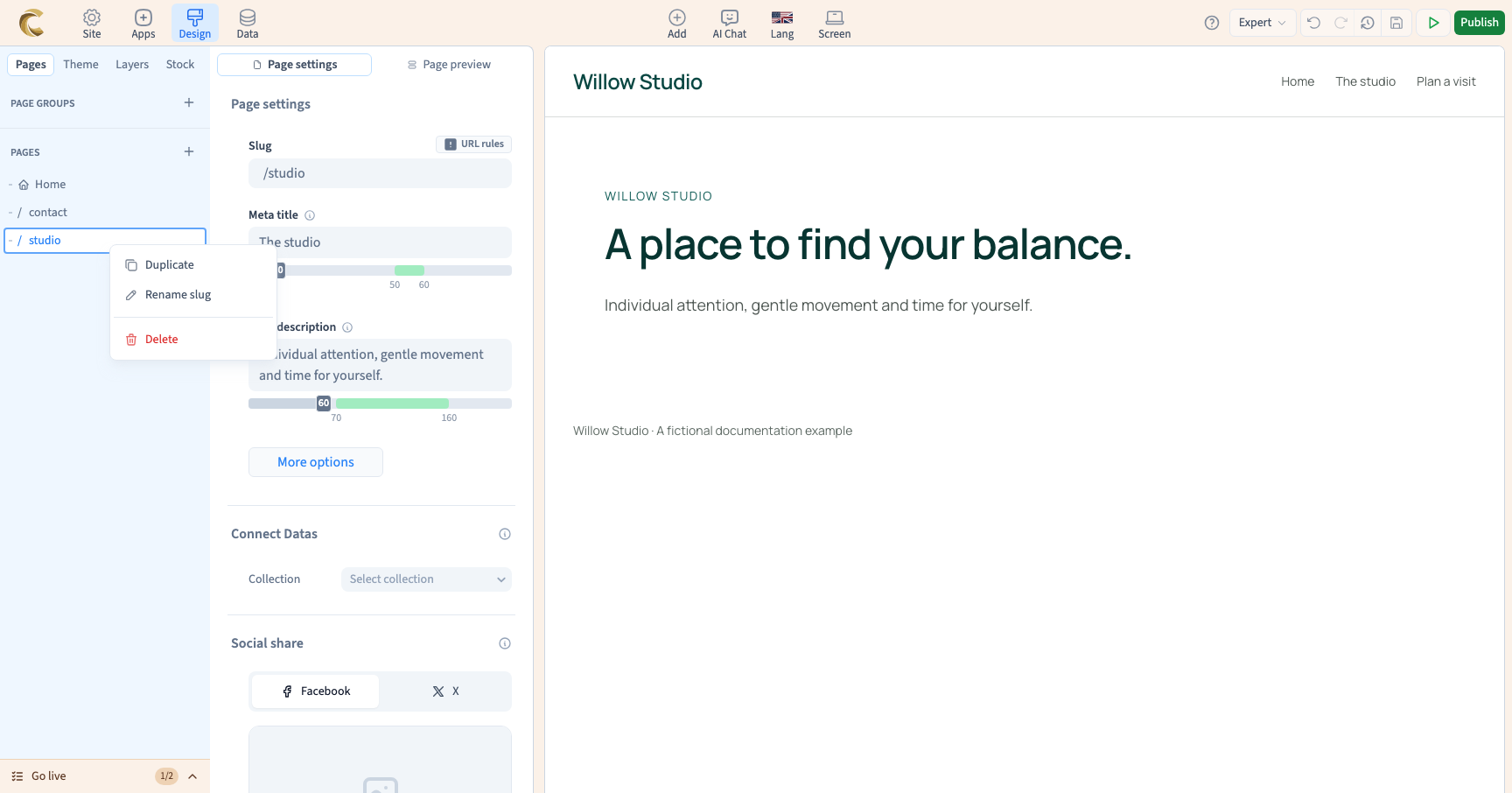
Open a page's actions with a right click or its three-dot menu and choose Duplicate. The copy receives a path ending in -copy. Give it an appropriate address and replace its content. Review its title, description and links too. Duplicating a page does not automatically add a public menu entry.
Could not play. Try the video controls.
4. Rename the address
Choose Rename slug, enter the new path and press Enter. The slug is the address, not the heading shown on the page. On a multilingual site, select the content language first and inspect Slug in page settings. Check the translated path itself rather than relying only on the main tree label.
After a change, test links to the page and their preview destinations. Check the published addresses before sharing them.
5. Delete the right target
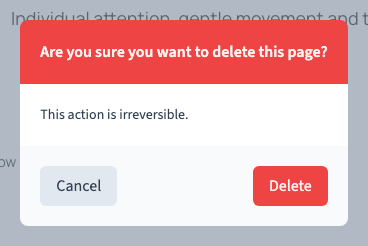
Select the page to remove, choose Delete and read the confirmation. Make sure it contains nothing you need and update menu links that would point to the removed address. Deleting a folder can affect its children; that is different from deleting one page.
6. Rename a translated address
The default path and its translations are separate settings. Translating a path does not translate the words on the page. Choose the content language in Lang, open the page's actions and use Rename slug for that language. Save and check both language versions in staging.
For example, a site whose default language is French can keep /contact and use /en/contact-us for English. On a site whose default language is English, the default English address has no language prefix. Use the actual language settings of your site rather than copying a prefix from another example.
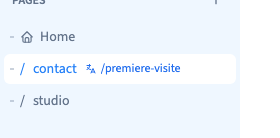
In our English-language demo, the default address stays /contact and the French translation uses /fr/premiere-visite. Both paths are checked in the private published preview at desktop and phone widths.
The tree can show the translated path beside the page while retaining sorting based on its default path. After reloading, select the content language again to inspect its path. Changing a translation should not silently move the default page into a different folder.
An old link may become obsolete after an address changes. Review existing links and prepare a redirect when visitors already use the old address.
Could not play. Try the video controls.