Match file columns to collection fields
A source file may use different headings from your collection. Field matching tells Communik where each value belongs, without requiring you to rename every source column.
1. Prepare the destination collection
Open the intended collection in Data, then choose Import. Its fields must already exist: text for a title, a number for a price and a boolean field for a yes-or-no answer. An imported heading does not create a field automatically.
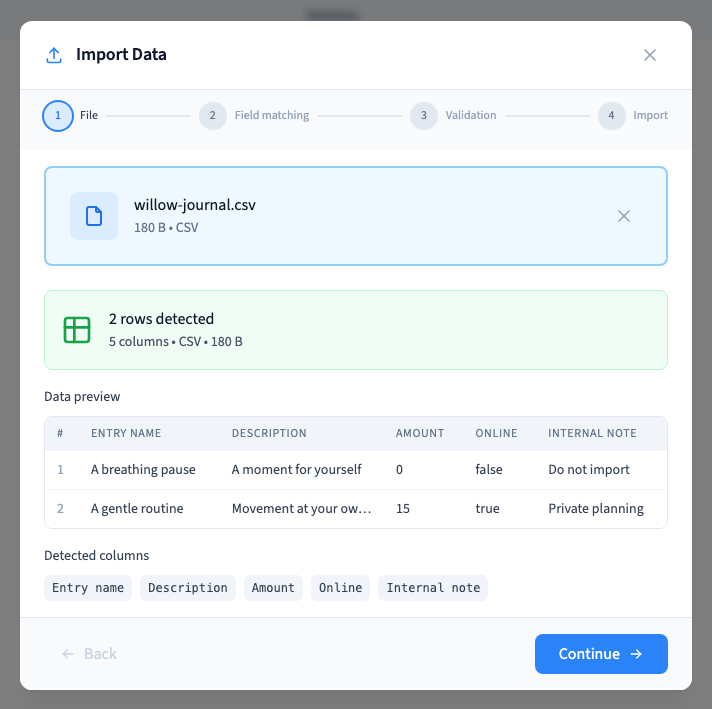
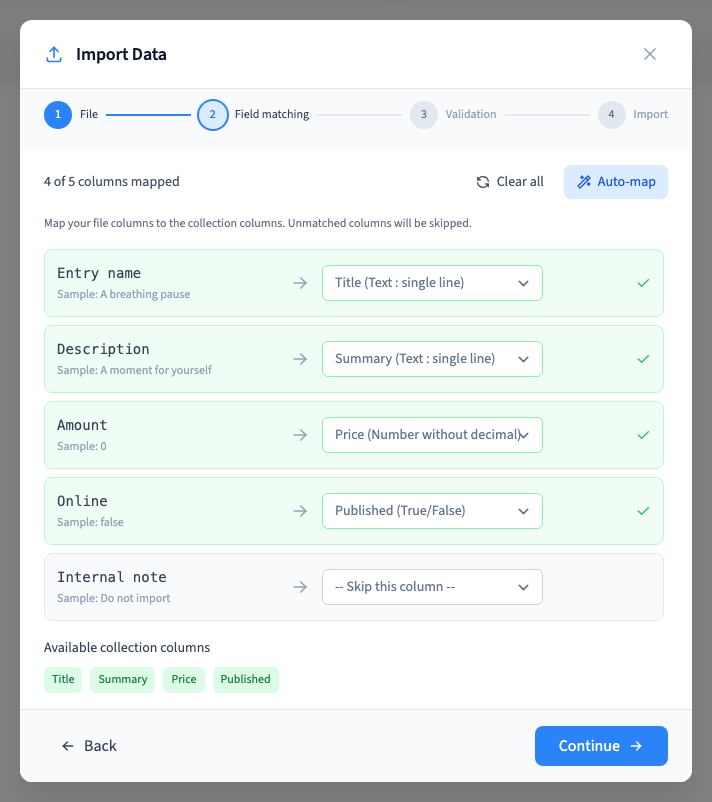
The example file has Entry name, Description, Amount, Online and an Internal note that should be omitted. Read its preview and choose Continue.
2. Assign the destination fields
Each line shows the source heading and a sample value beside the destination selector. Match Entry name to Title, Description to Summary, Amount to Price and Online to Published.
Auto-match proposes associations based on names. It does not understand your business meaning. Clear all lets you start with empty matches. Review the proposals before using them.
A field already assigned to another column is unavailable as another destination. Check the other matches before creating a field merely because it seems missing from one selector.
Could not play. Try the video controls.
3. Ignore an unnecessary column
Leave Ignore this column selected for Internal note. Ignoring it does not delete a collection field; it only excludes that source column from this import.
Check required destination fields too. They need an appropriate value or default. Colours and the matched count help review your choices, but do not prove that the values are valid.
4. Validate, correct and validate again
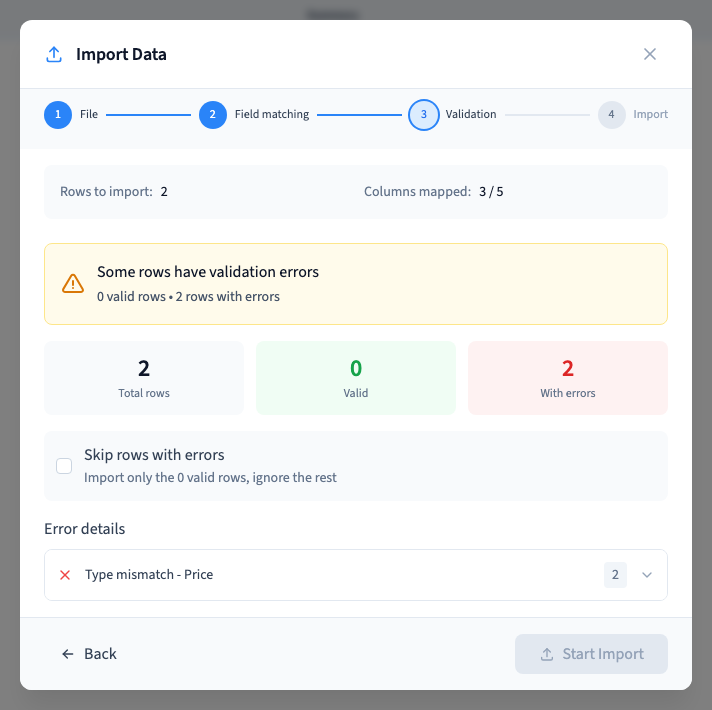
Choose Continue. The recording first validates the correct matches, then deliberately sends Entry name to Price. Validation rejects the text in the numeric field and keeps Start Import unavailable. No records have been added.
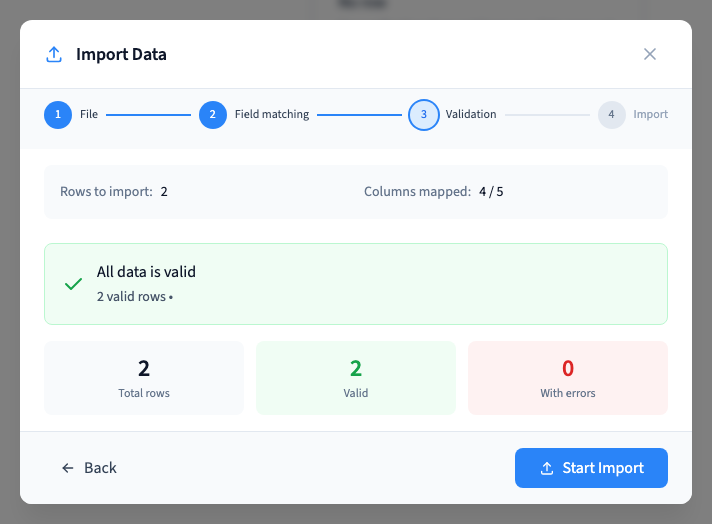
Return with Back, restore the correct destinations and validate again. A previous successful validation must not be treated as permission to import a subsequently changed mapping.
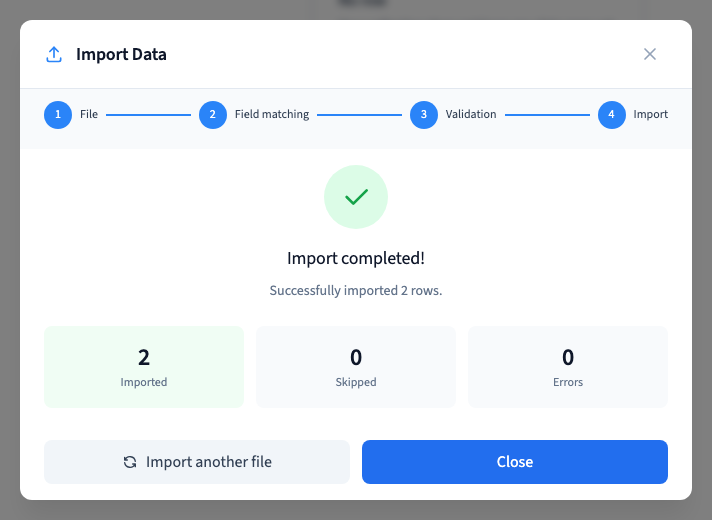
Choose Start Import after the corrected mapping passes. The two records are checked after reload: zero and false are preserved and Internal note has not created an extra field.
An import adds records. Search before repeating a file so that you do not accidentally duplicate records already written.
Prepare the file · Read validation errors · Follow the whole import