Import collection records
Importing saves you from copying every record by hand. Prepare a file, decide which existing field receives each column, then check the values before writing anything.
1. Start with a small file
Use two or three representative records. Each row should be one record and each column one piece of information. Use recognisable headings, such as Title, Summary, Price and Published.
Keep the original file. Before a substantial import into an existing collection, export a copy of its current data too. An ordinary import adds records; it is not an automatic synchronisation or an update of every record with the same title.
2. Read the file preview
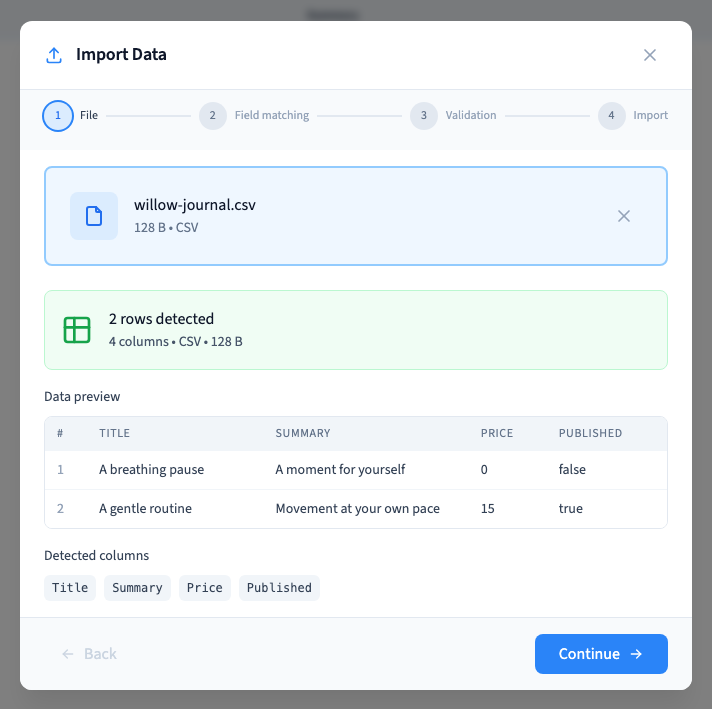
Open Data > Collection, select the destination collection and choose Import. Choose or drop your prepared file. The preview shows its format, detected row count and columns. Check accents, titles, separators, numbers and yes-or-no values before Continue.
The Willow example has two journal records. One has a price of zero and Published set to false; the other has a price of 15 and Published set to true.
A poorly separated CSV is easier to repair in the original file than after importing it.
Could not play. Try the video controls.
3. Check the field matching
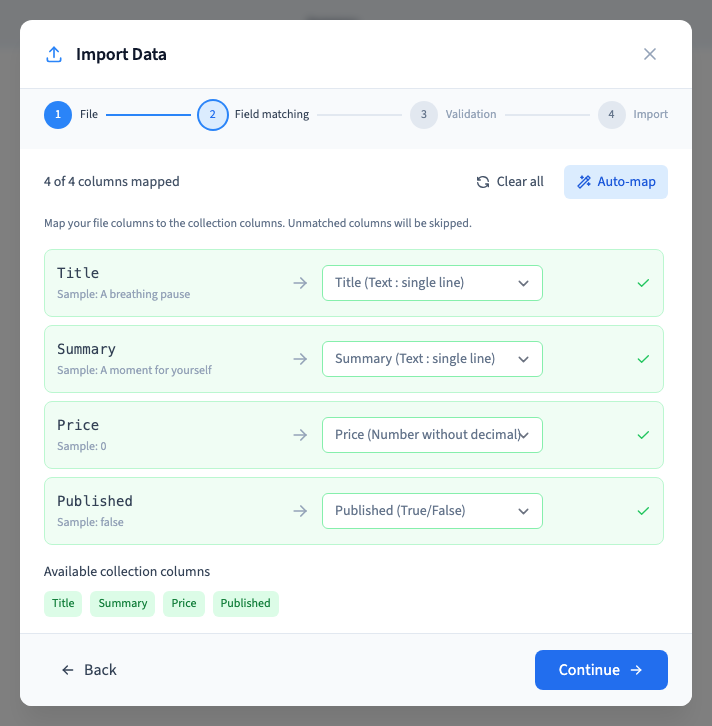
Each source column is matched to an existing destination field. Automatic matching helps when the names are similar, but inspect every association and its sample value.
Use the destination selector to correct a match. An ignored column contributes no value and does not create a field. If a field is missing, prepare it in the collection before restarting the import. Do not send a column of titles to Price merely because a selector offers that destination.
4. Validate before writing
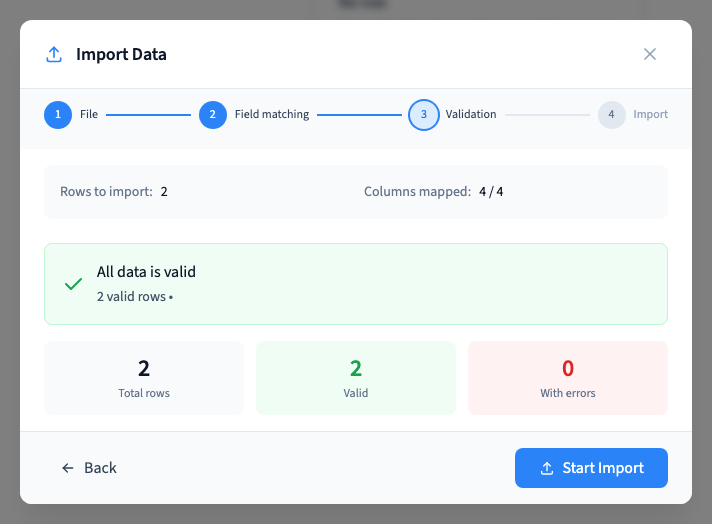
Choose Continue. Communik checks the values and reports valid rows and rows with errors. The demonstration confirms that no records exist yet at this stage.
A value such as “not-a-number” cannot fill a numeric price field. Correct the file or its destination and validate again. Skip rows with errors does not repair those rows; it selects an import of the valid rows only.
For a complete import, correct the errors rather than accepting a partial result without recording what was omitted.
5. Import and inspect the saved records
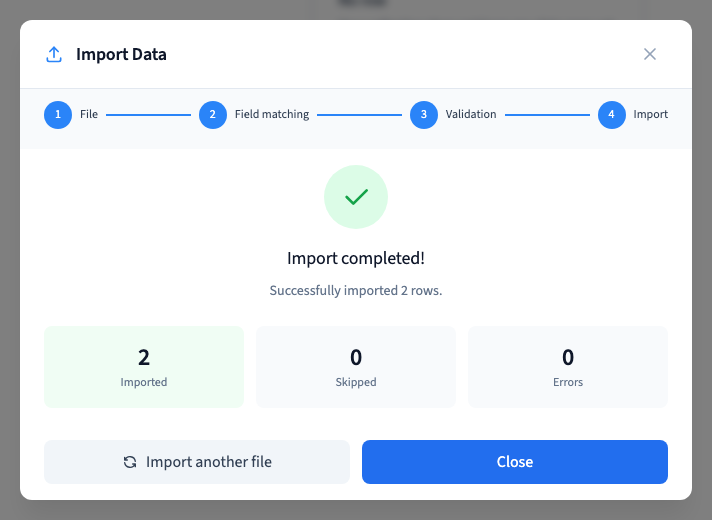
Choose Start Import once the checks are satisfactory. Wait for the result, then compare the added count with the expected count in the collection table. Reopen representative records after reloading.
The two example records retain zero, false and true. Inspect any connected public pages separately: saving data does not prove that their layout or connections are correct.
Before restarting the same file, search for the records already present. A delayed display or missing response does not prove that no data was written.
Prepare an import file · Match the columns · Understand validation errors · Find saved records