
Add, edit and delete collection records
A record is one complete item in a collection. The fields already defined in the collection determine its editing form.
1. Add a record
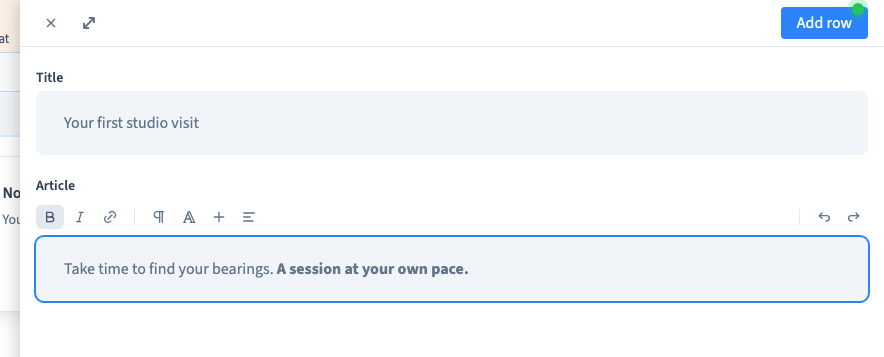
Open Data > Collection, choose the collection and select Add row. Fill in the fields using their editors. Give the entry a recognisable title before saving with Add row.
The example creates a studio journal entry and adds rich text to its article field.
Could not play. Try the video controls.
2. Write and correct the content
Click in the relevant text editor. For formatted content, select the words before using a command such as bold. Proofread the result in context; a formatting command applies to the selection or current typing state.
Keep an optional field empty when it has no useful content. A placeholder is not necessarily a saved value.
3. Edit the same record
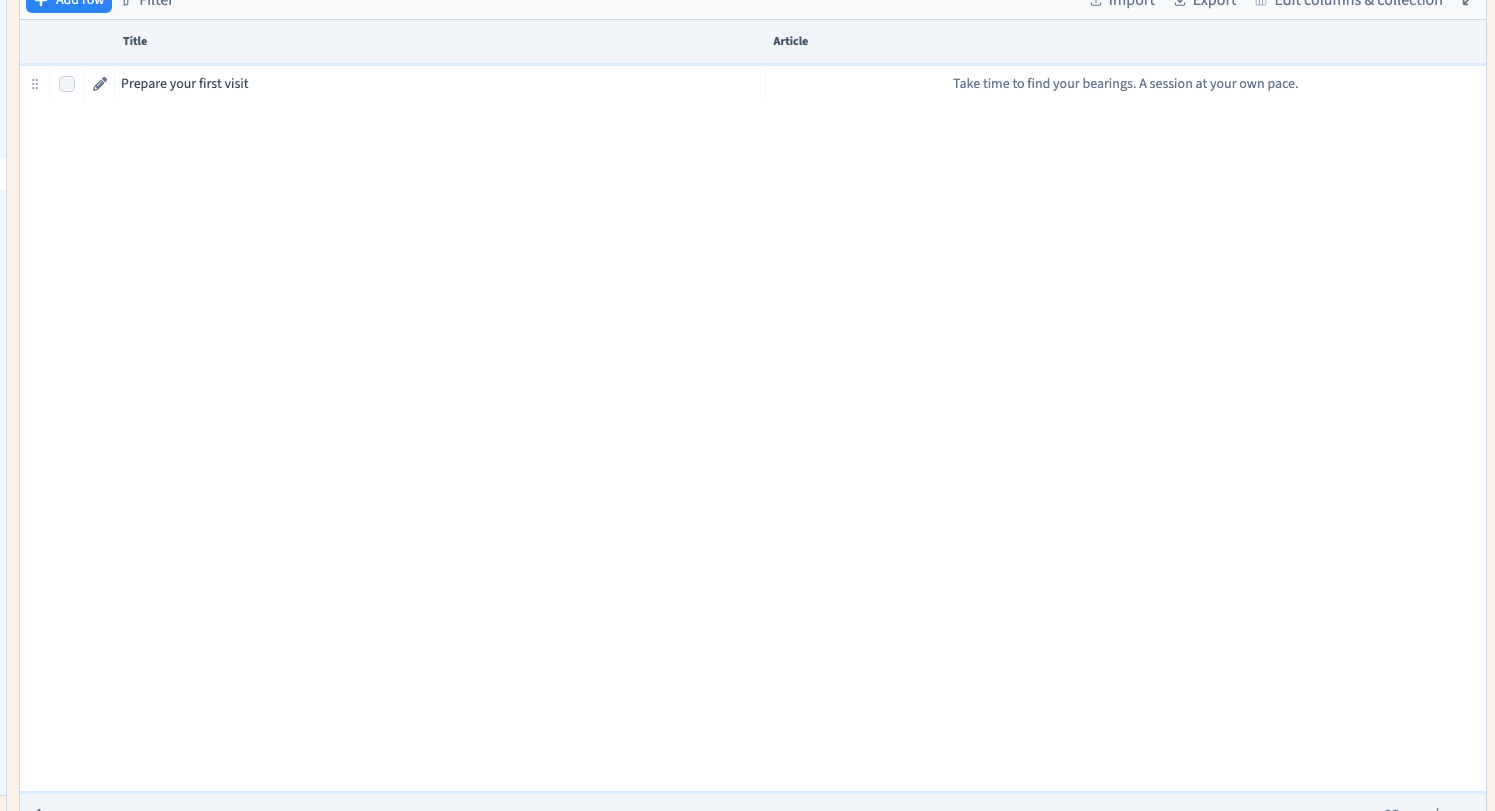
Use the row's edit command to reopen it. Correct its title and choose Edit row. Return to the table, reopen the record and check the change. Editing preserves the record's identity and connections; adding another row creates another item.
4. Delete an unwanted record
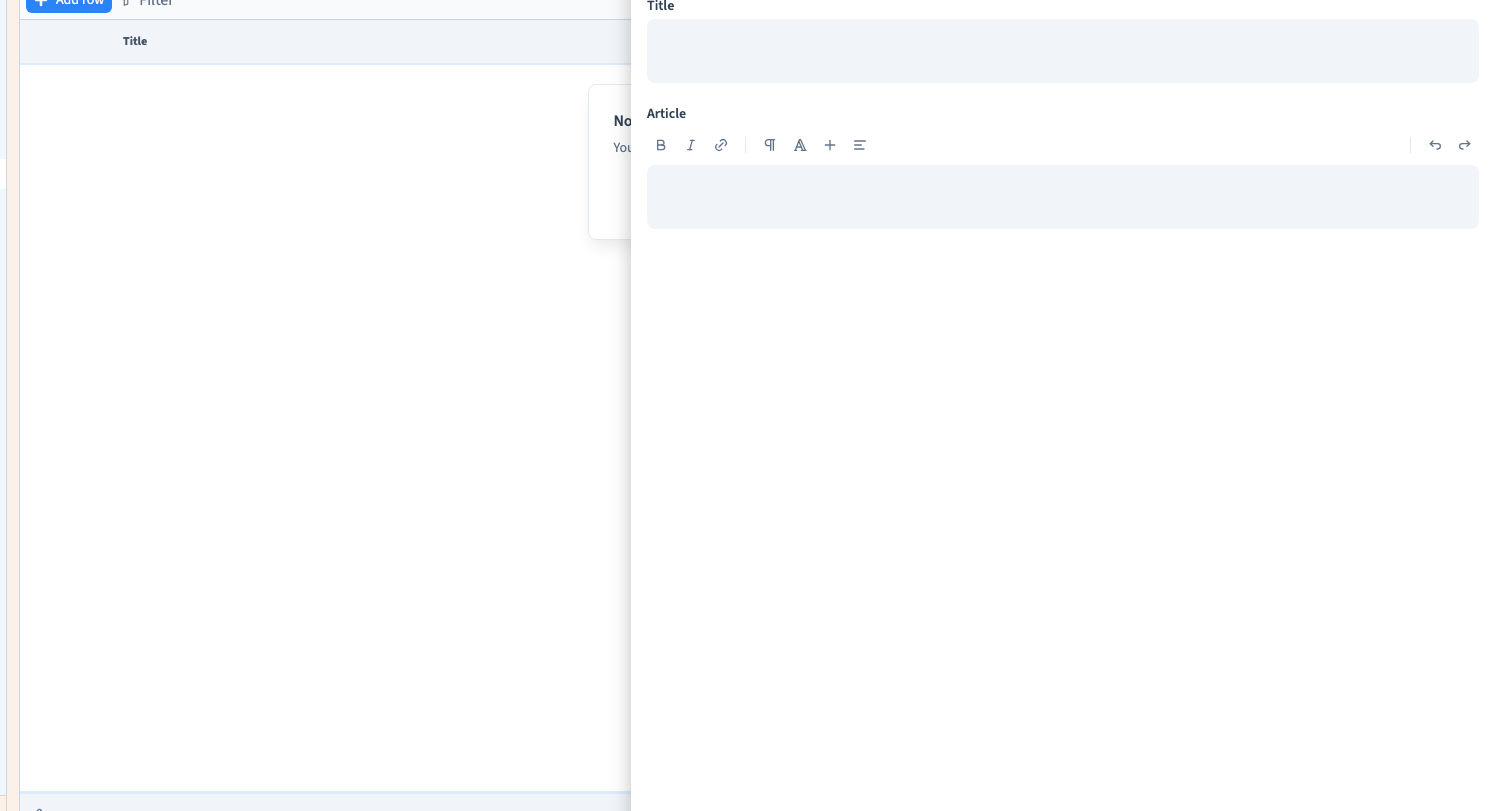
Open the record's action menu and choose its delete command. Return to the table and confirm that the intended item has disappeared. Make an export before a substantial deletion if you need a separate copy of the data.
Deleting content can affect lists, detail pages and relations that use it. Review those connections rather than judging the result from the table alone.
5. Check what visitors see
For a connected collection, inspect the consuming list and detail page. Check the title, rich text, optional values and mobile layout, then publish and verify the public result. The video demonstrates record editing and persistence; it does not claim that saving a row configures a public page automatically.