
Copy, cut and paste an element
To reuse an element, decide whether you want a copy or a move. Builder commands act on the complete element, including its content and settings.
| Command | Result |
|---|---|
| Copy, then Paste into another target | Keeps the original and adds a copy inside the chosen target. |
| Duplicate | Creates a copy in the original parent. |
| Cut, then Paste | Removes the element from its place and puts it in the chosen destination. |
1. Copy without changing the original
In Design, choose Expert and select the element. Right-click and choose Copy. The preview stays the same: nothing has been pasted yet.
Leave text editing first if you are typing. Copying a builder element and copying words with the system clipboard are different uses.
2. Paste into the right container
Open Layers, select the destination container, right-click its row and choose Paste. Check that the copy is a child of that container.
When you choose another target, Paste inserts the copy inside it. This differs from Insert after…. Choose the card or group you need, rather than an existing heading inside that card.
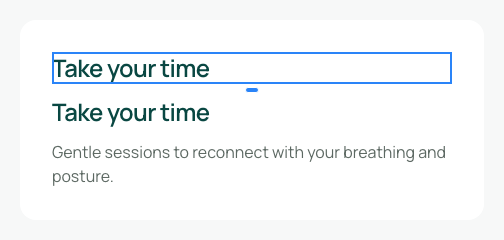
In the demonstration, Take your time is copied into the Find your rhythm card. The original heading stays in the first card. Each copy can be selected separately.
Check settings that were kept: a copied button may retain its link; a copied image may use the same file. Adapt them when the new element has another purpose.
Could not play. Try the video controls.

3. Duplicate beside the original
Right-click the original and choose Duplicate. The copy shares its parent. You do not need to choose another destination.
The duplicate is independent. Editing its words does not automatically change the original. Use a reusable component when you need related uses to share a design.
4. Cut to move
Right-click the element and choose Cut. It disappears from its original place. In Layers, select the destination container, right-click and choose Paste. Check that the content appears once, inside the right parent.
If you cut the wrong target and have not pasted, use Undo to recover it. Do not treat the builder clipboard as a backup after closing or reloading.

5. Undo without losing the starting point
After pasting a copy or duplicating, Undo removes the addition. The original should remain.
After Cut and Paste, reverse both actions in order: undo the paste, then undo the cut. Check the original's parent, position and content in Layers.
Save the result. For an important move, reload and inspect the structure again. The demonstration checks saved identifiers, parents, order and content, rather than just the heading's presence.