
Add and reorganise elements in a section
A section contains text, images, buttons and containers. Containers group and arrange their children. Layers lets you inspect and change this structure using visual controls.
1. Read parents and children
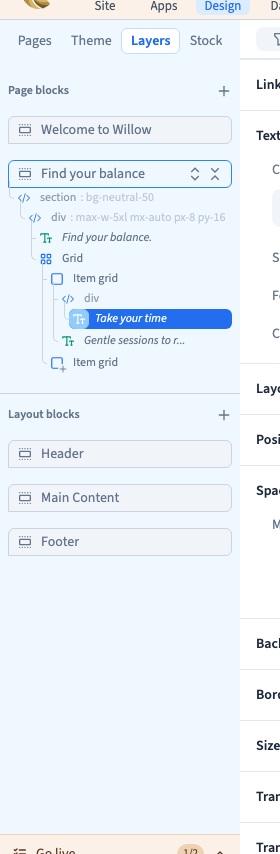
In Design, open Layers and choose Expert. Children are indented under their parent. Expand a container to see its contents.
In the example, a grid contains two cards. Each card holds a heading and paragraph. Select the grid to arrange both cards, or one card to arrange its own contents.
Click a row and check the preview outline. This avoids changing a whole group when you intended to edit a single text.
2. Add an element in the right place
Right-click a reference element and choose Insert before…, Insert after… or Insert inside…. Choose an interface type, such as <p> for a paragraph or <div> for a container.
Before and after add a sibling in the same parent. Inside adds a child to the target. For that command, select a suitable container in Layers.
The new element can be empty. Find it in Layers, enter its content and set its appearance. Its tree order and its parent's layout determine its position on screen.
3. Create a container around an element
Select the element, right-click, open Wrap with… and choose <div>. In Layers, the new container becomes the selected element's parent.
Use that parent to arrange children or give them a shared background. The original text stays. Undo restores the previous parent and removes the wrapper in one grouped action.
Could not play. Try the video controls.
4. Move an element in Layers
Expand the relevant containers, then drag the element row to its destination. Check the drop indicator before releasing. Dropping on a container and dropping between rows request different positions.
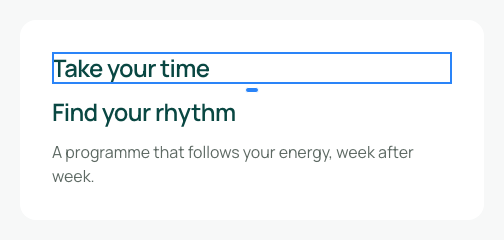
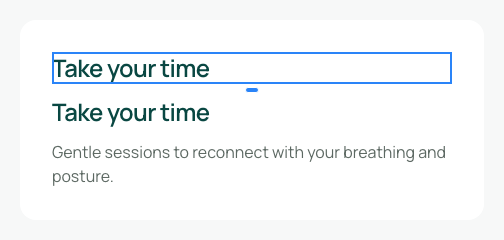
In the demonstration, Take your time leaves the first card and joins the second. It is moved, not copied. The first card keeps its paragraph.
Check the new parent in Layers and the result in the preview. The element retains its settings, but the new parent's layout may change its position or available space. Undo if the destination is wrong.
5. Duplicate or remove the right selection
To copy into the same parent, right-click the element and choose Duplicate. Select the copy before editing its content.
To remove it, choose Delete in its context menu. The original should remain. Removing a container also removes its children, so check the selection outline and tree row first.
To move instead of copy, you can also use Cut and Paste. Pasting into another target inserts inside that target; choose the intended container.
6. Check before continuing
Check the parent, order and content. A heading still being visible does not prove that the structure is correct.
Save, then reload after an important reorganisation. Inspect both Layers and the preview. The demonstrations check identifiers, saved parents and order, then the restored state after reloading.