
Use an element context menu
A right click opens actions for the target element. You can add a paragraph or container with the interface choices, without writing code.
1. Select the right target
In Design, choose Expert to access visual settings and structure commands. Click the text, image or container. Check its selection outline.
To choose a container instead of its text, open Layers and select its row. A parent groups its children: a heading and the card holding it have different scopes.
2. Open the menu
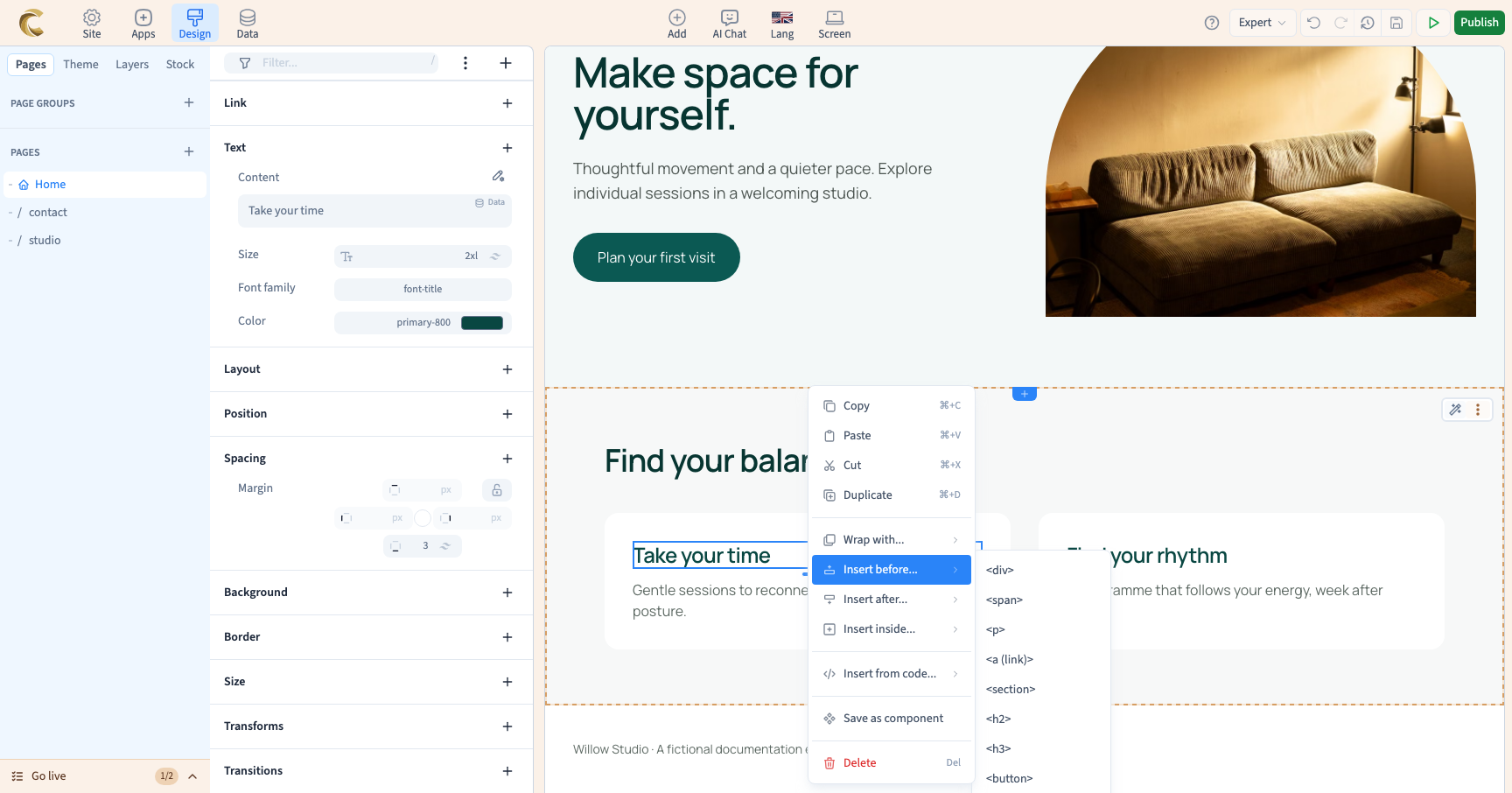
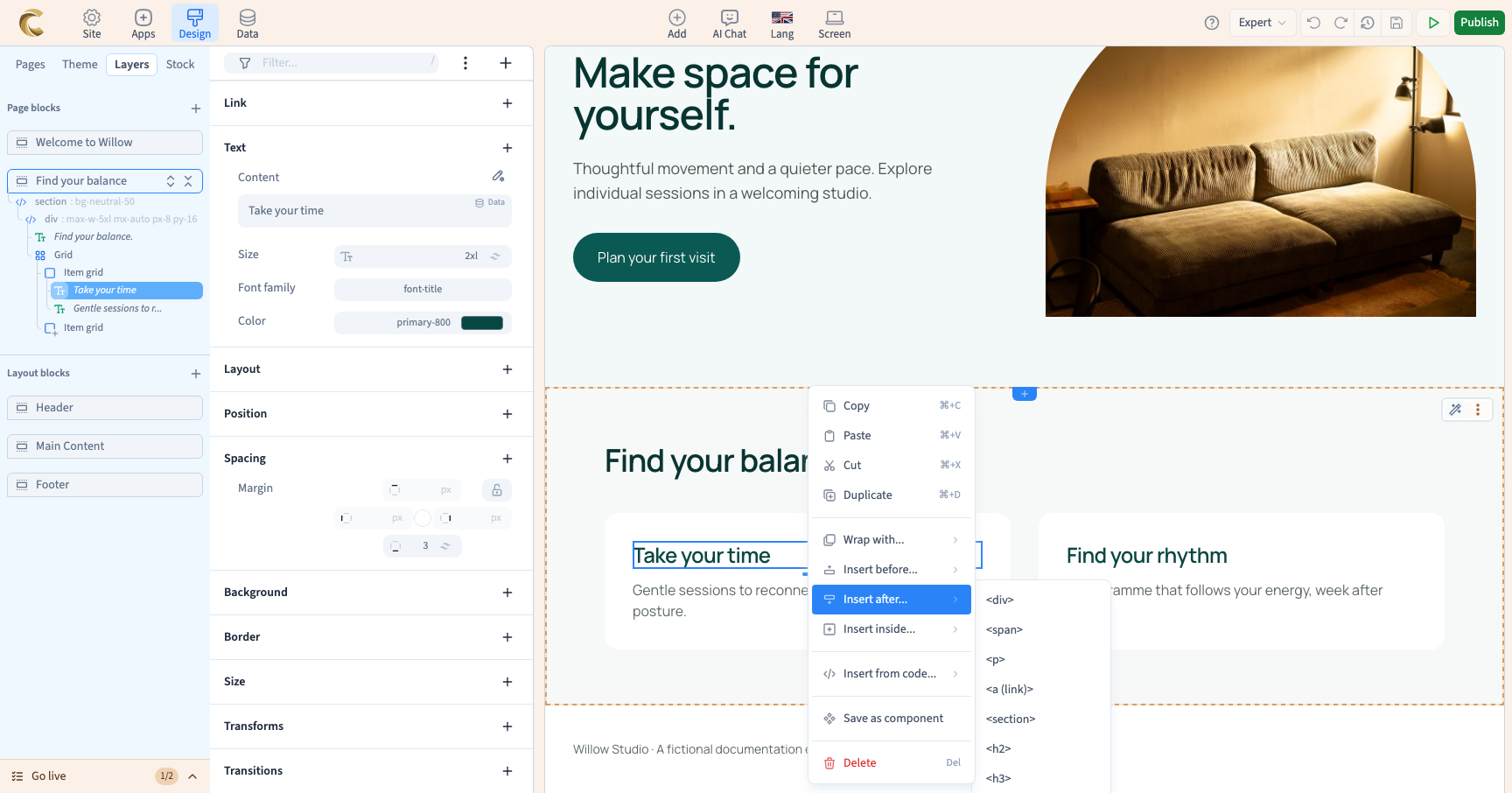
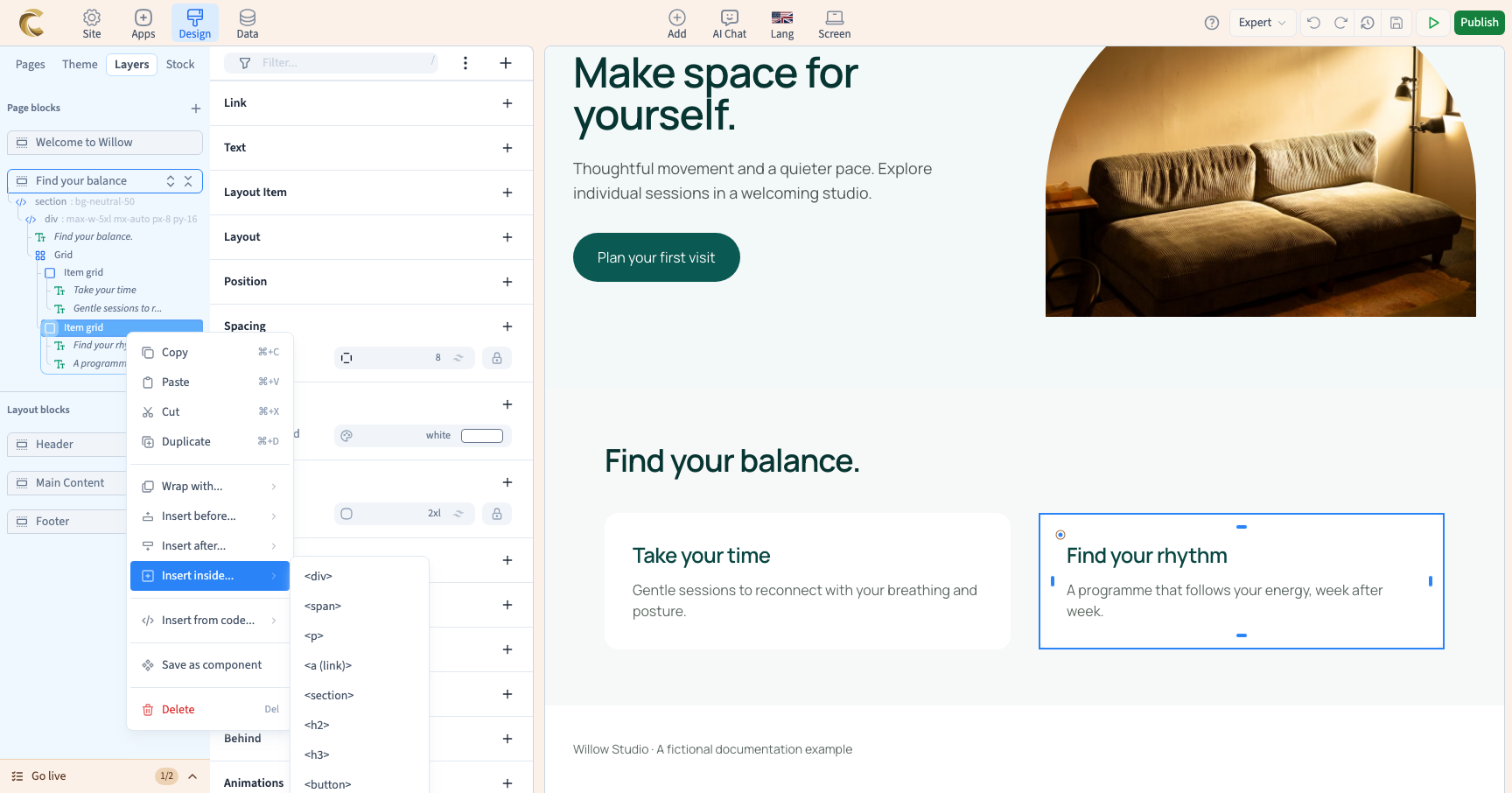
Right-click the element in the preview or its row in Layers. The menu includes Copy, Paste, Cut, Duplicate, insertion commands and Delete. Press Escape to close it.
A right click on a page or section opens different actions. If the expected commands are absent, check the selection first.
3. Insert before or after
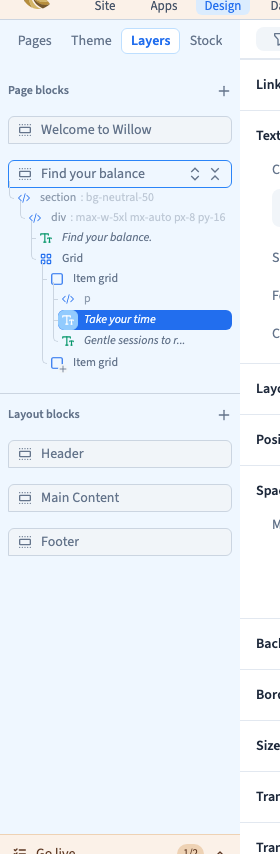
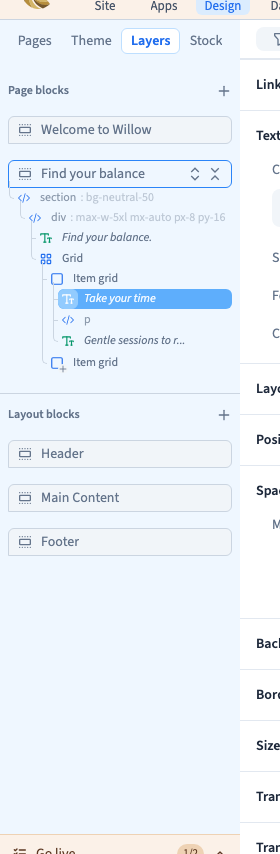
Right-click the reference element, open Insert before… or Insert after… and choose an offered type, such as <p> for a paragraph. Find the new element in Layers, then add content and set its appearance.
The new element is a sibling of the target: they share a parent. Before and after refer to structural order. Depending on the parent's layout, siblings may appear beside each other or one below the other.
A new paragraph is empty, so it can be difficult to see in the preview. Layers helps you find it before adding words.
Could not play. Try the video controls.
4. Insert inside a container
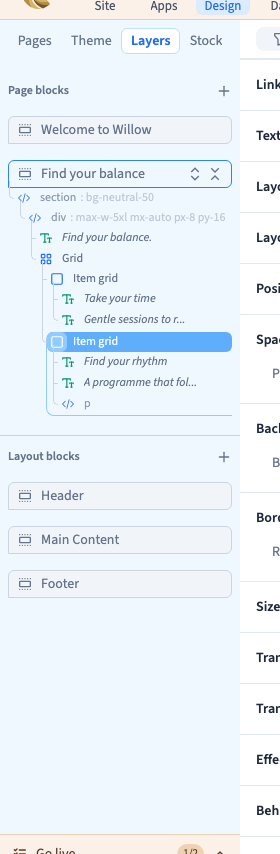
In Layers, select the destination container. Right-click its row, open Insert inside… and choose the type. Check that the new row is nested under the right parent.
The demonstration inserts a paragraph in the second Willow Studio card. Selecting the card in Layers avoids inserting it inside that card's heading.
<div>, <p> and <h2> are interface choices: div is a container, p a paragraph and h2 a section heading. Choose the type; you do not need to type the tags.
5. Wrap a selection
Wrap with… adds a parent around the target. Choose <div>, for example, to group it in a container. You can then change the parent's layout or background.
Check the new container and the original element in Layers. Undo restores the previous parent and removes the added wrapper in one grouped action. Check the tree before undoing another change.
6. Check and undo
After insertion, check the parent, position and content. A simple insertion can be reversed with Undo in the top bar. Check saved data and reload after an important structure change.
Before deleting, check whether the selection has children. Removing a container also removes its contents. To remove one text, select that text instead.