
Set WhatsApp contacts and their opening hours
1. Describe each contact clearly
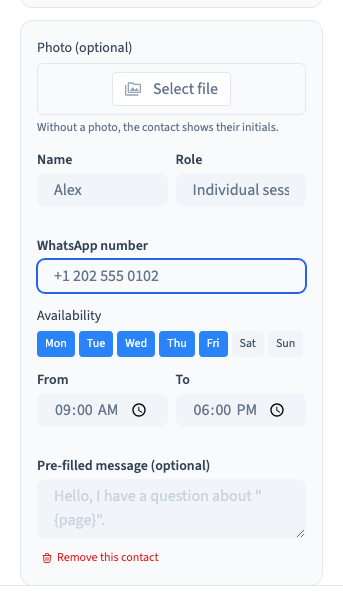
Open the WhatsApp element’s settings. Add a name, role and international number for each person. Use roles that help the visitor decide whom to contact.
2. Add availability and a message
Enter the contact’s start and end times. Set a prefilled message when the type of request is different from the widget defaults. Add a second contact if you want visitors to choose.
Could not play. Try the video controls.
3. Check each link from the generated site
Save and publish privately. Open the contact card and check every number and prefilled message. Test the hours under the conditions you expect visitors to use. In the demo the generated links are checked without sending messages.
4. Keep the display clear
Review the widget label, card title, device visibility and position so visitors can find the right contact.
See also Adjust the WhatsApp button text and where it appears.