
Check and delete a project
1. Check which project is open
Read the project name and confirm that you are in the right workspace. Review what you need to retain first, including any files, records and backups you rely on. Check public addresses and team access before deleting a live project.
2. Open the deletion confirmation
Go to Site > General and scroll to Danger zone. Click Delete project, read the consequences shown and check the project name again. Cancel if the name is different from the one you intend to remove.
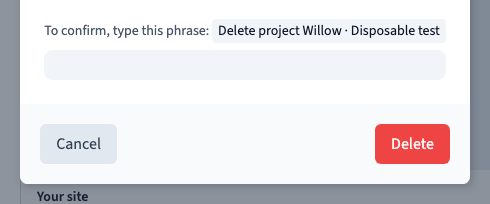
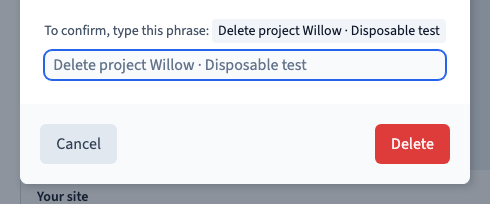
3. Type the exact phrase shown
Copy the wording shown in the confirmation, including the project name, and click Delete. A different phrase is rejected. The demonstration uses an isolated disposable project.
Could not play. Try the video controls.
4. Check the project list
After the builder closes the project, confirm that it is gone from the workspace. Review any external links that used its public address and update them where you manage them.