
Add a WhatsApp contact button to a page
Insert the contact button and confirm which number it uses on the published page.
Published on 11/15/20261. Choose where to add the button
Open the page in Design. Select the block that will contain the element, open Add > Elements, then choose WhatsApp. Open the WhatsApp element settings.
2. Set the first contact
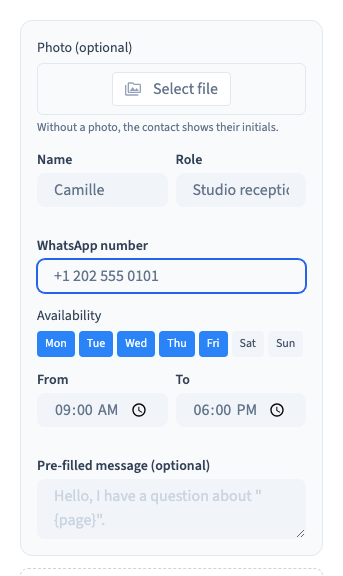
Enter the contact name, role and a number in international format. A visitor will be directed to the configured number when they select the contact.
Could not play. Try the video controls.
3. Save and test privately
Publish the test version and open it as a visitor. Check that you can open the contact card and that the link points to the intended number. The demo uses test numbers and checks the generated link.
4. Make the contact available in the right places
Review which devices and pages show the element. If you want more than one contact, set the names, hours and prefilled messages in the element settings.