
Adjust the WhatsApp button text and where it appears
Set the button wording, prefilled message, position and device visibility.
Published on 11/15/20261. Write the button and contact card text
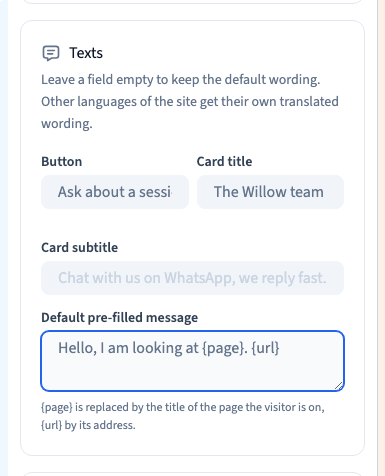
Select the WhatsApp element. Write a short button label and a clear card title. Add a default message that a visitor can edit before sending. The placeholders {page} and {url} can add context to the message. A contact with its own text uses that text.
2. Choose the side and devices
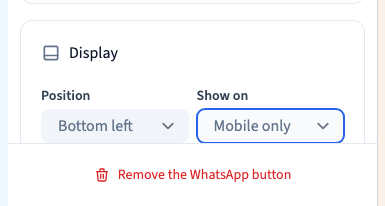
Set the widget’s position and device visibility. The demo uses the left side and mobile-only display. Check that the position leaves enough room for other controls.
Could not play. Try the video controls.
3. Compare desktop and mobile after publication
Publish privately and open the same page on each size. Check where the widget appears, open the contact card and inspect the links and prefilled text. Confirm any intentional case where the button is hidden.
See also Add a WhatsApp contact button to a page.