
Set up and test the site consent banner
1. Open the banner settings
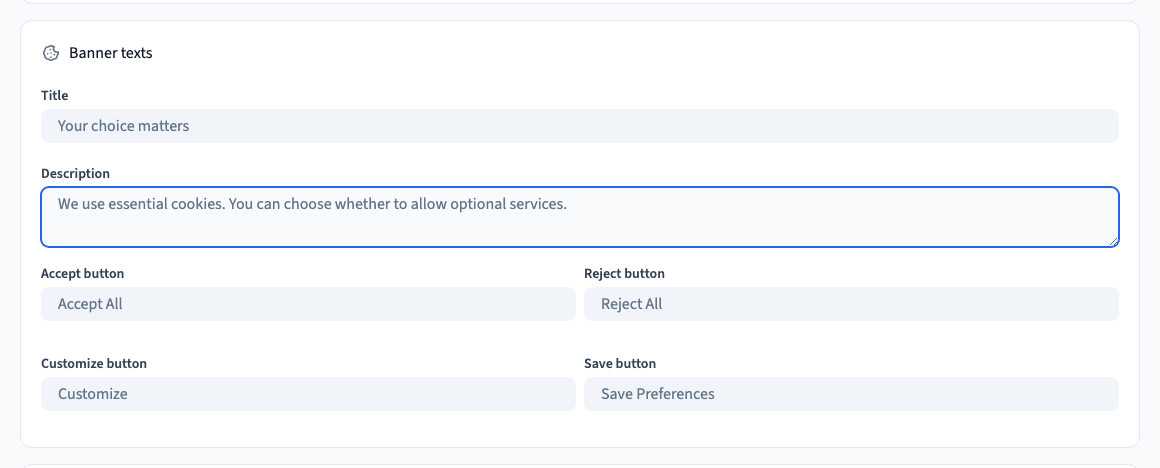
Go to Site > GDPR & Cookies. Turn on the banner. Choose its layout and write a short title and description. Explain what the site uses and what the visitor can choose. Check the button labels in the languages you publish.
2. Make each choice understandable
Give visitors clear options to accept, reject or customise optional categories. Review which services actually need consent. Keep the list and text tied to the services your site uses.
Could not play. Try the video controls.
See also Set the consent categories and cookie controls.
3. Test like a first-time visitor
Publish a private test version. In separate, fresh browser sessions, try reject, accept and a custom choice. Check the banner on desktop and mobile. Verify that an optional service waits for consent and that a reload remembers the choice.
4. Revisit the result after changes
Test again when you change categories, scripts, banner wording or published languages. Check that your privacy policy link still opens the right page.
See also Link your privacy policy and export consent records.