
Add images, galleries and file attachments
A media field stores a reference to an uploaded asset. It does not copy a photograph into a text field, and it does not decide how the public page will crop or display it.
1. Choose the field type
Use Image for a photograph, File for a more general attachment and the specialised video or audio fields where appropriate. The image selector restricts its choices to images; a video should not become a selectable cover merely because it is in the same library.
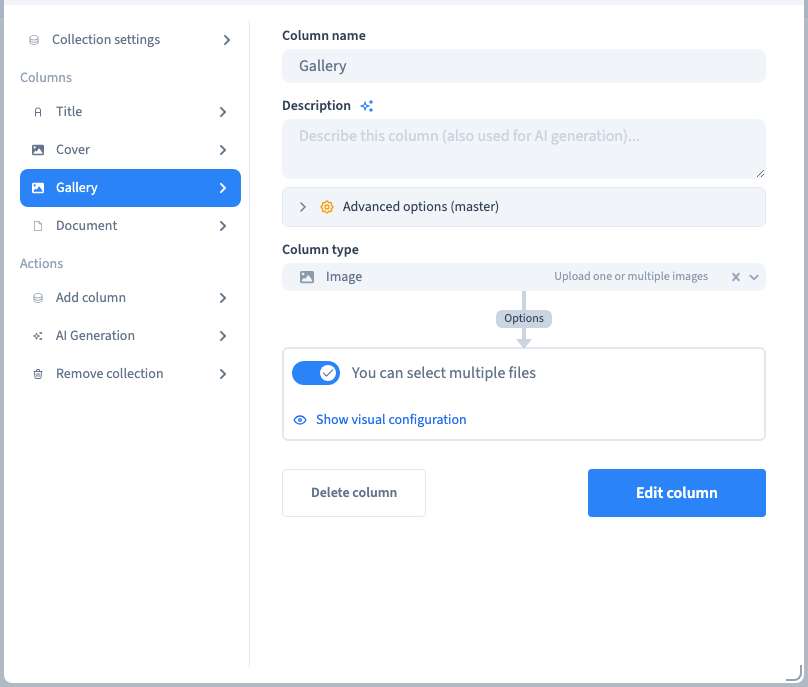
The example prepares Cover, Gallery and Document beside a journal entry's title.
2. Allow one or several files
Open Edit columns & collection, select the gallery field and enable multiple selection. Save the field and the collection structure. A single cover and a gallery have different roles even when both use image assets.
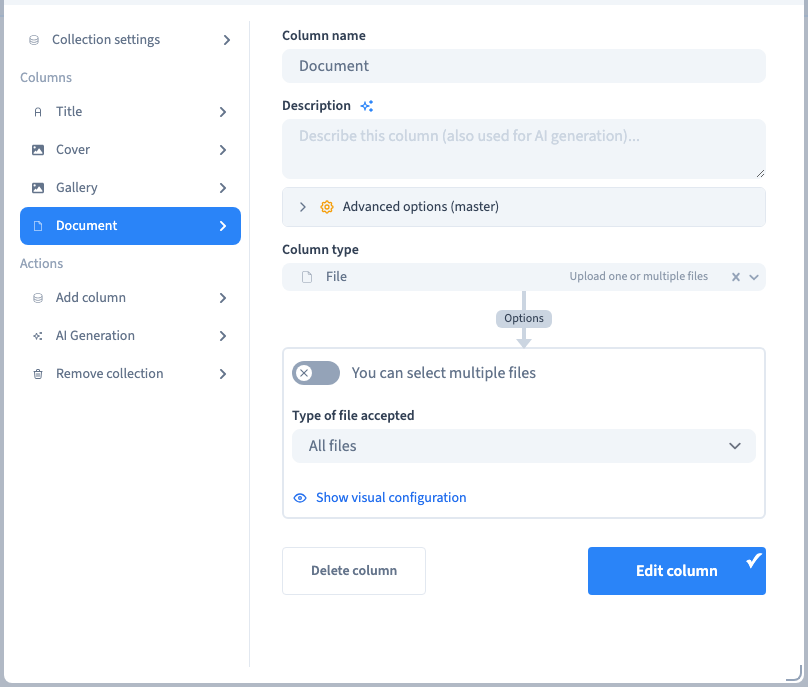
For a general File field, review its accepted file families. Restrict them to the kinds of upload that make sense for that field. Changing this setting does not convert an existing document into another format.
3. Choose assets from the library
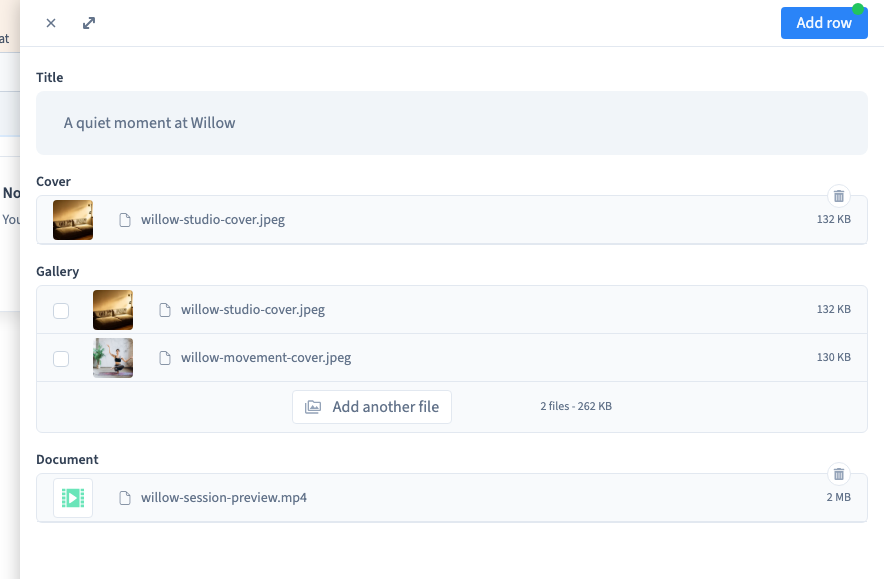
Add or edit a record. Select a photograph for Cover. In Gallery, use Add first file, then select the two photographs you need and close the asset selector to return to the same record.
For Document, choose a permitted attachment. The demonstration uses a short video file to distinguish the unrestricted File field from the image-only cover. The form retains the title entered before the selectors were opened.
Choose prepared, useful assets. Uploading a file and selecting it for a record are separate actions: a file present in the library is not necessarily attached to this entry.
Could not play. Try the video controls.

4. Save and verify the result
Save the record, reload the collection and reopen it. Check the cover, both gallery images and the document. The demonstration verifies the stored references and their persistence.
Next check a connected page: an image element needs the intended image field, while a gallery needs a presentation capable of displaying several files. An attachment field alone does not create a public download button or gallery layout.
5. Handle an empty optional field
Prepare a record without its optional image or attachment. Hide the corresponding public element or provide a deliberate fallback so that visitors do not meet a broken image or an empty download action.
Check cropping, image quality, alternative text and the published result on the actual consuming page. These choices belong to the page design and its media elements.