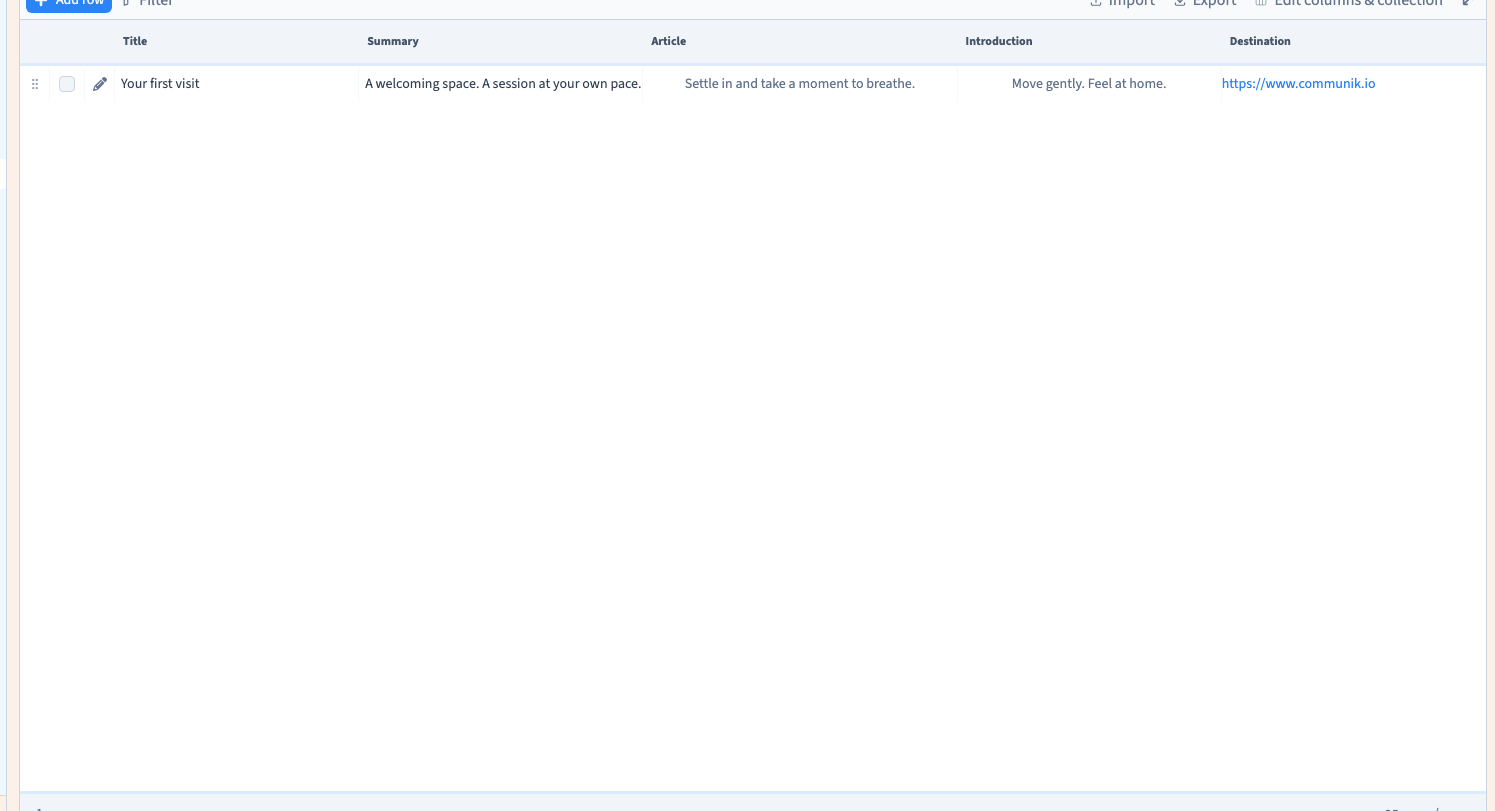
Prepare text fields and rich content
Use separate fields for information that has a separate role: a title, a summary and the main article. This makes each piece easier to reuse and translate.
1. Choose the right editor
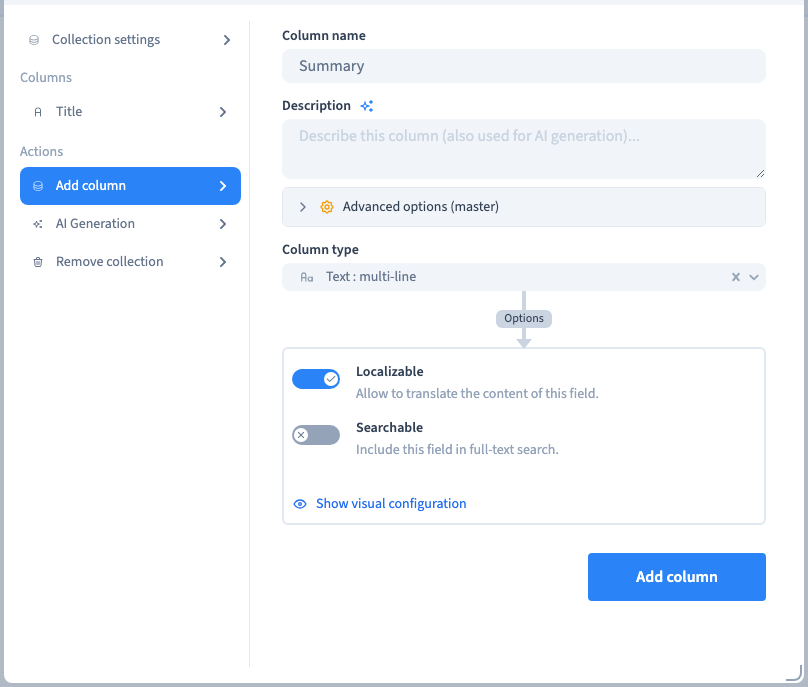
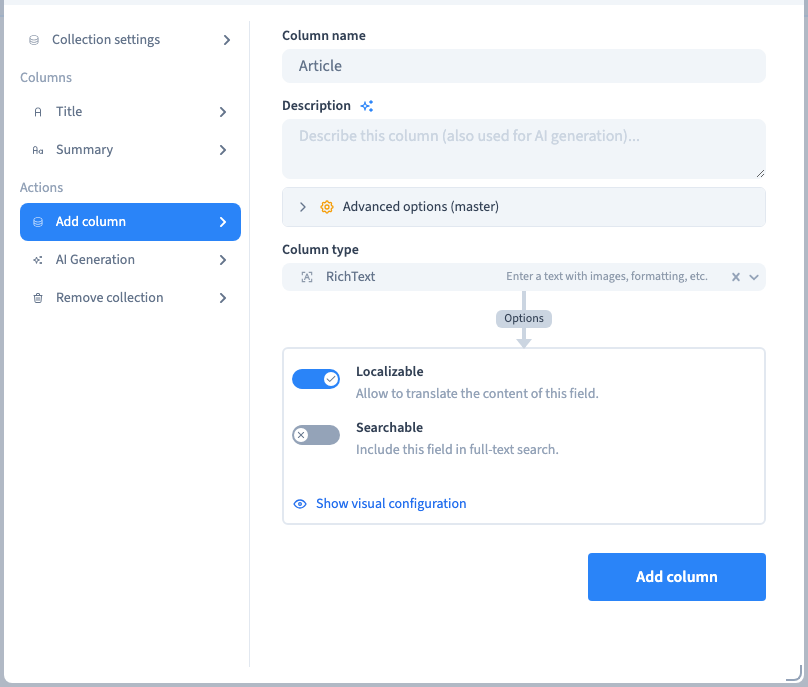
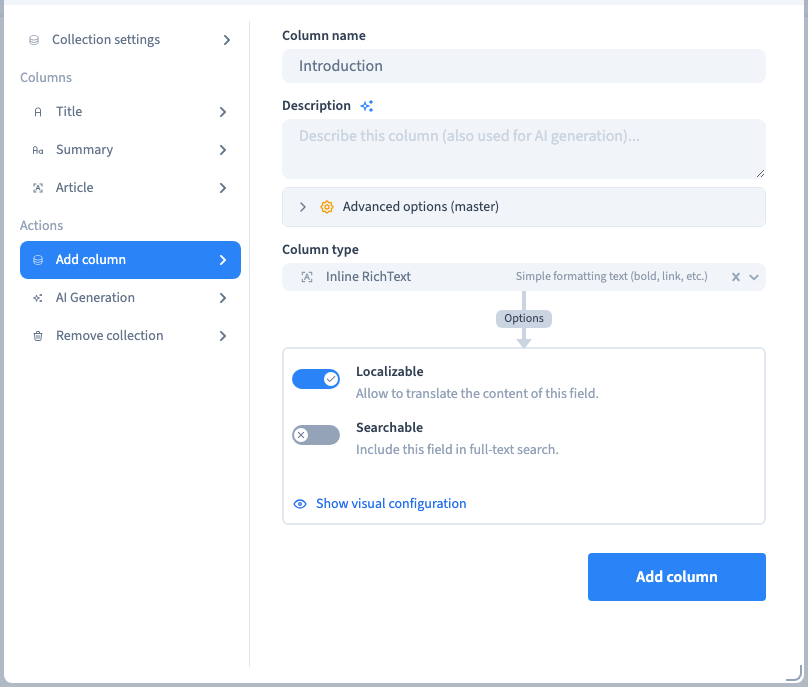
Text : single line suits a short title. Text : multi-line suits a longer plain summary. RichText supports formatted content such as paragraphs and emphasis. Inline RichText supports rich content within a shorter text flow.
Rich text stores formatting in the content. Its appearance still depends on the element and theme used to display it on the page.
2. Add and name the fields
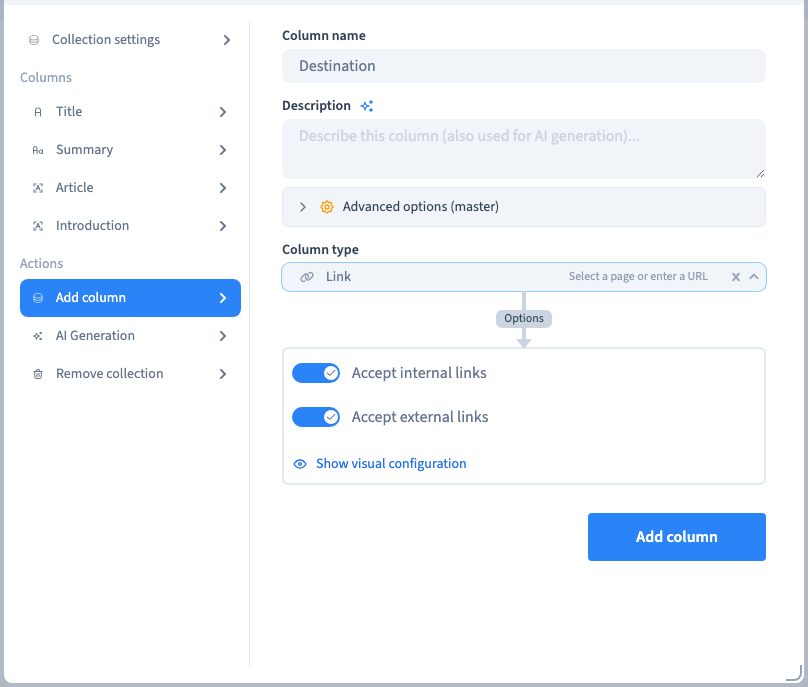
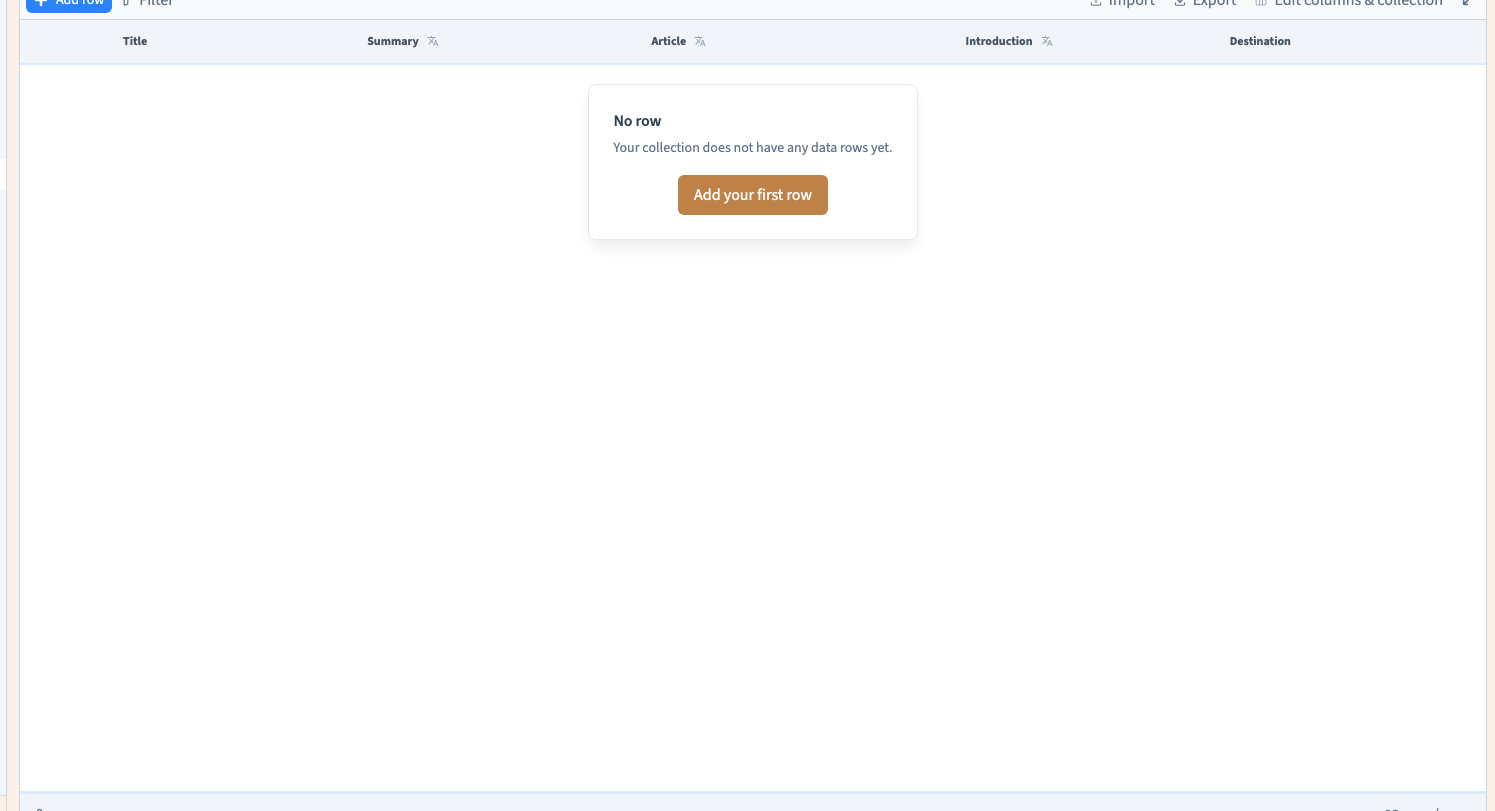
Open the collection settings and choose Add column. Enter a meaningful name, choose the type and save the column. The example prepares Summary, Article, Introduction and Destination beside the original Title.
Review the database name before creating connections. Renaming the visible label and replacing a field are different operations. To edit an existing field, select it, choose Edit column and save the structure. Changing a type in a filled collection may transform its values: export a copy and inspect representative records first.
Could not play. Try the video controls.
3. Enter plain or rich text
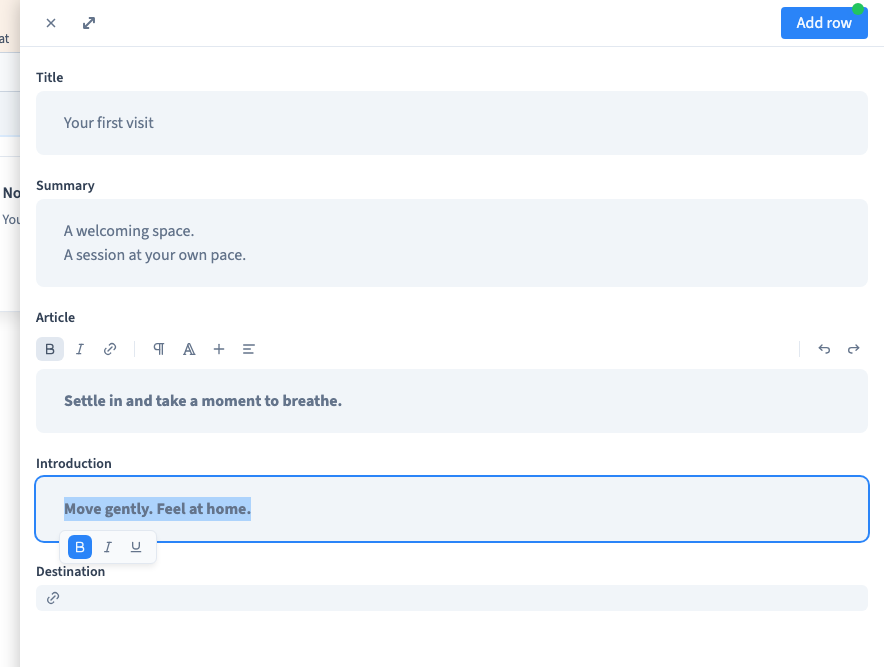
Add a record. Use the plain input for a summary. In a rich editor, select the words you want to emphasise before choosing a formatting command. Save, reopen the same record and check the stored words and emphasis.
Do not paste page layout code into an ordinary content field. Use the builder to organise the page around its content.
Could not play. Try the video controls.
4. Store a destination in a Link field
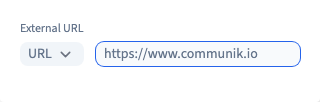
A Link field opens a destination selector rather than expecting a paragraph of text. Choose a destination and save the record as well. The text shown on a button is a separate design or content choice.
5. Prepare translation and search deliberately
Enable localisation for fields whose contents need different language versions. This permits translations; it does not translate existing words or add a site language. Choose the content language before writing its version. Changing the interface language only translates the menus. Review which fields should participate in collection search. These options have different purposes: a translatable field is not automatically a useful search field.
6. Save and inspect the consuming page
Reopen the record to check persistence, then check a connected page in preview and after publication. Look at a long title, several paragraphs and an empty optional summary. Saving CMS text does not itself prove that the page is connected correctly.
Add and edit records · Choose searchable fields