Position an element and control overlap
An offset card, a badge over an image and a menu that stays visible need different positioning behaviour. Choose the behaviour first, then adjust its distances.
1. Open positioning controls
Select the element in the page or Layers. In Expert, open Position and add the Position setting with + if it is absent. Use the visual controls; no CSS entry is needed.
2. Choose the right reference
| Behaviour | Use | Watch for |
|---|---|---|
| Static | Keep the normal position in the page. | Edge distances do not offset it. |
| Relative | Offset it from its normal position. | Its original space remains reserved. |
| Absolute | Place it inside a positioned ancestor. | It no longer reserves space in the normal layout. |
| Fixed | Position it against the viewport. | It can cover content; transformed ancestors can change its reference. |
| Sticky | Keep it in flow, then hold it while scrolling. | The threshold, ancestor and scrolling area limit its movement. |
For ordinary page structure, start with rows, columns and grids. Reserve absolute positioning for intentional overlap, such as a badge.
3. Set the edge distances
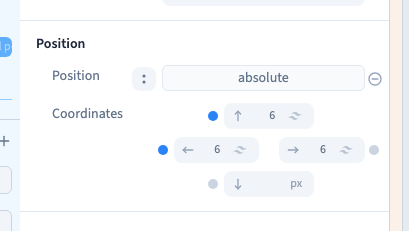
With Relative, use Coordinates to offset the element. A top distance moves it down from its normal position; a left distance moves it right. Start small and watch the result.
For Absolute, also select its container and give that container Relative positioning. It becomes the reference when no closer positioned ancestor intervenes. Set the overlay's edge distances deliberately. Avoid fixing all four edges and a rigid size without a clear reason.
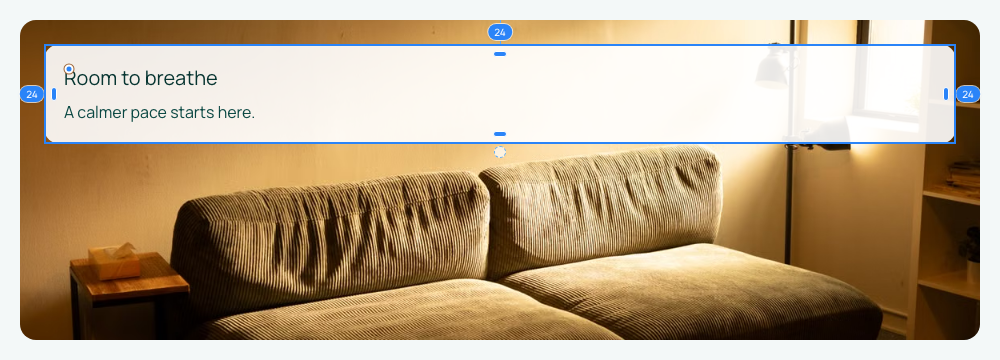
The example compares relative, fixed and sticky settings before placing a panel over its image. For sticky behaviour, set the upper threshold and actually scroll the page; choosing Sticky alone does not guarantee a permanently visible element.
Could not play. Try the video controls.

4. Choose what appears in front
In Layout, add Z-index. A higher value can place an element above another within the same stacking context. It changes stacking rather than position.
If a very high number has no effect, inspect ancestors. Transforms and opacity can create independent stacking contexts. Increasing the number repeatedly cannot escape every parent context.
5. Check each screen
Test scrolling and links in the visitor preview, then compare desktop, tablet and phone. An overlay that looks fine on desktop can cover a phone heading. Add a screen rule where needed and keep essential content in a flexible layout.
The positioning mode chooses the reference, coordinates set the distances and Z-index controls overlap.