
Set a child size and position in a row or column
In a flexible row or column, the parent organises its children. Each child can then adjust how it uses available space and aligns within that layout.
1. Select a direct child
In Expert, open Layers and select a direct child of the row or column. Add the flexible-item setting in Layout item if needed, then open its sub-editor.
Selecting the parent changes the shared layout. Selecting an element nested inside a child gives controls for that other parent instead. The demonstration first makes the card a flexible column, then selects its heading.
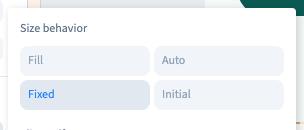
2. Choose sizing behaviour
| Displayed choice | Behaviour |
|---|---|
| Fill | Share free space with other children configured to fill |
| auto | Start from content size, then allow growing or shrinking |
| Fixed | Prevent automatic growing and shrinking |
| initial | Start from content and allow shrinking if needed |
Choose the buttons in the sub-editor. You do not need to type their internal values. In a column, available space is measured vertically; in a row it is measured horizontally. Allowing growth may make little visible difference when no free space remains.
Could not play. Try the video controls.
3. Set individual alignment
Choose start, centre, end or stretch as offered in the sub-editor. This acts on the cross axis: usually vertical for a row and horizontal for a column. Use parent alignment when all children should behave alike.

4. Use visual order carefully
When order controls are offered, they change the child's visual position. They do not necessarily rewrite the content order in the page. The demonstration moves the heading visually to the end, then returns to automatic order.
For a lasting reading-order change, move elements in the structure instead. Forms and navigation should remain understandable with a keyboard and on small screens.

5. Remove an exception and compare
Remove the active value or choose automatic alignment to recover the parent's behaviour. Compare widths afterwards: a child that cannot shrink may overflow a narrow row.