
Span and align an element in a grid
To make a card wider within a grid, select the card itself. The parent defines columns; the child chooses how much of that grid it occupies.
1. Check the parent
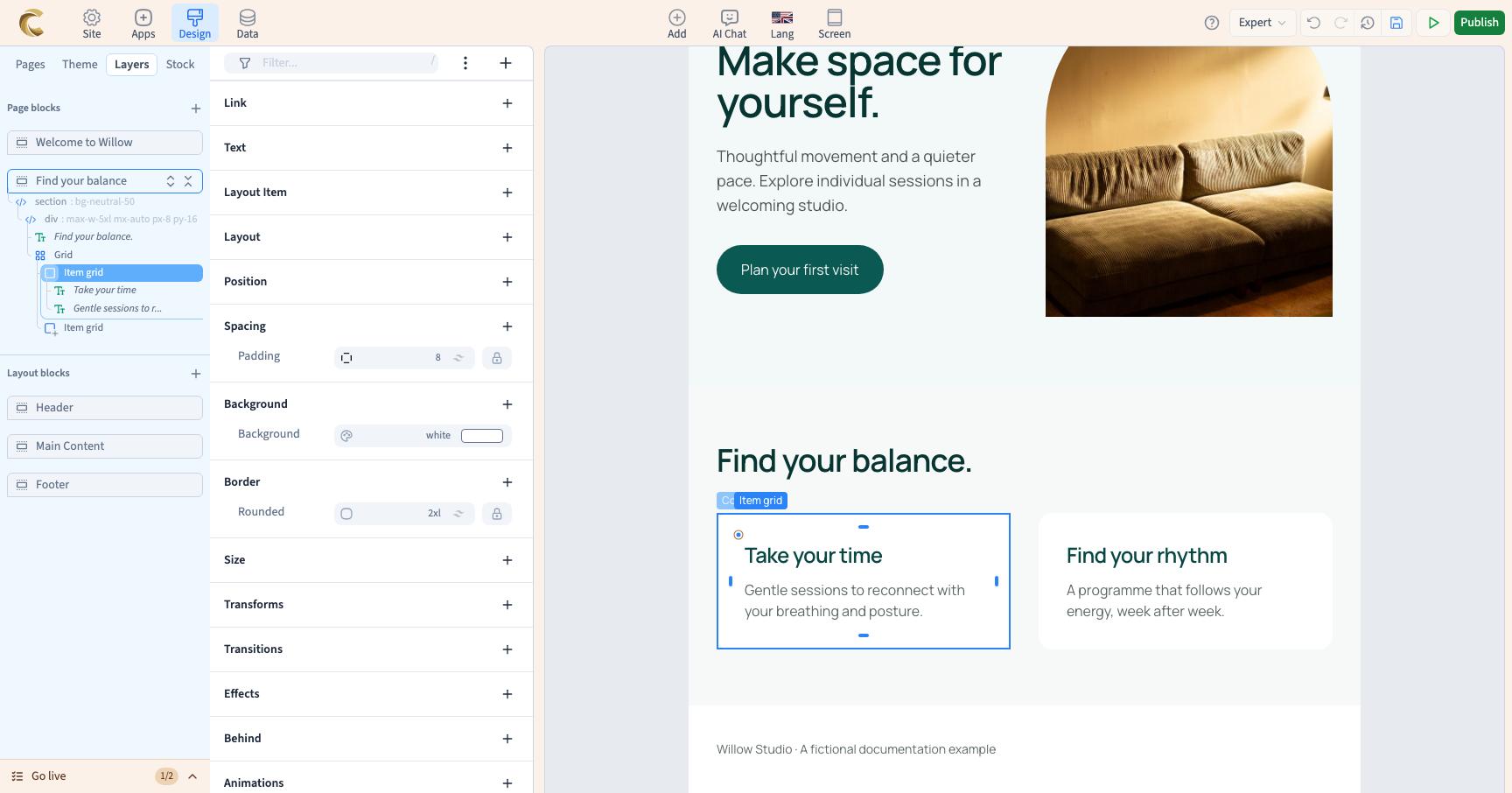
In Layers, find the grid and select a direct child. In Expert, Layout item offers settings appropriate to that parent. If the grid control is absent, check that the real parent uses Grid. A more deeply nested element may have a different parent.
2. Occupy several cells
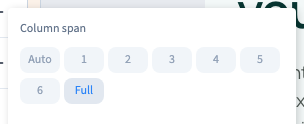
Add the grid-item setting if needed and open its sub-editor. Choose how many columns to span, or Full to occupy the entire row. Other cards rearrange around the choice; the parent's column count does not change.
The sub-editor also offers row spans. Their visible effect depends on row height and the content present. The demonstration spans the full row, then two rows, while retaining both cards.
Could not play. Try the video controls.
3. Align only this card
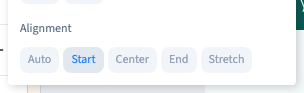
In the same sub-editor, choose the child's alignment within its grid area: start, centre, end or stretch as offered. This affects this card. Use the parent grid's alignment to change every card together.
4. Return to automatic placement
Choose Auto to let the grid place the card without an imposed span. You can also remove an active value using the selector's removal control.
Column span, row span and alignment are separate choices. Return each to automatic if you want to recover the parent's behaviour fully.
5. Check other widths
A two-column span suitable on desktop may be unsuitable in a one-column mobile grid. Compare widths and use a screen rule when the span should change.
The shown sub-editor offers spans and alignment. Do not look for line-start or line-end buttons if they are not displayed. An internal setting in source code does not guarantee a corresponding command in this panel.